AI Invoice Creator: Instant Billing from Natural Language
⚡ AI Invoice Creator: Streamlined Sales Invoicing with Natural Language
Creating sales invoices from open customer sales orders is a critical daily operation for manufacturing and distribution businesses. Traditionally, billing teams spend valuable minutes searching for sales order numbers, selecting individual line items, verifying pending quantities, checking pricing, and ensuring proper tax calculations.
With ERP Crystal – Symphony, we are excited to introduce the AI Invoice Creator (/aiinvoicecreate)—a fast, prompt-driven assistant that turns natural language instructions into complete, audit-ready sales invoices in seconds.
🚀 What is AI Invoice Creator?
The AI Invoice Creator utilizes intelligent language understanding to parse your intent, query open sales orders, populate customer billing details, apply the correct GST tax rates (CGST, SGST, IGST), and present a rich, editable preview before finalizing the transaction.
Whether you need to bill a single order, specific line items, or combine multiple sales orders for the same customer into a single consolidated invoice, AI Invoice Creator handles the complexity automatically.
🌟 Key Highlights & Capabilities
- 🗣️ Natural Language Prompting: Simply type what you want to bill (e.g.,
Make Invoice for order = 000123). - 🎯 Multi-Order & Item-Level Precision: Bill full orders, combinations of orders, or specific item codes within orders.
- 🔍 Automated Order & Backlog Lookup: Automatically retrieves customer details, delivery terms, billing/shipping addresses, and pending balances from open sales orders.
- 📊 Dynamic GST Tax Computation: Automatically determines intra-state vs. inter-state tax splits (CGST + SGST vs. IGST) based on customer GSTIN and state configuration.
- 📦 Real-Time Stock Validation: Validates physical and book stock availability in real time, preventing inadvertent negative stock entries.
- ✏️ Interactive Live Preview: Inspect and edit quantities, item state (Good vs. Rejected), unit prices, discounts, and logistics info directly on the preview screen.
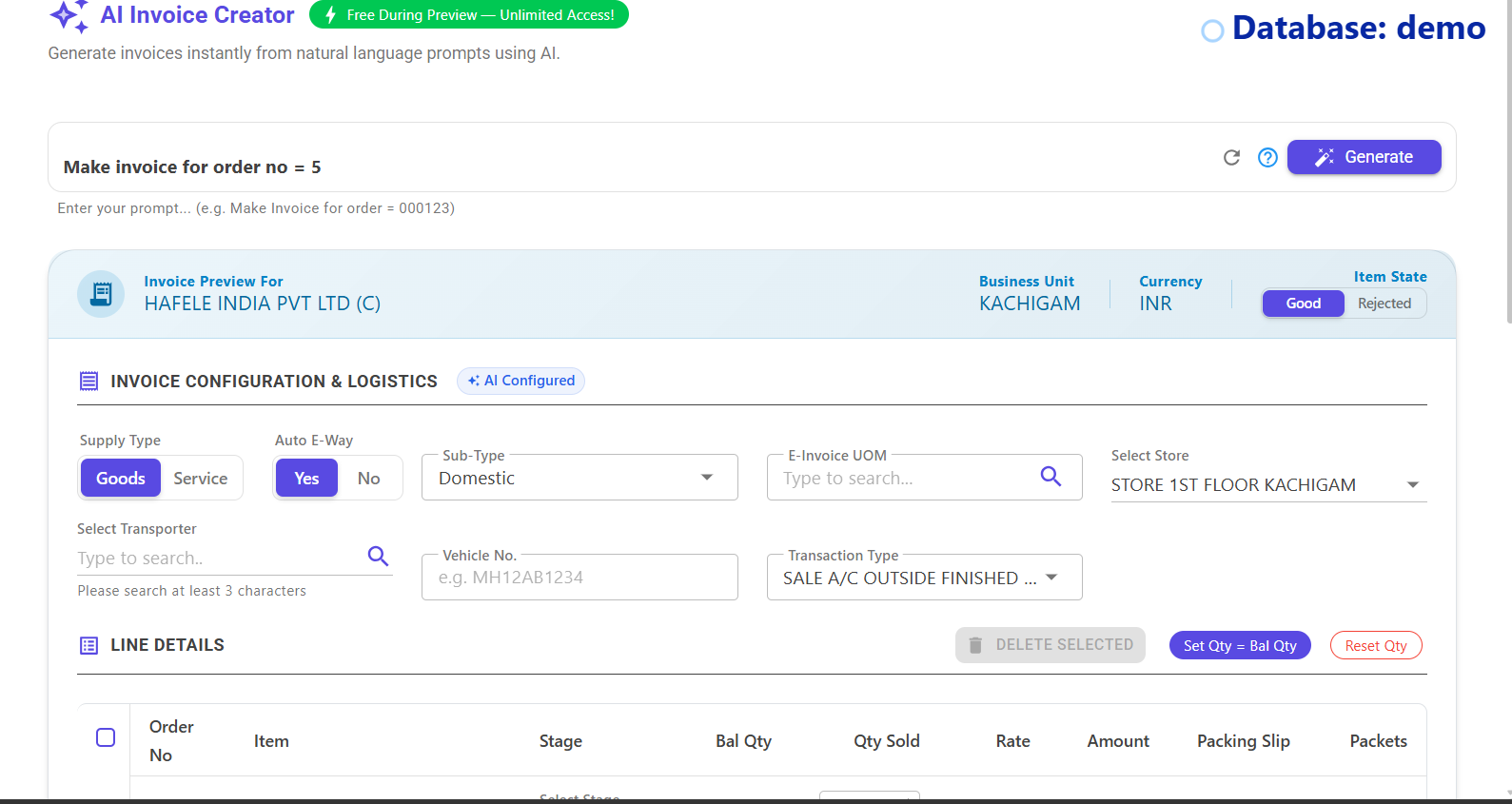
📸 Interface Overview
📖 Step-by-Step User Guide
1. Navigate to AI Invoice Creator
From the main navigation menu in ERP Crystal Symphony, go to Sales > AI Invoice Creator (or access /aiinvoicecreate).
2. Enter Your Prompt
In the modern prompt input bar at the top of the page, describe the invoice you wish to generate.
Practical Prompt Examples:
- Single Sales Order:
Make Invoice for order = 000123 - Specific Item from an Order:
Make Invoice for order = 000123 and item id = 000456 - Multiple Sales Orders for a Customer:
Make Invoice for order = 000123, 000456 - Multi-Order with Specific Items:
Make Invoice for order = 000123, item id = 000456 and order = 000456, item id = 000123
Click the Generate button (or press Enter) to run the AI engine.
3. Review the Live Invoice Preview
Within seconds, ERP Crystal Symphony builds and displays a comprehensive invoice draft:
- Customer & Unit Header: Displays the customer name, business unit, billing currency, and current financial year.
- Item State Toggle: Quickly switch line item conditions between Good and Rejected goods.
- Line Items Table:
- Item description & Item ID
- Order quantity vs. Pending order backlog
- Billed quantity (editable in real time)
- Unit price, discount percentages, and taxable amount
- HSN code and applicable GST percentage
- Tax & Charges Summary: Clear breakdown of Taxable Value, CGST, SGST, IGST, Round-off, and Net Invoice Total.
4. Add Dispatch & Transport Information
Expand the transport and logistics section to optionally enter:
- Transporter Name & ID
- LR / Bilty Number & Date
- Vehicle Registration Number
- Place of Supply & Delivery Terms
5. Verify & Create the Invoice
Once you have reviewed the line items and dispatch information:
- Click Create Invoice.
- The system runs real-time stock verification against current inventory balances.
- Upon validation, the invoice is immediately posted into the system, generating the official Invoice Number and updating sales order pending balances automatically.
💡 Best Practices & Pro Tips
- Partial Invoicing: If you are dispatching a partial quantity, simply adjust the quantity field on the preview table before clicking Create Invoice. The remaining balance remains open on the original Sales Order.
- Prompt Reset: Click the Refresh icon next to the prompt bar anytime to clear the current draft and start a new prompt.
- Multi-Order Consolidation: When specifying multiple orders in a single prompt, ensure all specified sales orders belong to the same customer and business unit.
🎯 Summary
The AI Invoice Creator significantly reduces manual data entry, cuts down invoice creation time from minutes to seconds, and eliminates human errors during sales order fulfilment.
Try it out today in ERP Crystal Symphony and experience next-generation, prompt-assisted enterprise billing!