Opening Outstanding
Opening Outstanding Master - User Guide
1. Introduction 📝
The Opening Outstanding Master (OpgOs) is designed for “Bill-wise” financial tracking. While the Opening Balance records your total ledger value, the Opening Outstanding records every individual unpaid invoice or bill from the previous year. This allows the system to accurately track which specific bills are still pending and calculate their age (Aging Analysis).
Key Objectives of Opening Outstanding:
- Bill-by-Bill Tracking: Link future payments and receipts to specific old invoices.
- Aging Accuracy: Provide precise “Overdue” reports based on original bill dates and due dates.
- Audit Integrity: Maintain a clear paper trail for balances migrated from legacy systems.
The Index Page
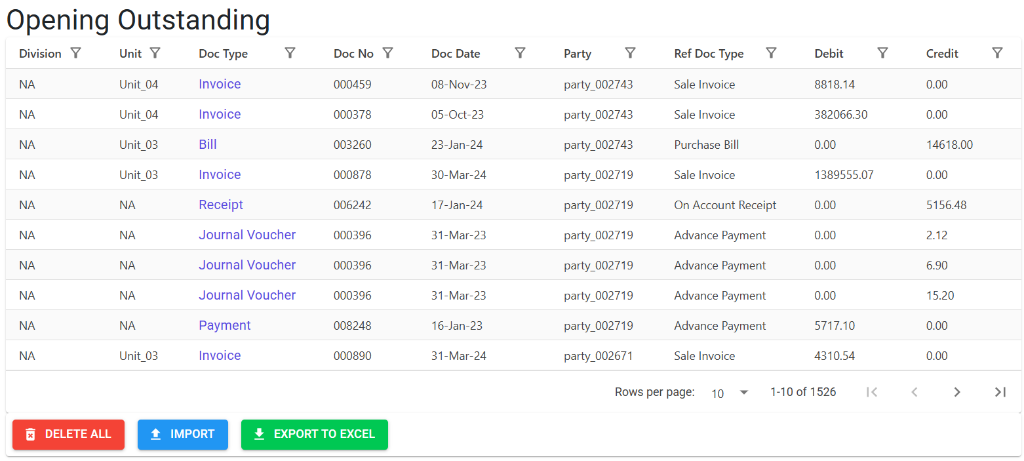
The Opening Outstanding Index provides a detailed bill-by-bill breakdown of all unpaid transactions from previous years. It summarizes key information such as division, document type, party name, and the specific debit or credit values.
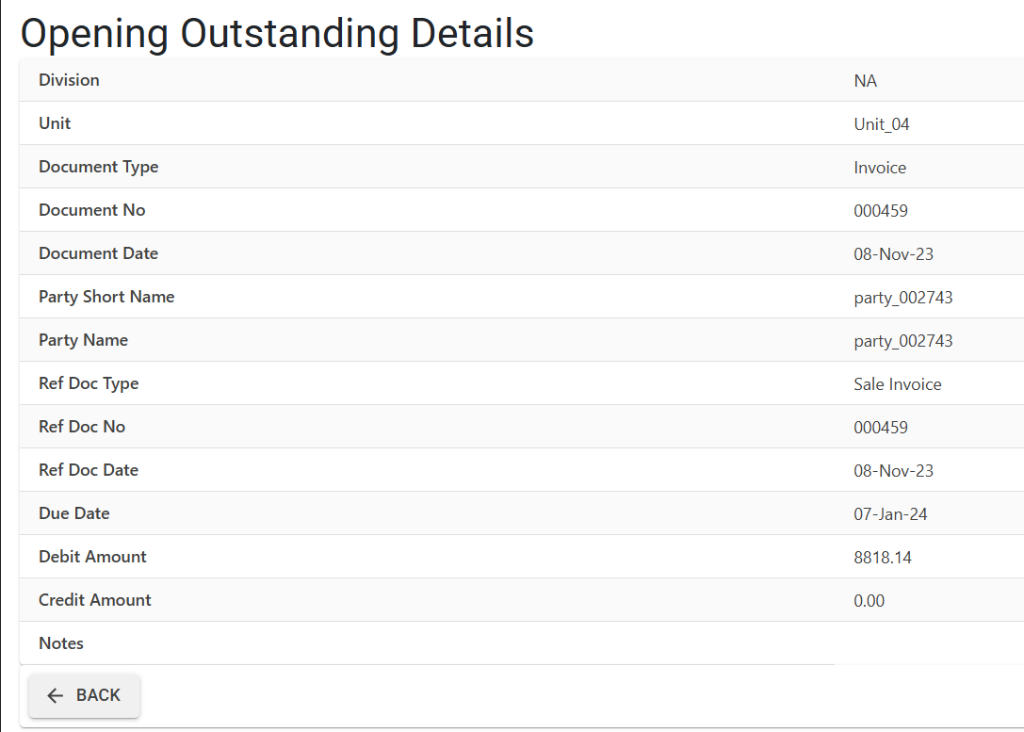
Opening Outstanding Details
Clicking on a document type or number opens the Details View, which contains the full audit trail for the outstanding bill:
- Structural Breakdown: Understand how the entry is categorized.
- Document Type: Identifies the nature of the entry (e.g., Invoice, Bill, Payment).
- Reference Document Type: Identifies the original source (e.g., Sales Invoice, Purchase Bill, Advance).
- Time & Priority: View the original Doc Date, Ref Doc Date, and the critical Due Date used for aging analysis.
- Financial Tracking: Monitor the precise Debit or Credit amounts as they are allocated to specific units and divisions.
- Management Actions: Use buttons to Import new data, Export to Excel, or Delete All records for a clean reset.
3. Core Data Fields 📋
- 📅 Ref Date & Doc Date: The date the original transaction occurred.
- ⏳ Due Date: The deadline for payment. The system uses this to calculate “Overdue Days” in reports.
- 🔗 Main A/c & Sub A/c: The 6-digit codes linking the outstanding amount to a specific Customer or Vendor.
- 🏢 Division & Unit: Allocation to the specific branch or factory unit.
- 💰 Amount & Dr/Cr: The value of the outstanding item.
4. Bulk Import (Excel) 📥
Migrating thousands of unpaid bills manually is impossible. The OpgOs Import tool handles this via a structured Excel workflow:
- Download template: Get the 14-column model from the import screen.
- Fill Data: ensure dates are in
dd-MMM-yyformat. - Upload & Validate: The system performs deep logic checks before saving.
🛡️ Critical Validations & Errors
The system will provide an error sheet if it finds any.
5. Daily Usage & Reporting 🔄
📊 Aging Analysis
- Navigation: Finance > Reports > AR/AP Reports > Aging
- Purpose: The data entered in
OpgOsis the soul of this report. It groups your outstanding into buckets like “0-30 Days,” “31-60 Days,” etc., based on the Due Date provided here.
💸 Bill Adjustment
When you record a new Receipt Voucher for an old customer, the system will show you the list of OpgOs bills. You can specify exactly how much of the payment applies to which old invoice.
6. Guidelines and Best Practices ⚠️
- Total Reconciliation: Your total Opening Outstanding for a party must exactly match their Opening Balance. If OpgOs is 10,000 but OpgBal is 12,000, your aging reports will show an “Unadjusted Balance” of 2,000.
- Notes Field: Use the 200-character notes field to record internal comments like “Disputed amount” or “Partially paid on old system.”
7. Deletion & Modification 🛡️
- Bulk Clear: You can delete all outstanding entries for a specific Year Label to perform a clean re-migration.
- Post-Migration: Once payments start being adjusted against these opening bills, the records become “locked” and cannot be modified or deleted without reversing the subsequent payments.
8. Migration Tips 💡
- Standardize Formats: ensure your “Ref No” matches the physical invoice number exactly for easy cross-referencing.
- Verify Account Hierarchy: Double-check that your Main/Sub account codes match the Party Master exactly.
- Audit First: Always run a “Trial Balance vs. Outstanding” comparison immediately after import to ensure 100% data consistency.