AI Bank Reconciliation (Free Preview)
1. Introduction 🤖🏦
The AI Bank Reconciliation module automates the historically manual and time-consuming task of matching bank statements against your internal ERP financial records. Instead of line-by-line verification across spreadsheets and ledgers, the AI reconciliation engine compares transaction amounts, cheque/UTR references, narration texts, and transaction dates to automatically compute clearance dates (Value Dates) and match confidence scores.
At a Glance:
| Attribute | Details |
|---|---|
| Navigation Path | Finance > Transactions > AI Bank Reconciliation (Free Preview) |
| Accepted Input | Bank Statement in Excel (.xlsx), Max size 1 MB |
| Output Generated | Auto-downloaded Excel workbook (AI_Bank_Reco_Result.xlsx) formatted for instant import |
| Primary Beneficiaries | Treasury Officers, Accounts Payable/Receivable Teams, Finance Controllers, Auditors |
2. End-to-End Workflow 🔄
The diagram below illustrates how an external bank statement moves from upload to final ERP ledger clearance:
flowchart LR
    A["Bank Portal
(Download .xlsx)"] --> B["Prepare Statement
(Clean Headers)"]
    B --> C["AI Bank Reco Page
(Upload & Select Bank)"]
    C --> D["AI Matching Engine
(Cheque, Narration, Amount)"]
    D --> E["Download Result
(AI_Bank_Reco_Result.xlsx)"]
    E --> F["Standard Bank Reco
(Click 'Bank Reco Upload')"]
    F --> G["Ledgers Cleared &
BRS Generated!"]

    style C fill:#e0e7ff,stroke:#6366f1,stroke-width:2px
    style D fill:#ede9fe,stroke:#8b5cf6,stroke-width:2px
    style E fill:#ecfdf5,stroke:#10b981,stroke-width:2px
    style G fill:#fef3c7,stroke:#f59e0b,stroke-width:2px
3. Prerequisites & Access Controls 🔐
Before using AI Bank Reconciliation, ensure the following requirements are met:
- User Role Permission: Your user role must have authorized access to the Bank Reconciliation feature.
- AI Feature Entitlement: Feature Code
004(AI Bank Reconciliation) must be activated for your company database. If you see a “Please Contact System Administrator” banner, reach out to your administrator to enable AI features. - AI Credits: An active balance of AI processing credits must be available.
Note
AI credits are only deducted upon successful completion of the reconciliation. If no records are found or an error occurs during validation, zero credits are consumed.
4. Interface Overview 📸
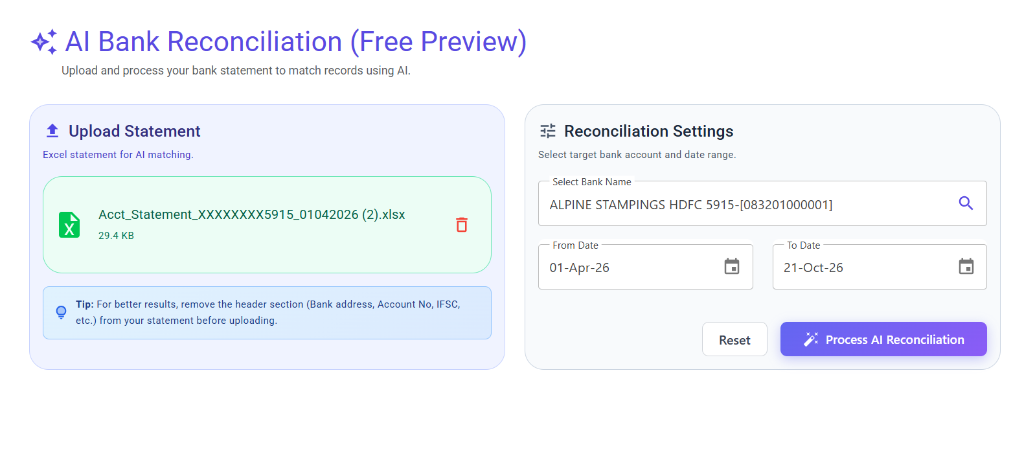
The AI Bank Reconciliation interface is structured into two intuitive panels:
- Left Card (Indigo): Dedicated to statement file ingestion and upload verification.
- Right Card (Slate): Dedicated to selecting the ERP bank ledger, filtering the transaction date range, and initiating the AI matching engine.
5. Step-by-Step User Guide 🚀
Step 1: Prepare the Bank Statement File
Export your bank statement directly from your net banking portal in Excel (.xlsx) format.
- Mandatory Columns: Ensure your worksheet includes columns for Date, Narration / Description, Withdrawal (Debit), Deposit (Credit), and Balance.
- File Format: Only
.xlsxfiles up to 1 MB are accepted. (Convert.csvor.pdffiles to.xlsxbefore uploading).
Statement Cleaning Tip for Maximum Accuracy: Most bank statements include several introductory lines at the very top (such as Bank Logo, Branch Address, Account Holder Name, Account Number, IFSC code, and Opening Balance).
For best results, delete those header lines so that the first row of the sheet contains the column names (Date, Description, Debit, Credit, etc.).
Step 2: Access AI Bank Reconciliation & Upload Statement
- Navigate to Finance > Transactions > AI Bank Reconciliation (Free Preview) (or go to
/airecobankoption). - In the Upload Statement card, drag and drop your
.xlsxbank statement or click the dashed upload area to browse. - Once selected, the upload box displays a green confirmation card showing:
- Excel Icon & File Name (e.g.,
Acct_Statement_XXXXXXXX5915_01042026.xlsx) - Calculated File Size (e.g.,
29.4 KB) - Delete Button (Trash Icon) to clear or replace the file whenever needed.
- Excel Icon & File Name (e.g.,
Step 3: Select Bank Ledger and Date Range
In the right-hand Reconciliation Settings card:
- Select Bank Name:
- Type in the search box to search your ERP Bank Accounts by name or account code.
- Select the target bank ledger (e.g.,
ALPINE STAMPINGS HDFC 5915-[083201000001]).
- From Date & To Date:
- Set the reconciliation window to match your statement period.
- The dates default to the active Financial Year.
- Use the calendar picker or click the quick Today button to auto-populate today’s date.
Step 4: Execute AI Reconciliation
- Once the statement file is uploaded and the bank account is selected, the gradient Process AI Reconciliation button becomes active.
- Click Process AI Reconciliation.
- The system validates:
- Selected bank ledger and financial year date range.
- Active AI credit balance.
- Open unreconciled ERP ledger entries for that period.
- During execution, an animated progress bar displays live status messages:
Validating...Running AI matching logic...
Notice on “No Unreconciled Records”: If the system displays a warning snackbar “No unreconciled system records found for the selected criteria”, verify that:
- Uncleared payment or receipt vouchers exist within the chosen date range.
- Vouchers have not already been cleared with a Value Date in the standard Bank Reco module.
Step 5: Review the Reconciled Result Workbook
Upon successful processing, a success snackbar appears: “AI Reconciliation completed successfully!”, and your browser automatically downloads the result workbook:
📁 AI_Bank_Reco_Result.xlsx
This generated workbook contains a pre-filled Bank_Reco_Model sheet with 11 standardized columns:
| Column # | Column Name | Description |
|---|---|---|
| 1 | Voucher Id | (Hidden) Internal tracking key used by ERP Crystal to link clearance dates directly to vouchers. |
| 2 | Voucher No | Internal ERP Voucher Number (e.g., PM-000124). |
| 3 | Voucher Date | Date the entry was recorded in ERP books. |
| 4 | Cheque No | Instrument number or electronic transaction reference. |
| 5 | Cheque Date | Instrument / payment date. |
| 6 | Account Name | Customer, vendor, or expense ledger account name. |
| 7 | Amount | Transaction monetary value. |
| 8 | Voucher Type | Payment (matched with bank withdrawals) or Receipt (matched with bank deposits). |
| 9 | Value Date | Populated Bank Clearance Date. If matched, displays the bank statement date; if unmatched, remains 01-Jan-01. |
| 10 | Match Basis | Explains the exact logic used to link the entry (see matching tiers below). |
| 11 | Confidence | Visual color-coded confidence rating. |
Understanding Match Basis & Confidence Badges
| Confidence Badge | Fill Color | Match Basis | Interpretation |
|---|---|---|---|
| High | 🟢 Green | Cheque & Amount Match | Cheque/UTR reference number matched (including trimmed leading zeros) with identical amount. |
| High | 🟢 Green | Narration & Amount Match | Exact party/ledger name found within statement narration with identical amount. |
| Medium | 🟠 Orange | AI Decision Match | Fuzzy semantic AI matched party name abbreviations or tokenized narratives with identical amount. |
| Medium | 🟠 Orange | Amount and Date Match | Identical amount and transaction date without distinct reference matches. |
| Low | 🔴 Red | No Match | Entry exists in ERP but was not found on the bank statement. Value Date remains 01-Jan-01. |
Step 6: Complete Reconciliation in ERP (One-Click Import)
The downloaded AI_Bank_Reco_Result.xlsx file is already in the exact format required by ERP Crystal’s standard Bank Reconciliation module. You can apply all cleared dates in seconds:
- Navigate to Finance > Transactions > Bank Reconciliation (
/bankreco). - Select the same Bank Ledger and Date Range.
- Click the Bank Reco Upload button on the toolbar.
- Select your downloaded
AI_Bank_Reco_Result.xlsxfile. - The system imports and updates all Value Dates immediately!
- Click Print to generate your official statutory Bank Reconciliation Statement (BRS).
6. How the AI Matching Engine Works 🧠
The engine uses a deterministic-to-fuzzy multi-pass pipeline to ensure high accuracy without manual intervention:
flowchart TD
    Start["Unreconciled System Vouchers + Bank Statement Rows"] --> Stage1["1. Amount Validation
(Payments ↔ Debits, Receipts ↔ Credits)"]
    Stage1 --> Stage2{"2. Cheque / UTR Match?
(Direct or Trimmed Leading Zeros)"}
    Stage2 -- Yes --> HighMatch1["High Confidence: Cheque & Amount Match"]
    Stage2 -- No --> Stage3{"3. Narration / Account Name Match?"}
    Stage3 -- Yes --> HighMatch2["High Confidence: Narration & Amount Match"]
    Stage3 -- No --> Stage4{"4. AI Semantic Decision Match?
(Abbreviated names, UTR tokens)"}
    Stage4 -- Yes --> MedMatch1["Medium Confidence: AI Decision Match"]
    Stage4 -- No --> Stage5{"5. Same Date & Amount?"}
    Stage5 -- Yes --> MedMatch2["Medium Confidence: Amount & Date Match"]
    Stage5 -- No --> Unmatched["Low Confidence: No Match (01-Jan-01)"]
7. Troubleshooting & Common Error Messages ⚠️
| Message / Issue | Why It Occurs | Recommended Solution |
|---|---|---|
| “Please Contact System Administrator” | AI Feature Code 004 is disabled in company configuration. | Contact your administrator to enable AI features in company entitlements. |
| “Only Excel (.xlsx) files are allowed.” | An unsupported file format (.xls, .csv, .pdf) was uploaded. | Save or convert your bank statement to modern Excel format (.xlsx) and re-upload. |
| “File size exceeds the 1MB limit.” | Uploaded statement file size is larger than 1 MB. | Split your statement into monthly or quarterly batches, or delete unused sheets and styling. |
| “AI credits are exhausted. Please contact Admin.” | Organization’s balance of AI processing credits has reached zero. | Purchase or allocate additional AI credits through your account administrator. |
| “No unreconciled system records found for the selected criteria.” | No open vouchers exist in the ERP for that bank and period. | Verify that vouchers exist for the date range and have not already been cleared with Value Dates. |
| Date Range Validation Error | Selected dates cross outside the active financial year boundary. | Adjust From Date and To Date to strictly lie within the active financial year. |
8. Best Practices for High Accuracy 💡
- Keep Column 1 Intact: Never edit or delete Column 1 (
Voucher Id) in the downloaded result file; ERP Crystal requires this hidden key for bulk database updates. - Review Medium Confidence Rows: Before uploading to standard Bank Reco, open the result workbook and quickly filter Column 11 for Medium confidence items to verify any ambiguous entries.
- Routine Cadence: Run AI Bank Reconciliation weekly or fortnightly. Shorter timeframes prevent transaction backlogs and minimize date drift.
- Consistent Cheque Numbers: Ensure physical cheque and electronic transaction reference numbers are recorded accurately during voucher entry in ERP.