Bank Reconciliation (Bank Reco)
Bank Reconciliation Module - User Guide
1. Introduction 📝
The Bank Reconciliation (Bank Reco) module is a critical financial control tool used to harmonize the company’s book balances with actual bank statements. It allows users to track the “Clearance” of cheques and electronic transfers by assigning a Value Date (Reco Date) to each transaction, effectively bridging the gap between transaction entry and actual bank processing.
ℹ️
In the overall business flow:
- Identifies Unpresented Cheques (issued but not yet debited).
- Tracks Uncleared Deposits (received but not yet credited).
- Produces the Bank Reconciliation Statement (BRS) to explain the difference between Book and Bank balances.
Typically, this module is used by Finance Managers, Senior Accountants, and Auditors.
2. Getting Started with Bank Reco 🚀
Accessing the Module
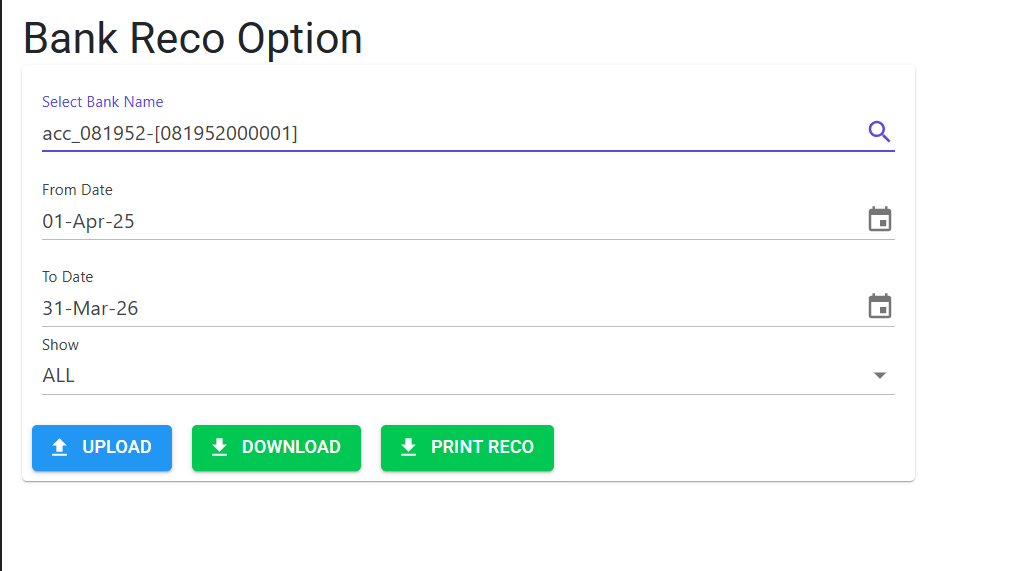
Navigate to Bank Reconciliation under the Financials menu.
Core Concepts
- Voucher Date: The date the transaction was recorded in the ERP.
- Cheque Date: The date mentioned on the physical instrument.
- Value Date (Reco Date): The date the funds actually cleared the bank account.
- Pending Items: Any transaction where the “Value Date” is empty is considered “In Transit” or “Pending.”
3. Features & Benefits ✨
⚡ Batch Reconciliation (Excel Import)
- Bulk Value Date Update: Instead of manual one-by-one entry, download the Bank Reco Model (Excel), fill in the actual clearance dates from your bank statement, and re-import.
- Voucher ID Integrity: The system uses hidden
Voucher Idtags to ensure that clearance dates are mapped to the exact transaction, even if amounts or dates are similar.
📊 Professional BRS Statements
- Balance Reconciliation: Generates a professional Excel report that starts with the Bank Book Balance and adds/subtracts pending items to arrive at the Bank Statement Balance.
- Monthly Snapshot: Specialized printing logic that generates reconciliation views for exactly one month at a time for tidier audits.
🛡️ Smart Date Validations
- 3-Month Validity Rule: The system warns or errors if a Value Date exceeds 3 months from the Cheque Date (standard statutory validity for cheques).
- Chronological Checks: Prevents entering Value Dates that are prior to the actual Cheque Date.
4. Complete Flow 🔄
Select Bank & Range
- Select the Bank Code.
- Define the Date Range (e.g., the current month).
- The system pulls all transactions for that bank that are currently unreconciled.
Reconciliation Options
- Manual Entry: Edit the
Value Datecolumn directly in the system for a few entries. - Excel Workflow:
- Click Bank Reco Model to download the pending list.
- Open Excel and fill the
Value Datecolumn. - Use Bank Reco Upload to sync the dates back to the ERP.
Review & Print
- Review the list for any errors (indicated by Error Codes A–G).
- Run the Print Reco command to generate the final Reconciliation Statement.
5. Validations and Logic ⚠️
Structural Validations (Import)
- Column Integrity: The import file must have exactly 9 columns starting with
Voucher Idand ending withValue Date. - Z-Codes (Data Consistency): Z series error code ensures that data is consistent even while importing
Business Logic Validations (Error Codes A–G)
- Ensures all the logical validations are handled
Print Constraints
- One-Month Limit: When generating the final print, the date range is limited to 31 days to ensure audit clarity and report readability.
6. Related Reports 📊
- 📑 Bank Reconciliation Statement: The primary Excel/PDF output showing the walk-through from Book to Bank balance.
- 📈 Outstanding Cheque List: A filtered view of all items issued but not yet cleared.
- 📉 Pending Deposit Report: All incoming receipts that haven’t hit the bank account yet.
7. Best Practices / Tips 💡
- Hidden Column Strategy: Never delete or unhide the first column (
Voucher Id) in the Excel template. This is the “Primary Key” the system uses to find and update your records. - Date Formatting: Always type dates as
01-Jan-24. Using purely numeric formats (like01/01/24) can sometimes be misinterpreted depending on your local Excel settings. - Zero Balance: If the reconciliation statement shows zero discrepancy but your balances don’t match, check for manual Journal Vouchers (JV) that might have hit the bank account without being tagged for reconciliation.