Visual Match Off (Bulk Settlement)
Visual Match Off Module - User Guide
1. Introduction 📝
The Visual Match Off module is a high-efficiency accounting tool designed for bulk reconciliation and settlement of outstanding documents. It is particularly useful for organizations handling a large volume of transactions that need to be “Matched Off” (settled) against each other at once, such as clearing a vendor’s payables against their receivables.
In the overall business flow:
- Facilitates Bulk Settlement that would be too time-consuming via standard Vouchers or JVs.
- Uses an Excel-Centric Workflow to allow the Finance team to prepare settlement data in a spreadsheet before syncing with the ERP.
- Ensures that every settlement is balanced at the net zero level.
Typically, this module is used by Accounts Receivable (AR) Specialists, Accounts Payable (AP) Specialists, and Audit Teams.
2. Getting Started with Visual Match Off 🚀
Accessing the Module
Navigate to the Visual Match Off section in the Financials or Settlement menu.
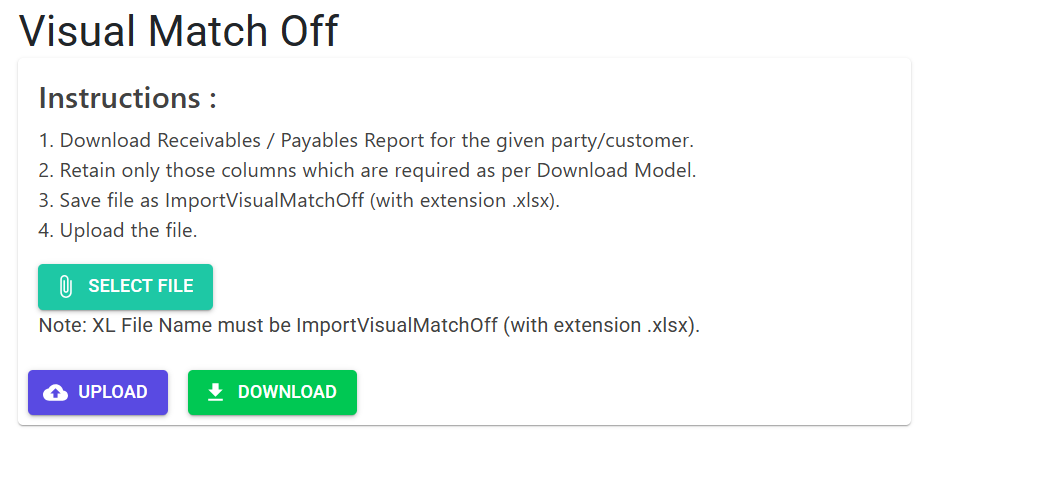
Core Concept: The Settlement Spreadsheet
The module operates primarily through a specialized Excel template. This template contains all the necessary data points—Doc Type, Ref Doc, Ref No, Ref Date, and Amounts—to uniquely identify and settle documents in bulk.
3. Features & Benefits ✨
⚡ Mass Settlement Speed
- Excel Automation: Instead of settling one invoice at a time, you can prepare hundreds of matches in Excel. The system processes the entire list in seconds, updating the ledger balances across all identified documents.
- Cross-Document Settlement: Settle across diverse document roles like Opening Assets (OA), Advances (AD), Purchase Bills (PB), and Sales Invoices (SI).
⚖️ Balance Integrity
- Net Zero Validation: The system strictly enforces the “Net Amount” rule. The sum of all debits and credits in your settlement batch must result in zero. This prevents accidental creation of out-of-balance entries.
- Party Validation: Automatically checks if the specified
Party Idis valid and active in the Master database before allowing the match-off.
📋 Error-Proof Import
- Integrated Error Sheets: If an import fails, the system generates a results file with two types of error indicators:
- Z-Codes: Structural errors (e.g., wrong date format, missing mandatory fields).
- Logic Codes (A–F): Business logic errors (e.g., invalid document types, non-zero net batch balance).
4. Complete Flow 🔄
Download Template
- Click Download Model to get the latest 9-column Excel structure.
- Review the Instructions Sheet inside the Excel file for data specifications.
Data Preparation
- Fill out the spreadsheet with the
Doc Type,Ref No, andAmountfor the items you wish to match off. - Ensure the Net Total of the
Netcolumn is exactly zero.
Import & Validate
- Upload the file using the Visual Match Off Import feature.
- The system performs a character-by-character validation of all fields.
Review Results
- If errors are found, download the result file and check the Error Code sheet.
- Common errors include
A(Invalid Ref Doc) orB(Net amount total is not 0). - Fix the spreadsheet and re-import once the batch is valid and authorized.
5. Best Practices / Tips 💡
- Single Party Settlement: While the system allows multi-party imports, it’s best to match-off one party’s account at a time to keep audit trails cleaner.
- Exact Amounts: Ensure the
Amountcolumn matches the exact current balance of the document in the ERP. Any discrepancy will result in a validation failure (Code D). - Temporary Workings: Keep original bank statements or customer adjustment notes as attachments alongside your match-off Excel file for future auditing.