Employee Master
Employee Master - User Guide
1. Introduction 📝
The Employee Master is the heart of your ERP’s Human Capital Management. It is the single source of truth for every staff member and worker in your organization. Accurately maintaining this master ensures that payroll is calculated correctly, statutory filings (PF/ESI) are compliant, and attendance is tracked seamlessly.
Key Objectives of Employee Master:
- Centralized Data: One place for Personal, Professional, and Statutory information.
- Payroll Readiness: Link salary structures, categories, and pay modes.
- Compliance Assurance: Enforce rules for PAN, Aadhaar, and PF/ESI documentation.
2. Structural Breakdown 🏗️
The Employee Master is divided into several logical sections:
The Index Page
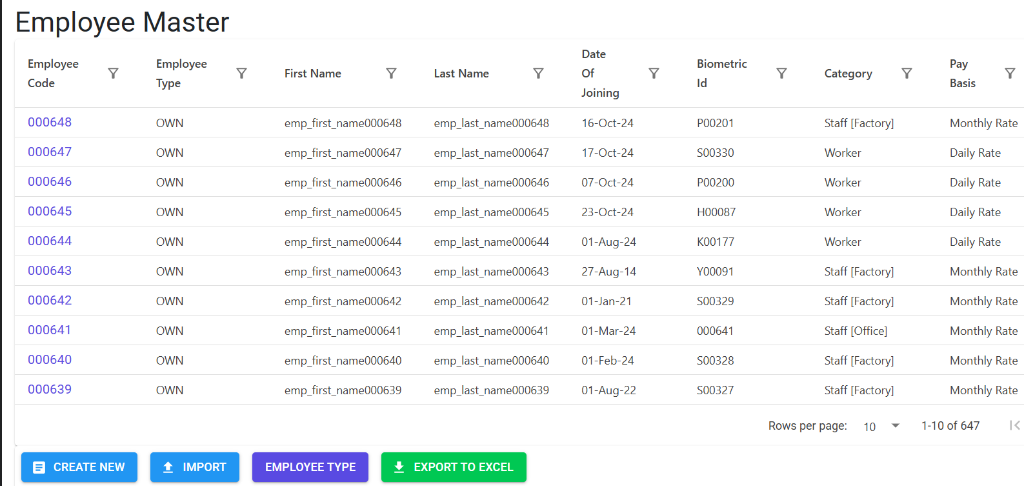
The Employee Master Index provides a comprehensive directory of your workforce. It allows for advanced filtering by employee type, department, category, or pay basis, and supports bulk operations for onboarding and auditing.
Employee Master Details
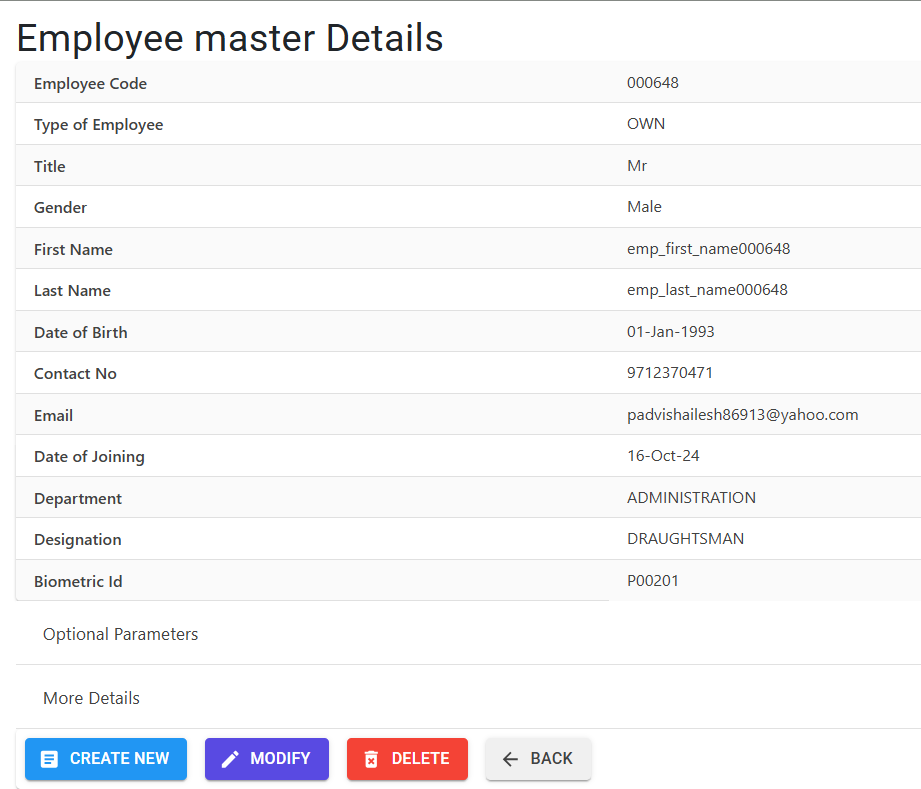
Clicking on an employee code opens the Details View, which organizes the extensive data into logical categories:
- Personal Information: Capture legal names (First/Last), gender, titles, and essential dates like Date of Birth (DOB).
- Rule: Employees must be at least 18 years old on their Date of Joining.
- Contact & Digital Profile: Maintain verified contact numbers, company email addresses, and unique Biometric IDs for attendance integration.
- Professional Alignment: Track the Date of Joining, department assignments, and specific designations.
- Management Actions: Use the action bar to Modify existing records, Delete unused profiles, or Export to Excel for full-scale HR auditing.
B. Professional & Organizational Category
- Department & Designation: What they do and who they report to.
- Grade: Their seniority level (linked to the Grade Master).
- Employee Category:
- Worker: Typically factory-floor staff.
- Staff (Factory/Office): Supervisory or administrative staff.
- Pay Basis: Defines how they are paid (Monthly, Daily Rate, Piece Rate, or NAPS).
C. Statutory & Compliance (The “Paperwork”)
- PF (Provident Fund): Requires a 12-digit UAN No and EPF No.
- ESIC: Required for medical benefits.
- Taxes: PAN No is mandatory for income tax reporting.
- Identity: Aadhaar No (12-digit) is a mandatory unique identifier.
- Others: Professional Tax (PT), Labour Welfare Fund (LWF), Bonus, and Ex-gratia eligibility flags.
D. Operational Details
- Biometric ID: A unique 6-digit code used to link the employee to the physical attendance machine.
- Shift: Assigned working hours from the Shift Master.
- Pay Mode: How they receive money (Cash, Cheque, ECS, or Direct Credit).
3. Business Validations & Rules 🛡️
The system performs “intelligent checks” to prevent data entry errors:
| Field | Rule / Validation |
|---|---|
| Age | DOJ must be at least 18 years after DOB. |
| Duplicates | Biometric ID, PAN, Aadhaar, and UAN must be unique across all “Live” employees. |
| Pay Basis | Workers cannot have a Monthly pay basis. Staff must be Monthly or NAPS. |
| Statutory | If PF or ESI is applicable (Yes), the respective certificate number is mandatory. |
| Gender | Title must match Gender (e.g., Mr. cannot be Female). |
| Date of Joining | Must fall within the current open payroll month (configured by Admin). |
4. Bulk Import (Excel) 📥
For onboarding many employees at once, use the Employee Import tool.
- Model: Download the template from the Import screen.
- Instructions: Read the “Instructions” tab in the Excel carefully for code mappings (e.g., 1=Mr, 2=Mrs).
- Error Codes: If an import fails, check the “Error Code” column:
5. Employee Lifecycle: Leaving the Company 🚪
When an employee leaves, do not delete the record. Instead, set the Date of Leaving (DOL).
- Pre-requisite: You cannot set a DOL if the employee has attendance records (“Work Details”) after that date.
- Effect: Once DOL is saved, the employee’s status changes from Live to Left, and they will no longer appear in active attendance or payroll runs.
6. Data Integrity & Deletion 🔒
The system will strictly block the Deletion of an employee if:
- They have been paid via RTGS/Cheque.
- They have recorded Attendance or Production data.
- They are linked to any historical Loan/Advance records.
7. Reports & Access 📊
📑 Employee Master Report (Full)
- Navigation: HR > Reports > Employee Reports > Master List.
- File Name:
Employee_Master_[RandomID].xlsx - Content: A massive 37-column Excel containing every detail from Personal to Statutory.
📑 Department-wise Headcount
- Navigation: HR > Reports > Summary Reports.
- Purpose: Quick view of active staff count per department.
8. Best Practices 💡
- Consistent Biometrics: Always ensure the Biometric ID in the ERP matches the ID on your attendance punching machine exactly.
- Scan Documents First: Before creating the record, ensure you have the soft copies of PAN and Aadhaar to prevent “Mandatory Field” errors.
- Monthly Review: Run the “Left Employee” report at the end of every month to ensure your “Live” headcount is accurate for insurance/statutory payments.