Holiday Master
Holiday Master - User Guide
1. Introduction 📝
The Holiday Master is a critical component of the HR and Payroll modules. it defines the annual calendar of non-working days for your organization. Accurately configuring this master ensures that employee attendance is marked correctly and that “Paid Holidays” are factored into salary calculations.
Key Objectives of Holiday Master:
- Attendance Accuracy: Automatically mark Sundays and festivals in the attendance register.
- Payroll Compliance: Ensure employees are paid for designated national and festival holidays.
- Category-wise Flexibility: Define different holiday lists for factory workers vs. office staff.
The Index Page
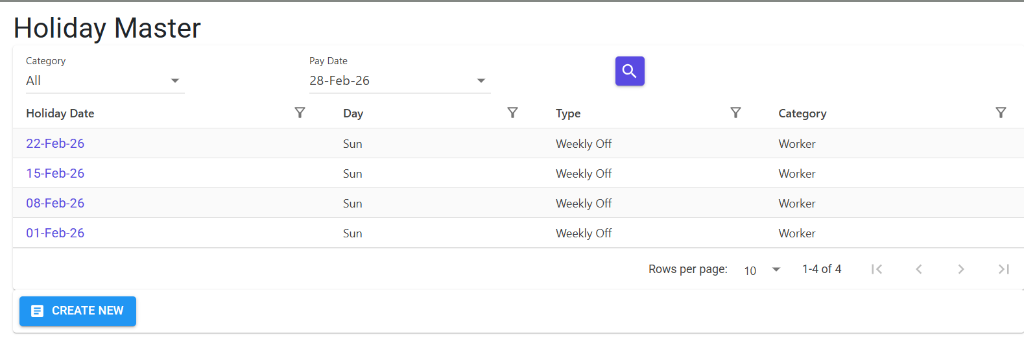
The Holiday Master Index allows you to view and manage the organizational calendar for a specific month. It provides a quick search for holidays based on employee category and pay date, displaying the day of the week, holiday type, and affected staff categories.
Holiday Master Details
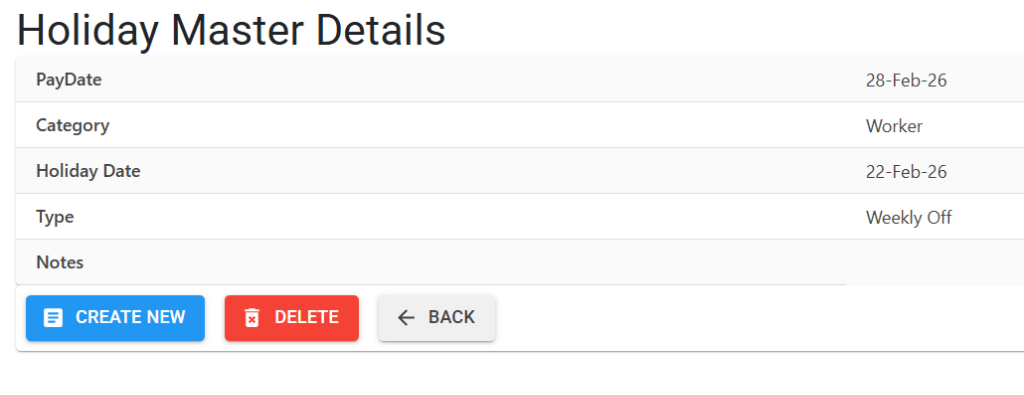
Clicking on a holiday date opens the Details View, which defines the configuration for that non-working day:
- Holiday Categorization:
- Weekly Off (W): Standard recurring days off (e.g., Sundays).
- Paid Holiday (P): Specific dates for festivals or national holidays that are considered “Paid” for salary computation.
- Targeted Scheduling: Assign holidays to specific Categories (Worker/Staff) or apply them to All employees.
- Time Tracking: Set the Pay Date and actual Holiday Date to ensure accurate attendance and payroll integration.
- Management Actions: Use buttons to Delete specific entries or Create New holidays from scratch.
3. The “Pre & Post” Workday Rule (For Workers) 🛡️
For the Worker category, the ERP enforces a common industrial standard to ensure the “Paid” status of a holiday:
- WorkDate 1: The last actual working day before the holiday.
- WorkDate 2: The first actual working day after the holiday.
- Eligibility: The payroll engine (
ComputePay) checks if the worker was present on these specific dates to decide if the holiday should be paid or unpaid.
4. Usage Guidelines 📋
Step 1: Select Pay Month & Category
Holiday lists are maintained month-by-month. Select the Pay Date (e.g., 30-Apr-2024) and the Employee Category (Staff or Worker) before viewing or adding holidays.
Step 2: Creating Weekly Offs
- Navigate to HR > Masters > Holiday Master.
- Choose Create Weekly Off.
- Select the day(s) of the week (e.g., Sunday).
- The system will identify all matching dates in the month and add them as ‘W’ types.
Step 3: Adding Paid Holidays
- Choose Create Paid Holiday.
- Enter the From Date and To Date (for multi-day festivals).
- Add Holiday Notes (e.g., “Ganesh Chaturthi”).
- The system will automatically calculate the required
WorkDate 1andWorkDate 2for workers.
5. Business Rules & Validations 🛡️
| Rule | Description |
|---|---|
| No Overlaps | You cannot create a Paid Holiday on a date that is already a Weekly Off. |
| Work Date Conflict | A holiday cannot be created on a date that has been designated as a “Work Date” (Pre/Post) for another holiday. |
| Monthly Scope | Holiday dates must fall within the boundaries of the selected Pay Month. |
| Category Separation | Use the “All” category for general holidays, or specific categories if only a subset of employees (e.g., Workers only) get the day off. |
6. Integration & Results 🔄
📅 Attendance Register
Once holidays are defined, the Daily Attendance screen will automatically fill these dates with ‘H’ (Holiday) or ‘W’ (Weekly Off), preventing accidental “Absent” markings.
💰 Payroll Computation
During the monthly salary run, ‘P’ type holidays are added to the “Payable Days” count, ensuring the employee’s gross salary is not deducted for festive breaks.
7. Best Practices 💡
- Annual Setup: Configure your whole year’s “Weekly Offs” and “Fixed Paid Holidays” (like Jan 26 or Aug 15) at the start of the fiscal year.
- Sync with Units: If you have multiple factory units with different regional holidays, ensure you select the correct category/unit during setup.
- Notes for Audit: Always fill the “Holiday Notes” field so it’s clear on reports why the day was off.