Generate / Finalize Records
Payroll Setup Module - User Guide
1. Introduction 📝
The Setup Payroll module is the central control panel for the monthly salary cycle. It is designed to bridge the gap between attendance/holidays and official salary computation. The module operates in two distinct phases: Generation (drafting the payroll) and Finalization (locking the payroll for disbursement).
ℹ️
In the overall business flow:
- Synchronizes with Holiday Masters to account for non-working days.
- Generates Draft Pay Records for all active employees.
- Performs Financial Safety Audits (Negative Pay & Loan checks).
- Finalizes the records, making them available for Payslip generation and Bank transfers.
Typically, this module is used by HR Managers, Payroll Accountants, and Finance Heads.
2. Getting Started with Payroll 🚀
Accessing the Module
Navigate to Setup Payroll. The screen will prompt you to select the Pay Date (Month and Year) and the Operation Type (Generate or Finalize).
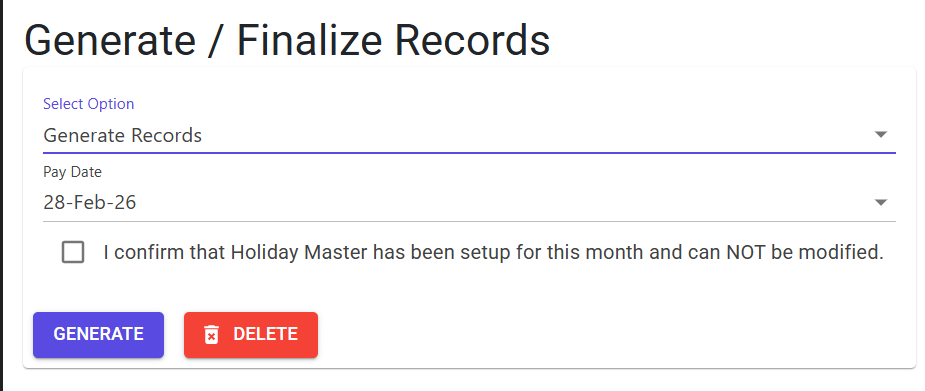
Two-Phase Workflow
- Generate Records: This pulls all employee configurations, master data, and attendance records to create a “Working Copy” of the month’s salary.
- Finalize Records: This validates the working copy for errors and locks it against further changes.
3. Features & Benefits ✨
📅 Holiday & Attendance Sync
- Holiday Confirmation: During the generation phase, the system forces a check of the Holiday Setup. This ensures that weekend policies and public holidays are correctly baked into the salary calculation before records are created.
🛡️ Safety Audits (Pre-Finalization)
- Negative Net Pay Detection: The system identifies cases where deductions (loans, penalties, or voluntary cuts) exceed the gross salary. Finalization is blocked until these cases are manually adjusted.
- Loan Balance Guard: Specifically tracks employee loans. If a monthly instalment would result in a negative loan balance (over-recovery), the system halts the process for that employee.
⚙️ Operational Flexibility
- Regenerate Facility: If errors are found in the draft phase, you can Delete Generated Records and re-generate them as many times as needed before finalization.
4. Complete Flow 🔄
Select Pay Month
- Select the Pay Date (e.g., Aug-2024).
- Set Operation Type to Generate.
Generate Drafts
- Confirm the Holiday Setup is complete.
- Trigger
GeneratePayRecords. The system populates individual pay-heads for all active employees. - Use the Payroll Analysis report to review the numbers.
Run Safety Checks
- Switch Operation Type to Finalize.
- The system scans the draft records for:
- Negative Net Pay
- Negative Loan Balances
Locked Finalization
- Once all errors are cleared, check Payroll Finalized and trigger the finalize action.
- Once finalized, records can NOT be modified or re-finalized. They are now “Live” for accounting.
5. Validations and Logic ⚠️
Generation Phase
- Holiday Check: A mandatory boolean confirmation (
IsHolidaySetup) is required. This is a procedural safety catch to prevent bulk errors in day-counts.
Finalization Phase (Hard Blockers)
- Already Finalized: You cannot finalize a period that has already been locked.
- Negative Net Pay: If any employee’s net salary is below zero, the entire batch is blocked. This usually happens due to excessive unpaid leave or high loan recoveries.
- Negative Loan Balance: Specifically checks for over-recovered loans. If
Loan Repayment > Remaining Balance, the system identifies the specific employee and prevents closure.
Operation Logic
- Deletion: You can only delete “Generated” records. Once “Finalized,” deletion is disabled for security and audit trail purposes.
6. Related Reports 📊
- 📑 Payroll Analysis Report: The primary verification tool used after generation to check individual pay-heads.
- 📉 Negative Pay Summary: List of all employees who require salary manual adjustments before finalization.
- 💳 Bank Transfer Sheet: A report generated only after finalization for uploading to corporate banking portals.
7. Best Practices / Tips 💡
- Review Before Locking: Always run the Payroll Analysis in Excel after generating and before finalizing. Sorting by “Net Pay” in Excel is the fastest way to spot anomalies.
- Loan Adjustments: If the system reports a “Negative Loan Balance,” navigate to the Loan Management module to adjust the specific monthly instalment before re-finalizing.
- Attendance First: Ensure all In-Out marks and leave applications are approved before triggering the Generation phase.