Time Data Import
Import Time Data Module - User Guide
1. Introduction 📝
The Import Time Data module is the primary bridge between physical biometric devices and the ERP’s payroll engine. It allows HR teams to bulk-upload employee work hours from any biometric export file, ensuring that monthly salary calculations are based on actual performance data.
ℹ️
In the overall business flow:
- Collects raw Biometric Logs from external attendance devices.
- Validates logs against Shift Schedules and Employee Masters.
- Populates the
Worked HoursandWorked Minutesrequired for the Setup Payroll module. - Identifies discrepancies like invalid biometric IDs or mismatched date ranges.
Typically, this module is used by HR Administrators and Timekeeping Clerks.
2. Getting Started with Time Data 🚀
Accessing the Module
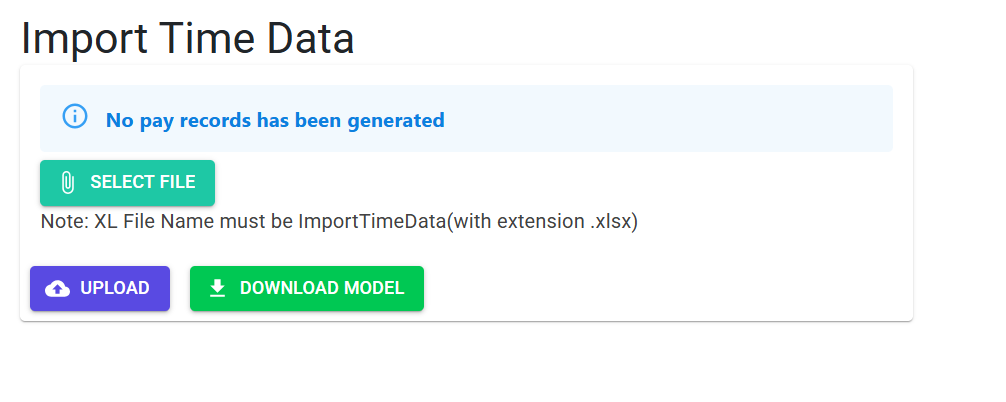
Navigate to Import Time Data. You will first select the Pay Date (Month and Year) for which the attendance is being synchronized.
The 4-Column Template
The module uses a strictly formatted Excel template consisting of:
- Biometric Id: The numeric ID assigned to the employee in the device.
- Date: The specific day of work.
- Worked Hours: Net productive hours.
- Worked Minutes: Net productive minutes.
3. Features & Benefits ✨
🔄 Multi-System Compatibility
- Agnostic Import: Since the system uses a standard Excel model, it can accept data from any machine brand (Essl, Biomax, etc.) as long as the data is formatted to the 4-column structure.
- Auto-Mapping: The system automatically maps the internal
Employee Codeto the externalBiometric Idduring the import process.
🛡️ Smart Data Scrubbing
- Date Window Guard: The system automatically rejects any records where the date falls outside the selected Pay Date month.
- Time Normalization: Validates that “Hours” are between 0–23 and “Minutes” are between 0–59 to prevent corrupted data from entering the payroll engine.
📋 Precision Error Reporting
- Dual-Layer Checks:
- Z-Codes: Structural checks (ID length, date syntax).
- Logic Codes (A–E): Business checks (Out-of-month dates, invalid categories).
4. Complete Flow 🔄
Download Template
- Select the current Pay Month.
- Click Download Model to get the latest Excel structure.
- Review the Instructions Sheet for formatting details.
Prep Biometric Data
- Export logs from your biometric device.
- Match them to the 4-column Import_Time_Data_Model.
- Ensure the Biometric Id matches what is stored in the Employee Master.
Sync & Validate
- Upload the file using Time Data Import.
- The system performs JSON-based batch validation across all records.
Review Final Result
- Download the results file.
- ErrorCode E: Indicates a Biometric ID that doesn’t exist in the ERP or belongs to an ineligible employee category.
- ErrorCode D: Indicates a date mismatch (e.g., trying to import Feb logs into a Jan pay cycle).
5. Validations and Logic ⚠️
Structural Validations (Z-Codes)
- Code Z1/Z3: Biometric ID is mandatory and must not exceed 6 digits.
- Code Z2: Enforces numeric-only data for Hours and Minutes.
- Code Z4: Strictly enforces
dd-MMM-yydate formatting to avoid regional OS conflicts.
Business Logic (Error Codes A–E)
- Code B/C (Range Guard): Hours must be 0–23, Minutes must be 0–59.
- Code D (Month Matching): Every log date must belong to the selected Pay Date month.
- Code E (Identity Matching): The Biometric ID must belong to an Active Employee who is part of a payroll-eligible category.
6. Related Reports 📊
- 🏢 Daily Attendance Register: Summary view of imported hours per employee per day.
- 📋 Missing Biometric Log Report: List of active employees who have no logs for the selected month.
- 📐 Payroll Analysis: Final report showing how these hours translated into monthly salary.
7. Best Practices / Tips 💡
- Employee Master Sync: Ensure the “Biometric ID” field in the Employee Master is filled before your first import. Without this link, the system cannot assign hours to the correct person (Error Code E).
- Handle One Month at a Time: To ensure perfect reconciliation, only import data for one pay month in a single file.
- Worked Minutes: If your device exports time as a decimal (e.g., 7.5 hours), you must convert it to hours and minutes (7 hours, 30 minutes) before importing.