Pay Details
Payroll Module - User Guide
1. Introduction 📝
The Payroll module (distinct from Setup Payroll) is the operational workspace for fine-tuning individual employee pay records after they have been drafted but before they are finalized. It allows HR and Finance teams to make manual adjustments for specific pay-heads (Bonuses, Arrears, Overtime, or specific Deductions) to ensure every employee’s salary is accurate per their monthly performance.
In the overall business flow:
- Acts on the Generated Drafts created in the Setup Payroll module.
- Facilitates Pay-Head Level Adjustments (e.g., adding a performance bonus or correcting a deduction).
- Uses Protected Excel Sheets for safe bulk-updating of employee salaries.
Typically, this module is used by Payroll Executives and HR Operations.
2. Getting Started with Payroll Adjustments 🚀
Accessing the Module
Navigate to the Payroll Index. You will search for records by:
- Employee Code: To adjust a single person’s salary.
- Pay Date: To view all records for a specific month.
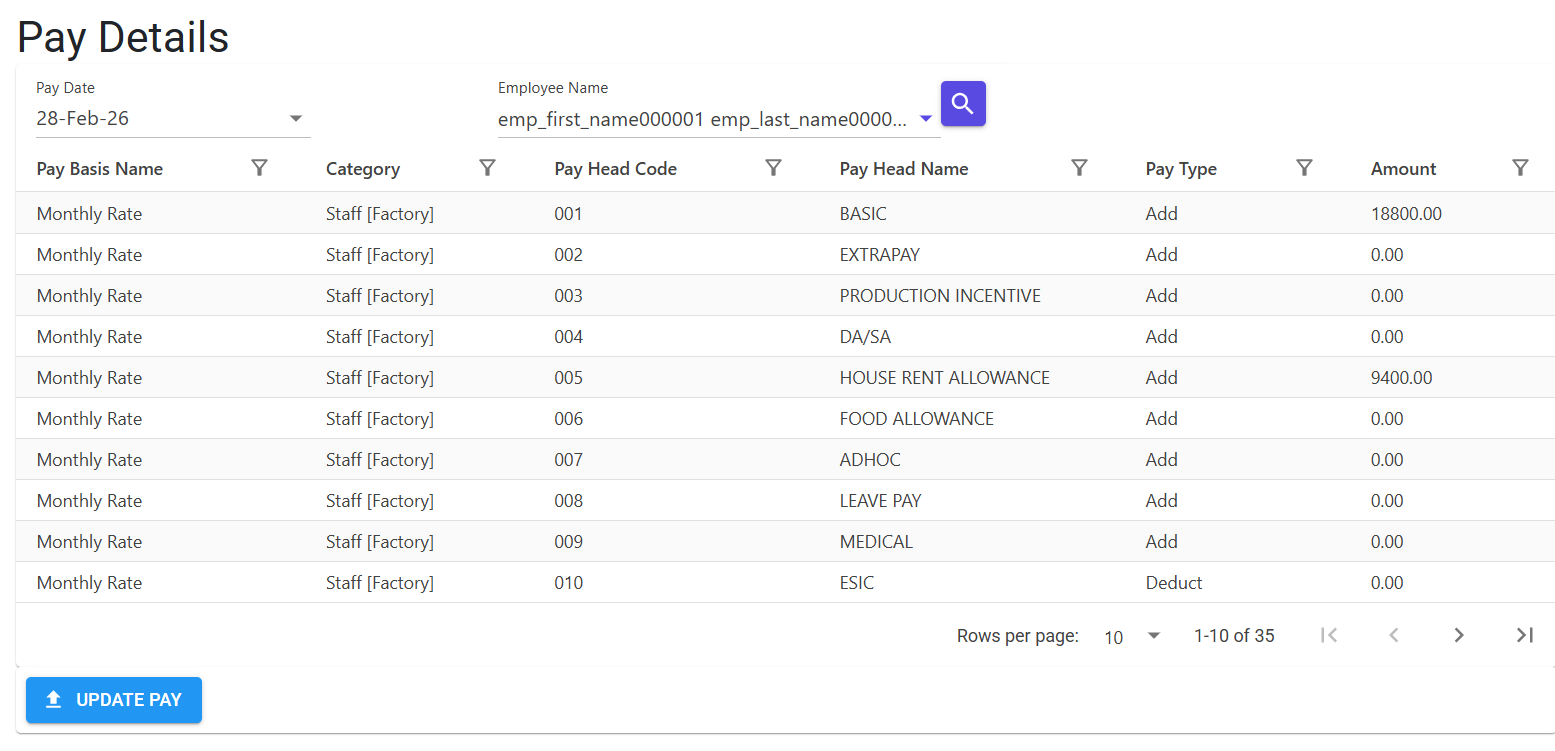
The Pay-Head Structure
Each employee’s salary is broken down into multiple “Pay-Heads” (Basic, HRA, Conveyance, PF, ESI, etc.). This module allows you to drill down into a specific pay-head for a specific employee and override the system-calculated amount.
3. Features & Benefits ✨
⚡ Protected Bulk Updates (Excel)
- Strategic Overrides: Instead of editing one by one in the UI, you can download a batch for a specific Department, Category, or even a specific Pay-Head across all employees.
- Safe Templates: The system generates a protected Excel file where all columns (Name, Department, Category) are Locked, and only the
Amountcolumn is editable. This ensures that you don’t accidentally corrupt employee IDs during the update. - Precision Filtering: Download only what you need—e.g., “All Sales employees for the month of August” or “Only Bonus pay-heads for the Production department.”
🛡️ Data Validation
- Hidden Primary Keys: The system uses a hidden
Idcolumn in the Excel file to precisely map the updated amount back to the correct row in the database. - Financial Boundary Guard: The system prevents entering amounts that are negative or exceed statutory limits (Validation Code A).
4. Complete Flow 🔄
Search & Filter
- Go to the Payroll Index.
- Select the Pay Month (Pay Date).
- Apply filters for Department or Pay Head if necessary.
Batch Update (Optional)
- Click Download Model.
- Open the Excel file—notice that only the
Amountcolumn is editable. - Input your adjustments (e.g., adding overtime amounts).
- Upload the file via Payroll Bulk Update.
Manual UI Adjustment
- If only one person needs a fix, select the employee from the list.
- Edit the specific Pay-Head amount directly in the grid.
- Save to update the draft.
Verify
- Check the updated Net Pay on the screen to ensure the total reflects the changes correctly.
- Once verified, return to the Setup Payroll module to finalize the entire batch.
5. Validations and Logic ⚠️
Structural Validations (Z-Codes)
- Column Match: The import file must have exactly 9 columns. If the columns are reordered or deleted, the system rejects the file (Error Code 1).
- Numeric Integrity (Code Z1): The system rejects any “Amount” that contains text, symbols, or formula errors.
Business Logic (Error Code A)
- Range Guard: Amounts must be between 0.01 and 9,999,999.99. This prevents accidental entry of zero values (for mandatory fields) or astronomical amounts due to typing errors.
- Id Matching: The system validates the hidden
Id. If an Id from last month is used in the current month’s import, the system will prevent the update to protect data integrity.
6. Related Reports 📊
- 📑 Employee Wise Pay Summary: Detailed view of all pay-heads for a single employee.
- 📉 Pay-Head Trend Analysis: Compare a specific pay-head (like Total Overtime) across multiple months.
- 💳 Net Pay Distribution: A preview of the total disbursement cost before finalization.
7. Best Practices / Tips 💡
- Use Pay-Head Filters: When doing bonuses, download the Excel model filtered only for the ‘Bonus’ Pay-Head. This keeps your spreadsheet small and reduces the risk of making an error on other salary components.
- Hidden ID: Never delete or modify the first column (
Id) in the Excel sheet. This is the link that connects your spreadsheet back to the database. - Sync with Setup: Remember that any changes made here will be overwritten if you Regenerate the payroll in the Setup Payroll module. Only perform these adjustments after your final generation is done.