Time / Day details
Time Day Module - User Guide
1. Introduction 📝
The Time Day module is the manual counterpart to the “Import Time Data” system. While the biometric import handles hours and minutes, the Time Day module is used to log attendance in terms of Work Days (1, 0.5, 0) and Overtime Days (0.25, 0.5, 0.75, 1). This is essentially for staff categories whose pay is calculated on a daily rate rather than a minute-by-minute biometric log.
ℹ️
In the overall business flow:
- Allows HR to override or manually enter Daily Attendance.
- Handles Overtime (OT) Increments in standardized fractions (Quarter, Half, Full).
- Synchronizes with the Pay Date to ensure attendance is only logged for valid calendar days in a month.
Typically, this module is used by Site Supervisors, Factory Clerks, and Payroll Accountants.
2. Getting Started with Daily Attendance 🚀
Accessing the Module
Navigate to Time Day Index. Like other payroll modules, you must first select the Pay Date and Employee Code (or select ‘All Employees’ for batch updates).
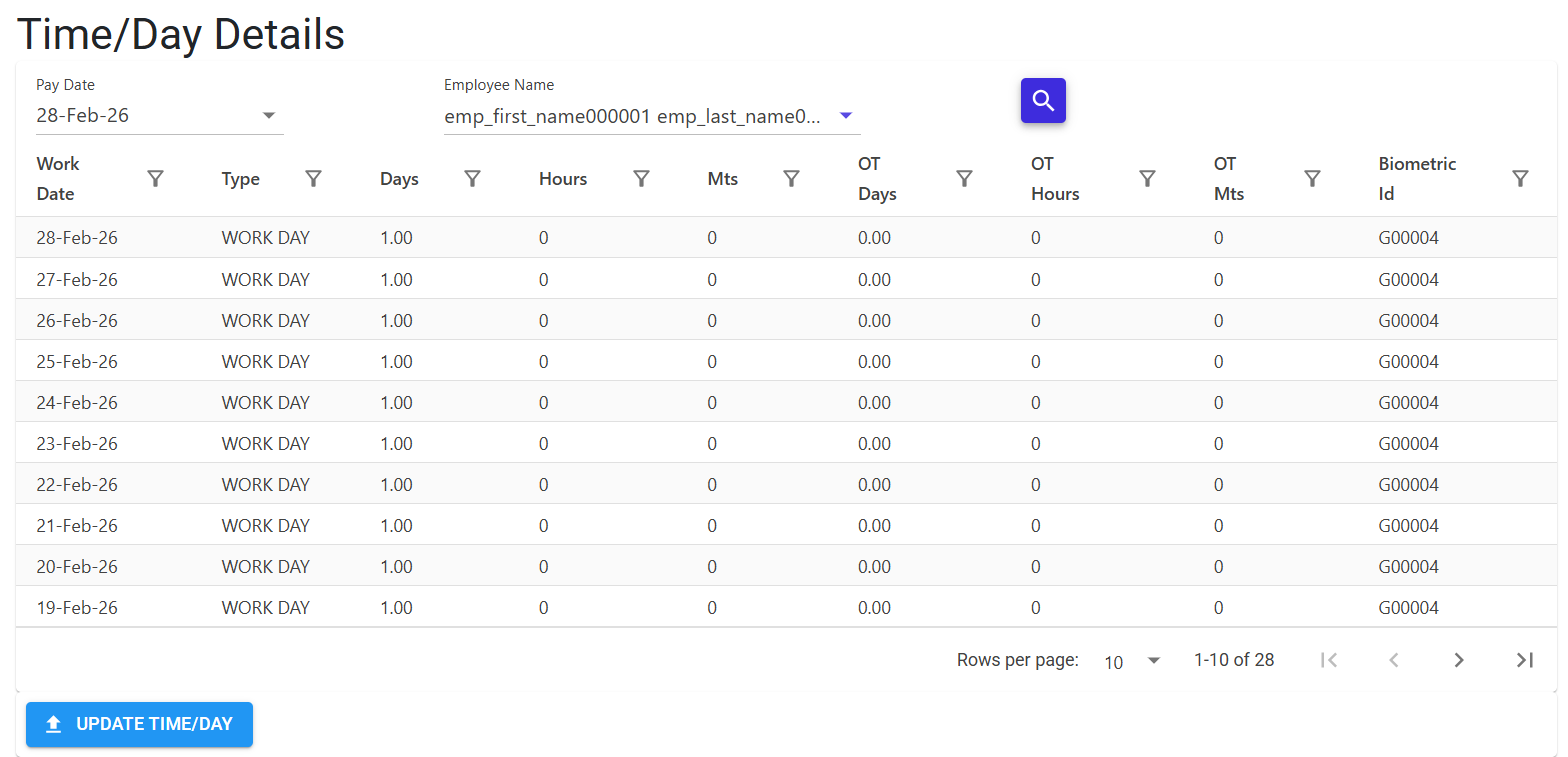
The Daily Unit System
Unlike hours/minutes, this module operates on fractional units:
- Work Days:
1(Full Day),0.5(Half Day),0(Absent). - OT Units:
0.25,0.5,0.75,1.
3. Features & Benefits ✨
⚡ Standardized Overtime units
- Fractional Logging: The system enforces predefined units for Overtime (Quarter-day increments). This prevents inconsistent manual entries and ensures that OT follows company policy.
📊 Batch Update (Excel Flow)
- Bulk Daily Logging: For large workforces (e.g., daily wagers), HR can download a TimeDay Model, fill in the daily units, and upload everything at once.
- Duplicate Guard: The system automatically detects and blocks duplicate attendance records for the same employee on the same date, preventing double-payment.
🛡️ Operational Integrity
- Identity Sync: Every entry is validated against the Employee Master. Only valid 6-digit biometric/employee codes are accepted.
- Date Integrity: Ensures that the
Work Dateis a real calendar date and follows thedd-MMM-yystandard.
4. Complete Flow 🔄
Scope Selection
- Select the Pay Date month.
- Filter for the specific Department or Category that requires daily unit logging.
Download & Entry
- Click Download Model.
- Open the Excel and input:
- Employee Code
- Work Date
- Work Days (choose from 0, 0.5, 1)
- OT Days (choose from 0, 0.25, 0.5, 0.75, 1)
Bulk Sync
- Upload the file via Time Day Bulk Update.
- The system performs row-by-row checks for unit values and date formats.
Verification
- Review the Time Day Index grid to see the converted units.
- Any errors (like an OT value of
0.33) will be caught in the ErrorCode D check during import.
5. Validations and Logic ⚠️
Structural Validations (Z-Codes)
- Code Z1: Employee Code must be exactly 6 digits (system max).
- Code Z4: Date must be in the
dd-MMM-yyformat (e.g., 15-Aug-24). - Code Z2/Z5: Non-numeric values in the Days columns result in an immediate rejection.
Business Logic (Error Codes A–D)
- Code C (Unique Date): Prevents “Double Dipping”—you cannot have two attendance rows for Case A on June 1st.
- Code D (Standard Units):
- Work Days MUST be:
0,0.5, or1. - OT Days MUST be:
0,0.25,0.5,0.75, or1.
- Work Days MUST be:
- Code B (Employee Search): The system verifies that the employee was active on the given
Work Date.
6. Related Reports 📊
- 📑 Daily Attendance Register: Detailed view showing units worked per day for the entire month.
- 📈 Overtime Summary: Total units of OT accrued by department or project.
- 📐 Workable vs. Worked Days: Comparison between total calendar working days and actual units logged.
7. Best Practices / Tips 💡
- Quarter-Day OT: If your company policy doesn’t use quarter-day OT, simply instruct supervisors to only use
0.5or1. - Biometric ID: Often the “Employee Code” in this module is used interchangeably with the “Biometric ID”—ensure your master data is consistent across both.
- Half-Day Logic: Use
0.5for Saturday half-days if that is your company policy for specific categories of workers.