Bill of Materials (BOM)
Bill of Materials (BOM) Module - User Guide
⚡ Quick Start: 3-Minute Fast Track
For engineers who need to set up a product recipe quickly:
- Header: Click Create New, select the Product, and set Customer Linkage (if needed).
- Components: Use Excel Import for large lists or add lines manually (Select Item, Qty, and Process).
- Costing: Review the Cost Sheet tab to ensure overheads and margins are correct.
- Finalize: Save. The BOM is now ready for use in Production Plans.
🗺️ Process Flow: Recipe to Reality
graph LR
    Item[Item Master] --> BOM[Bill of Materials]
    BOM --> Costing[Product Cost Sheet]
    BOM --> MRP[Material Planning]
    BOM --> Prod[Production Plan]

    style BOM fill:#f9f,stroke:#333,stroke-width:2px
✅ Prerequisites Checklist
Before creating a BOM, ensure these are ready:
- Item Master: Both finished goods and raw materials must be registered.
- Process Master: Manufacturing stages (e.g., Casting, Assembly) must be defined.
- Costing Rates: Standard rates or LPR should be available for input items.
- Change Note: If modifying an existing BOM, have your 9-digit authorization code ready.
1. Introduction 📝
The Bill of Materials (BOM) module is the core building block of the manufacturing and costing lifecycle. It defines the exact recipe and input materials required to produce specific finished goods, processed sub-assemblies, or intermediate products.
In the overall business flow:
- Serves as the foundation for Production Plan and Material Requirements.
- Establishes the standard Cost Sheet, integrating overheads, labor, and margin percentages.
- Links hierarchically for complex multi-level manufacturing involving Sub-Assemblies (SA).
Typically, this module is utilized by Production Engineers, Plant Managers, and Cost Accountants.
2. Getting Started with BOM 🚀
Accessing the Module
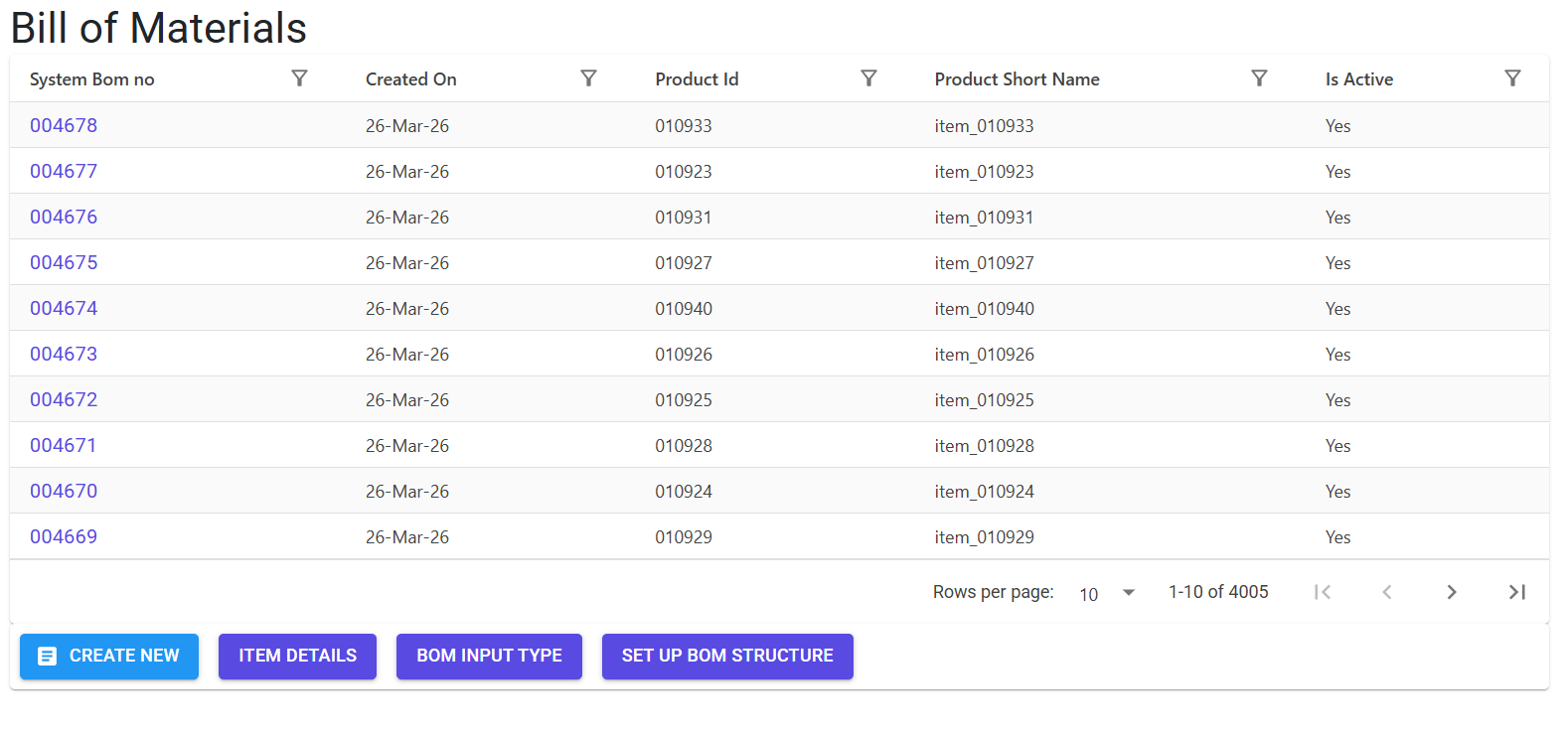
Navigate to the BOM Index via the Manufacturing/Production menu.
Modes of Creation
There are three primary ways to manage and create BOMs:
- Manual Header + Line Entry: Create the header for a chosen Product, then manually add its specific components (Raw Materials, Labour, Packing Materials) line by line.
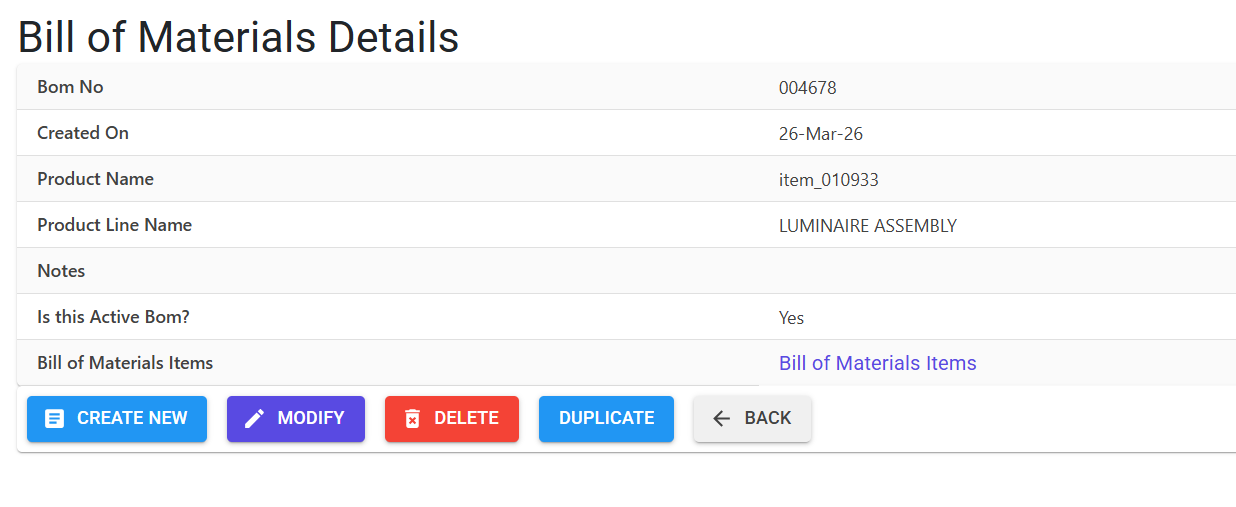
- Duplicate / Clone BOM: Select an existing BOM of a similar product and duplicate it entirely with a single click. This drastically reduces data entry time when multiple variants exist.
- Bulk Excel Import: Download the system-generated offline Excel template, define all required components offline, and import them directly. The system verifies data integrity and provides an Error Code sheet for any row-level mistakes (e.g., duplicate items, invalid stages).
3. Features & Benefits ✨
📦 Multi-Level Architecture
- Sub-Assembly Linkage: Seamlessly incorporate Sub-Assemblies (Input Type = “SA”) into your Finished Goods. The system natively handles multiple nesting levels to track intricate manufacturing structures.
- Version / Change Control: Maintain a dedicated Change Note track (9-digit constraint log) when modifying quantities or replacing components in active BOMs to strictly trace revisions.
💰 Automated Costing Engine
- Cost Sheet Integration: Define input cost rates either automatically via Last Purchase Rate (LPR) / Moving Average, or toggle “Manual Rate” to manually enforce expected rates.
- Costing Summary: Instantly view the breakdown of Raw Materials, Packing Materials, Labour, and By-Products along with added percentages for Contingency, Overheads, and Margin to determine the final product pricing.
⚡ Client-Specific Formulations
- Linked Customer Codes: Optionally enforce BOMs to be tied directly to a specific Customer Code. This enables bespoke manufacturing recipes for dedicated clients.
4. Complete Flow 🔄
Initialize the BOM (Header)
- Select the Product you want to manufacture.
- Choose whether this formulation relates to a Linked Customer Code.
- Confirm details; the system generates a unique BOM No.
Build Formulations (Lines)
- Add components using the UI or the Excel Import.
- Select the Input Type (e.g., Raw Material, Packing Material, Sub Assembly).
- Define the routing Process Code and input Stage (e.g., 00 = RM, 07 = FG Loose).
- Specify the definitive Qty required to manufacture the base unit of the parent product.
Define Overheads & Finalize
- Review the Cost Sheet Qty and Rate.
- Verify constraints, input valid Change Note Numbers (if modifying), and attach detailed Notes for audit logs.
- Save the BOM. It can now be explicitly used in Production Plans and Indent generations.
5. Validations and Logic ⚠️
The BOM module enforces strict structural and referential integrity via Header and Line-level validations.
Main-Level (Header) Validations
- One BOM per Product (Default): Validates that an active product does not naturally possess conflicting primary BOM formulations.
- Customer Linkage Restraints: If the System Parameter
LinkedCustomerCodeInBOMis enabled (Y), then if a product demands a Customer Code a 40-character Linked Customer Code is mandatory. This combination must be unique globally. - Deactivation Trap: A BOM cannot be deactivated if it possesses 0 lines.
Line-Level (Item) Validations
- Sub-Assembly Readiness: If an input component is flagged as a Sub-Assembly (
SA), the system validates that the component itself must possess an active, predefined BOM. - Self-Reference Block: An input item cannot be identical to the parent Product. Infinite loops are blocked.
- No Line Duplicates: The same exact Item ID cannot be registered twice under the same BOM formulation.
- Mandatory Attributes Qty/Rate:
Qtymust strictly be greater than 0.- If
IsManualRateis ‘Y’, thenRatecannot be 0.
- Modification Justifications: Modifying an existing BOM line explicitly requires a valid Change Note No. (must evaluate to exact 9 digits, cannot be generic like
000000000) and comprehensive Notes limited to 150 characters for audit logs. - Excel Upload Guards: Bulk imports aggressively validate field types, length constraints (e.g. Identification <= 150 chars), and strict mappings before saving, gracefully rejecting failures with localized Error Codes like
Z1(Id > 6) andZ3(Number format mismatch).
6. Master Data Dependencies 📚
For comprehensive BOM utilization, ensure the following core masters are fully populated:
- Item Master / Product Master: Both the formulated Product and input material Items must exist.
- Process Master: Specifies routing operations assigned to line items.
- BOM Input Type Master: Controls flags like Raw Materials vs. Sub-Assemblies vs. Labour.
- System Parameters: Notably the
LinkedCustomerCodeInBOMpreference to enable client-level formulations.
7. Related Reports 📊
- 📋 BOM Report: Generates structured, multi-level tree expansions detailing exactly what items go into your BOM, with values and stages. Option to render a complete Cost Sheet view.
- 🧾 BOQ (Bill of Quantities) Report: Extracts required purchasing estimations utilizing LPR or WAR (Weighted Average Rate) pricing constraints over dynamic date ranges.
- 📈 BOM Summary Report: Synthesizes cumulative costs of Raw Materials vs Packing against standardized Contingency (%), Overheads (%), and Profit Margins (%).
- 🔄 BOM Change Log: Produces a rigid historical ledger displaying Old Qty vs New Qty with accompanying Change Note References mapped through dynamic date parameters.
- ❓ Missing & In-Active BOMs Report: Diagnostic reports to identify active Sales Items that lack corresponding BOMs, or lists historically inactive recipe formulations.
8. Best Practices / Tips 💡
- Always Maintain Traceability: Leverage the “Change Note No” rigorously whenever swapping an obsolete component or altering quantity formulas. It forms the backbone of Quality Audits.
- Bulk Download/Upload: Instead of typing 50-component mechanical structures, use the
BOM Line Importfeature. Always keep the template format exactly as downloaded (9 explicit columns). - Verify System Parameter: Work with the administrators to clarify if your workflow demands strictly mapping recipes per Client via the “LinkedCustomerCodeInBOM” rule before mass-creating BOMs.