Sales Invoice
Sales Invoice Module - User Guide
1. Introduction 📝
The Sales Invoice module is the critical final step in the sales fulfillment process. It represents the legal demand for payment and the official record of goods dispatched. It integrates deeply with Sales Orders, Inventory Control, GST Compliance, and Logistics.
In the overall business flow:
- It consumes Pending Sales Orders and reduces System Stock.
- It generates the financial liability in the Accounts Receivable.
- It triggers E-Invoice and E-Way Bill compliance workflows.
Typically, this module is used by Billing Clerks, Logistics Officers, and Finance Managers.
2. Getting Started with Sales Invoice 🚀
Accessing the Module
Navigate to the Sales Invoice Index via the Sales menu.
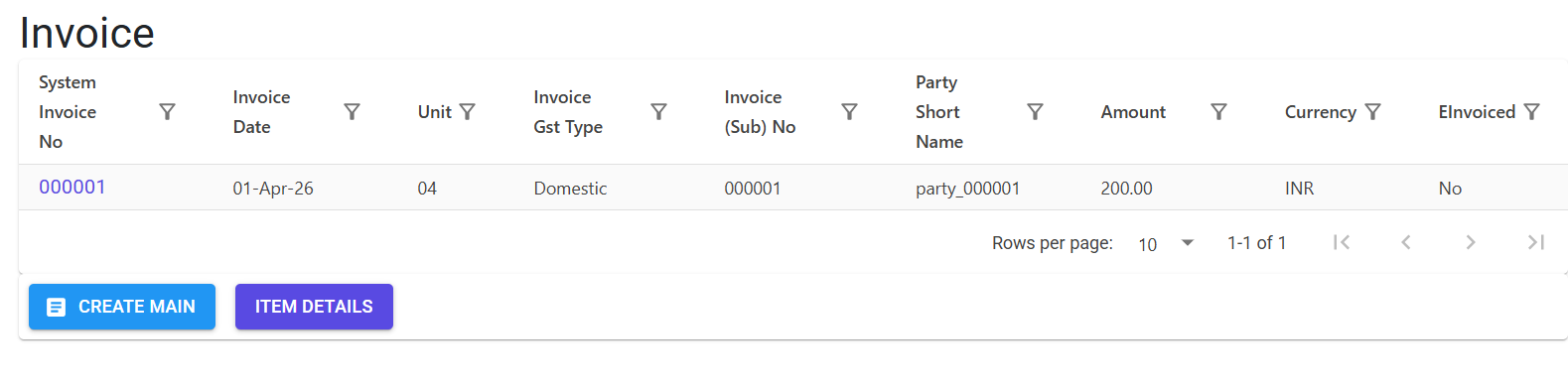
Modes of Creation
There are three primary ways to create an invoice:
- Manual Header + Line Selection: Create the header first, then pick specific items from pending orders.
- Create From Order: A “Turbo” mode that copies the entire Sales Order (Header + all OK lines) into an invoice in one click.
- AI-Powered Generation: (with AI also you can create) Use natural language prompts or voice commands to let the system identify parties and orders autonomously.
3. Features ✨
📦 Inventory & Fulfillment
- Negative Stock Check: Prevents dispatching more than the current “Store Balance” to ensure physical and digital stock remain in sync.
- Multi-Order Invoicing: Combine multiple Sales Orders for the same party into a single invoice (if allowed in Party Master).
- Batch & Serial Tracking: Specific item stages (e.g., Raw Material vs. Finished Goods) and brands are validated during entry.
🚛 Logistics & Other Operations
- Unified Dispatch Info: Manage Transporters, Mode of Transport (Road, Air, Rail), and Vehicle details.
- Ship To / Dispatch From Overrides: Specify different delivery addresses without changing the primary Party Master data.
- LR (Lorry Receipt) Management: Upload and store scanned copies of Transporter LRs directly to the cloud (AWS S3) for easy retrieval.
- Forwarding Note: Generate specialized logistics documentation for the transport agency.
💰 Financials & Compliance
- Multi-Currency Engine: Full support for Export/SEZ invoices in foreign currencies with mandatory FCNR (Foreign Currency Non-Resident) amount tracking.
- Advanced Tax Rules: Automated GST (IGST/CGST/SGST) and TCS (Tax Collected at Source) calculation based on State Codes and Party types.
- Debit/Credit Note Integration: Direct “One-Click” creation of SDN (Sales Debit Note) or SCN (Sales Credit Note) from an existing invoice.
⚡ Automation & E-Invoicing
- Integrated E-Way Bill: Status tracking and printing directly within the ERP.
- E-Invoice Readiness: Bridges data to government portals for QR code generation.
- Automated Emailing: Send PDF invoices and “Dispatch Advice” to multiple customer contacts simultaneously.
4. Complete Flow 🔄
Initialize the Invoice
- Select the Party and Branch.
- Choose the Unit (Dispatch Center).
- The system fetches default Payment Terms and GST Codes from the linked master record.
Define Logistics
- Enter Transporter and Transport Mode.
- For Road Transport, enter the Vehicle No (must follow standard XX-00-XX-0000 format).
- Enter LR/GRN No and Date.
Add Items (Lines)
- Browse Pending Order Items.
- The system validates that Invoiced Qty ≤ Pending Qty (unless a 10% excess is permitted by system parameters).
- Add lines; the system automatically calculates Sub-Totals, Taxes, and Round-offs.
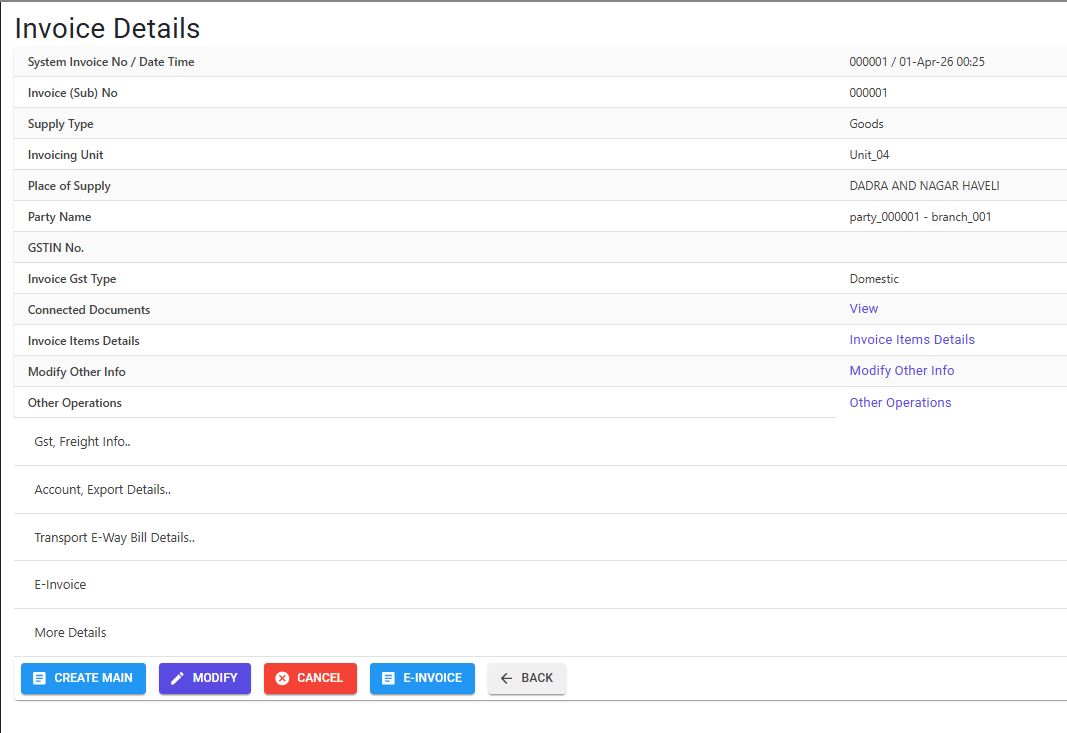
Finalize & Dispatch
- Review the Total Amount.
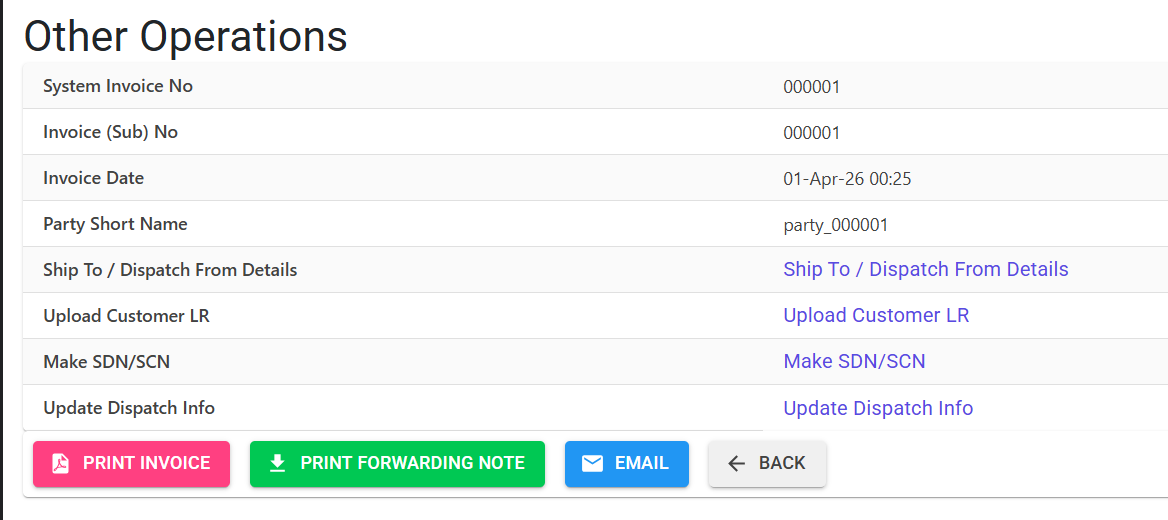
- Access the “Other Operations” menu to:
- Generate/Print E-Way Bill.
- Print the Final Invoice PDF.
- Email the Dispatch Advice to the customer.
- Upload the LR Copy.
4.1 AI-Powered Invoice Creation ✨ (Experimental)
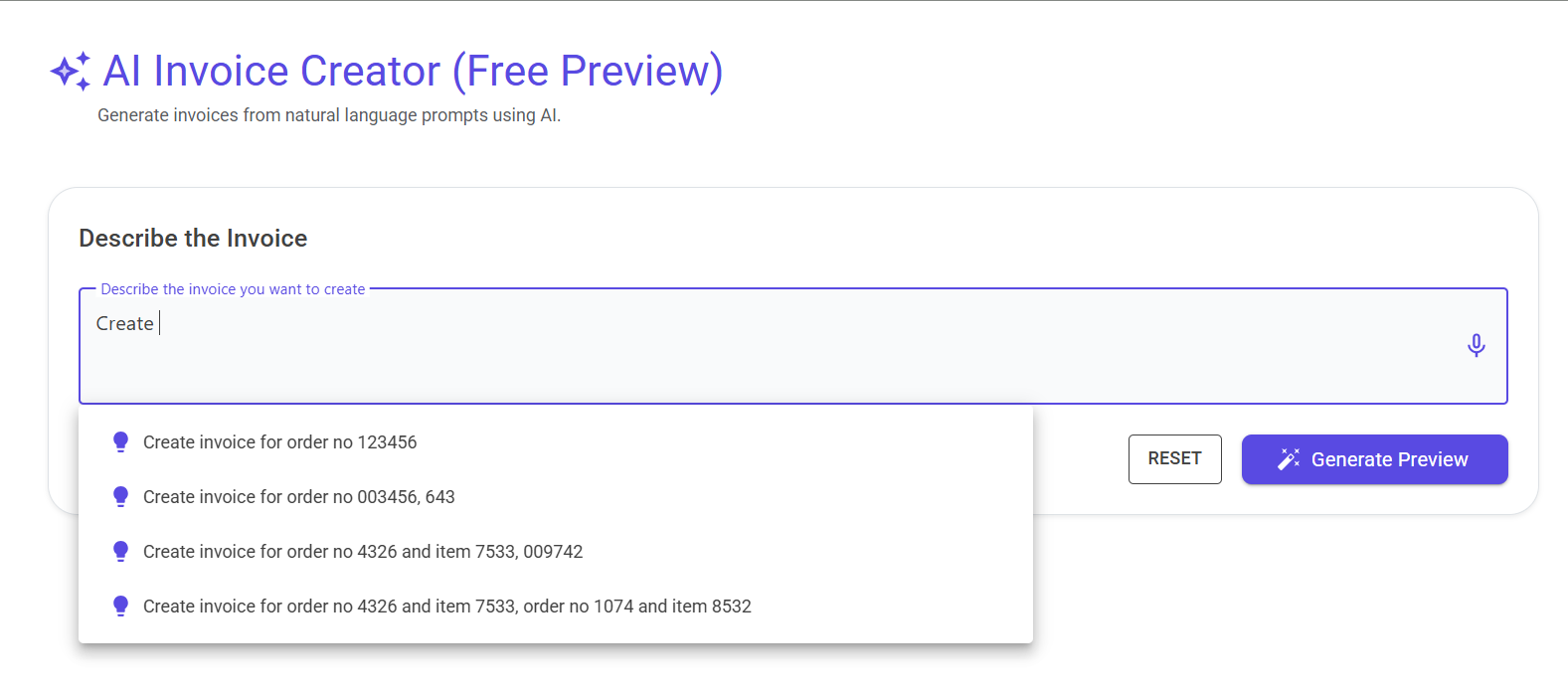
The AI Invoice Creator is a state-of-the-art productivity tool that allows users to generate complex sales invoices using natural language prompts. Instead of manually navigating through masters and picking orders, users can simply describe what they want.
🗣️ Multi-Modal Input
- Text Prompts: Type your request in plain English (e.g., “Create an invoice for ABC Corp for their last two pending orders”).
- Voice Assistant: Click the Mic icon to dictate your billing request. The system uses real-time speech-to-text to capture your commands.
- Smart Suggestions: A dropdown list of “Suggested Prompts” helps you learn the most effective ways to command the AI.
🔍 Intelligent Extraction & Preview
- Auto-Identification: The AI finds pending Sales Order numbers, customer names, and branches even from partial mentions.
- Interactive Preview: The system generates a “Draft Grid” showing all extracted details. You can adjust quantities or stores directly in this preview before finalizing.
- Negative Stock UI: Any items with insufficient stock are automatically highlighted in Red to prevent errors.
The AI workflow
- Prompt: Type or speak your request and click “Generate Preview”.
- Review: The AI will present a Draft Invoice. Verify details like Transporter and Vehicle.
- Address Warnings: Look for red highlights (Insufficient Stock) and adjust quantities or stores.
- Confirm: Once satisfied, click “Confirm & Create Invoice” to finalize.
AI-Specific Validations
| Rule | Result |
|---|---|
| Consistency | All orders in a single prompt must belong to the same Party, Branch, and Unit. |
| Status Logic | Orders must be “Confirmed” and have a status of “OK”. |
| Safety Lock | Quantity cannot be zero in the final preview. |
| Currency | Currently optimized for INR transactions. |
5. Validations and Logic ⚠️
The system enforces a multi-tiered validation architecture at both the Main (Header) and Line (Item) levels to ensure financial accuracy and regulatory compliance.
Main-Level (Header) Validations
These rules apply to the entire invoice and are checked during creation or modification of the header:
- Party Compliance: The system checks the
Allow Invoiceflag in the Party Master. If set to ‘No’, the party is blocked from all billing operations. - Logistics Integrity:
- Vehicle No (Road Mode): Must be at least 7 characters, start with two alphabetic characters, and contain only alphanumeric values (
XX-00format). - LR/GRN No (Other Modes): Mandatory for Rail, Air, or Sea transport to ensure tracking.
- Vehicle No (Road Mode): Must be at least 7 characters, start with two alphabetic characters, and contain only alphanumeric values (
- GST registration Matching: The Supply State Code must match the first two digits of the Party GSTIN for registered parties. Interstate supplies are restricted for unregistered parties unless specifically authorized.
- Currency & FX:
- For Export Invoices (E1, E2, E3), the Place of Supply must be ‘Other Countries’ (Code 96).
- FCNR Amount: Mandatory for any transaction involving foreign currency to track the equivalent value in the book currency.
- Account Particulars: For certain transaction types (e.g., Code 49), a ledger account must be explicitly selected for financial posting.
Line-Level (Item) Validations
These rules are triggered when adding or editing individual items:
- Tax Uniformity: All items in a single invoice must share the same GST Tax Code (e.g., all 18% or all 12%). This is validated against the first line added.
- Terms Consistency: Payment terms must remain consistent across all orders linked to the same invoice.
- Quantity Guardrails:
- Invoiced Qty cannot exceed the Pending Order Qty.
- If the system parameter
AllowExcessInvoiceQtyis ‘Y’, the user can invoice up to 110% of the order quantity (useful for weight-based industries like metal/chemicals).
- Inventory Control: If
CheckNegativeStockis enabled, the system prevents adding items that would result in a negative store balance (filtered by Store, Batch, and Stage). This check is skipped for ‘Finished Products’ (FP) to allow immediate billing upon production. - Locking Mechanisms: Adding or modifying lines is strictly prohibited if:
- The Invoice is Cancelled.
- An E-Invoice (IRN) has already been generated.
6. Referential Integrity & Safeguards 🛡️
To prevent data corruption and maintain audit trails, the Sales Invoice module implements a strict “Safe Delete” and “Linked Document” protection system.
Deletion vs. Cancellation
- Direct Deletion: Only allowed if No lines have been added and no other documents are linked.
- Cancellation: The preferred method for live invoices. Cancellation marks the record as ‘Y’ in
IsCancelled, reverses the stock depletion, and restores the pending quantity to the original Sales Order.
Connected Documents (The “Blocking” System)
The system performs a real-time scan using the Connected Docs Index. Modification or Cancellation is STRICTLY PREVENTED if any of the following are linked to the invoice:
- Vouchers: Any Receipt or Payment Voucher processed against this specific invoice number.
- Journal Vouchers: Adjustment entries made in the ledger.
- Debit / Credit Notes (DNCN): If a Sales Debit Note (SDN) or Sales Credit Note (SCN) has been issued for price/quantity corrections.
- Export Invoices: If commercial/export-specific headers (InvoiceE1) are finalized.
- Sales Rejections: If the customer has already performed a Sales Return (SRN) against this invoice.
- In-Out Register: If a Gate Pass or Entry/Exit record has already been clocked at the factory gate.
Period Locks
- Book Closure: If the Financial Year or specific month is “Closed” by the Finance Department, any attempt to delete or modify the invoice will result in an “Access Denied” error.
- Mandatory Reason: All cancellations require a documented reason (min 10 characters) which is stored in the
CancellationReasonfield for audit review.
7. Related Reports 📊
- 📈 Sales Analysis Report: The primary tool for analyzing revenue, item-wise profitability, and sales performance.
- 🧾 GST Report: Generate GSTR-1 and GSTR-3B ready data including B2B, B2C, and HSN-wise summaries.
- 💰 Outstanding Report (AR/AP): Track unpaid invoices and aging for effective credit control.
- 📋 Sales Register: A chronological list of all issued invoices with tax and net value breakdowns.
8. Audit & Technical Observations 🔍
- Audit Trail (MI/LI): Every change to the Invoice Main (MI) or Invoice Lines (LI) is recorded. The system compares “Old Values” vs “New Values” and logs the specific field that changed.
- MFGLog: High-level actions (Add, Edit, Delete, Cancel) are logged with usernames and timestamps.
- S3 Storage: Customer LRs are stored using the pattern
MFGReports/Docs/{DB}/Invoice/{YearInvoiceNo}.pdf. - E-Invoice Lock: Once an E-Invoice or E-Way Bill is synchronized, certain fields (Party, Amount, Qty) are locked to prevent compliance mismatches.
9. Best Practices / Tips 💡
- Check ‘Connected Docs’ First: If you are unable to modify an invoice, click the “View” link next to Connected Documents to see which Receipt or DNCN is locking the record.
- Use ‘Create From Order’: To avoid data entry errors, always use the conversion tool if an invoice matches an entire order.
- Specialized Headers: If you use pre-printed stationery, ensure the “Special Header” flag is toggled correctly in the Other Operations menu.
- Bulk Emailing: Use the “Contact Master” to set up multiple recipients (Type: ‘Multiple’) so that the dispatch advice reaches the customer’s Warehouse, Accounts, and Procurement teams simultaneously.