Short Close Order
Short Close Order Module - User Guide
1. Introduction 📝
The Short Close Order module is a powerful administrative utility used to bulk-manage pending Sales Orders. In many manufacturing environments, orders may remain partially unfulfilled due to small remaining quantities, customer cancellations, or order expiration. Instead of manually closing each order line, this module allows users to identify, review, and close multiple orders simultaneously using an Excel-based workflow.
ℹ️
In the overall business flow:
- It is a maintenance utility used to clean up the “Pending Orders” list.
- It changes the status of selected order lines to “EXPIRED”.
- It uses a unique Export-Edit-Import pattern for bulk processing.
Typically, this module is used by Sales Administrators and Production Planners.
2. Getting Started with Short Close Order 🚀
Accessing the Module
Access the module via the Short Close Order Options menu.
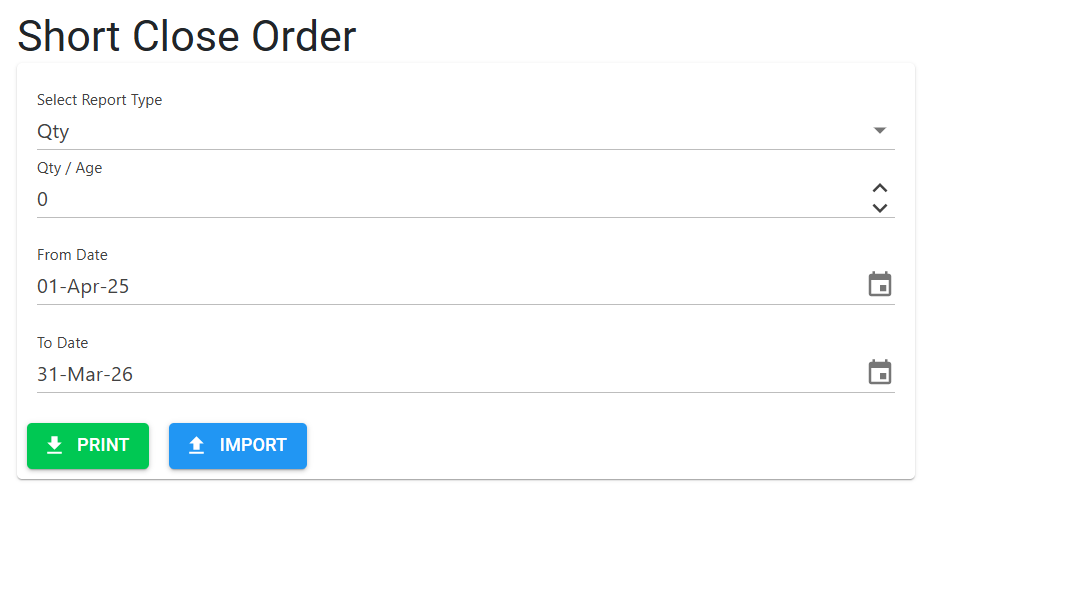
The Workflow Overview
Unlike standard modules where you fill out a web form, Short Close Order follows a 4-step process:
- Define Selection Criteria: Set the rules for which orders to consider.
- Download (Print): Export the list to Excel.
- Review & Mark: Decide which orders to close in the Excel file.
- Upload (Import): Process the closures in the system.
3. Features ✨
- 📊 Smart Selection Criteria: Filter orders based on two primary logic types:
- By Quantity: Find items where the remaining pending quantity is negligible (e.g., < 5 units).
- By Age: Find items that have been pending for a long time (e.g., > 90 days).
- 📁 Bulk Excel Processing: Handle hundreds of orders in a single session.
- 🛡️ Validation Engine: Automatically checks for the existence of an “EXPIRED” status in the system before allowing any changes.
- 🕵️ Error-Correction Loop: After importing, the system provides a result Excel file that clearly highlights any rows that failed (e.g., due to incorrect formatting or missing IDs).
- 📜 Automated Reporting: Maintains a log of every Short Close report generated, including the search parameters used and the user who initiated it.
4. Complete Flow 🔄
Set Your Criteria
- Navigate to the Short Close Order Options page.
- Select Report Type: Choose Qty (to close based on low remaining stock) or Age (to close based on date).
- Enter Value:
- For Qty: Enter the maximum pending amount (e.g.,
1.000). - For Age: Enter the minimum days pending (e.g.,
180).
- For Qty: Enter the maximum pending amount (e.g.,
- Adjust the Date Range (From/To) to narrow down your order list.
Generate & Download (Print)
- Click “Print”.
- The system will generate and download an Excel file named
Short_Close_Order.xlsx.
Mark for Closure (In Excel)
- Open the downloaded Excel file.
- Locate the “Short Close” column (Column N).
- For every row you want to close, change the value to
Y. - For rows you want to keep open, leave it as
N. - Save the file.
Import and Process
- Go back to the web application and click “Import” (or navigate to the Short Close Order Import page).
- Upload your modified Excel file.
- The system will process each line and provide a Result File.
- Review the Result File to ensure all intended orders were marked as “EXPIRED”.
5. Validations and Error Handling ⚠️
The system performs several checks during the process:
| Validation Type | What is checked? | Error Message / Action |
|---|---|---|
| System Status Check | Does an “EXPIRED” status exist in the Status Master? | “In Order status master, there is no existing status as ‘EXPIRED’.” |
| Date Range | If From Date > To Date or gap > 2 years. | “Invalid Date Range” or “Gap… may not exceed 2 years.” |
| Criteria Range | Qty must be 0-10; Age must be 60-730 days. | “Pending qty should be between 0.001 and 10.” |
| Import Format | Column count and header names. | “File is not in correct format.” |
| Data Integrity | If Order No length > 6 or Dates are invalid. | Error Code (Z1, Z2, etc.) in the Result Excel. |
6. Tools / Smart Features 🔧
- 📄 ClosedXML Engine: Dynamically builds the Excel file with specific formatting, frozen headers, and instructional comments.
- 🛠️ Utility Date Helper: Automatically calculates Fiscal Year dates based on your current login session to prepopulate the From/To fields.
- 📋 Audit Log Status: The system automatically marks report logs as “Generated” once the Excel creation is successful.
7. Related Reports 📊
- 📉 Short Close Pending List: The primary Excel report generated to review and identify orders for closure.
8. Configuration Requirements ⚙️
- 📑 Order Status Master: You MUST have a status named exactly “EXPIRED” (case-sensitive) in your
OrderStatusMsttable. - 📅 Fiscal Year: The current fiscal year must be defined in the system for date range defaults.
9. Best Practices / Tips 💡
ℹ️
- Small Batches: If you have thousands of orders, try processing them in smaller date ranges (e.g., month-by-month) for easier review.
- Comment Feature: Check the cell comments in the exported Excel (Column N) for specific instructions on allowed values.
- Don’t Move Columns: Do not change the order of columns in the Excel file, as the importer relies on specific column positions.
10. Technical Observations 🔍
⚠️
- Row/Column Limits: The importer is hardcoded to expect exactly 14 columns for Orders. Any variation will result in a format error.