Store Master
Store Master - User Guide
1. Introduction 📝
The Store Master is the foundational configuration for tracking exactly where your materials are located. It allows the ERP to manage multiple physical warehouses, specialized storage areas, and production zones, ensuring that inventory is never “lost” in the system.
Key Objectives of Store Master:
- Location Tracking: Distinguish between raw materials in the main warehouse and semi-finished goods on the production floor.
- Inventory Accuracy: Enable store-wise stock counts and valuation.
- Operational Flow: Facilitate the movement of goods from receipt (GRN) to the shop floor and eventually to finished goods.
2. Getting Started 🚀
Accessing the Module
Navigate to Supply Chain Setup > Store Master.
The Index Page
The Index Page provides a birds-eye view of all physical and logical storage locations. It lists the auto-assigned code, the category (Store or Shop Floor), and the descriptive name.
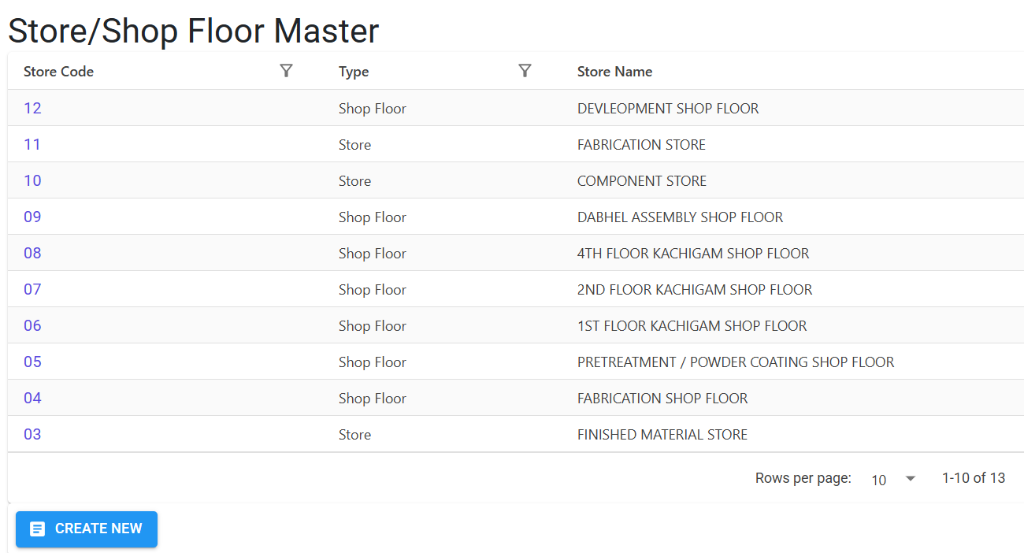
Master Details
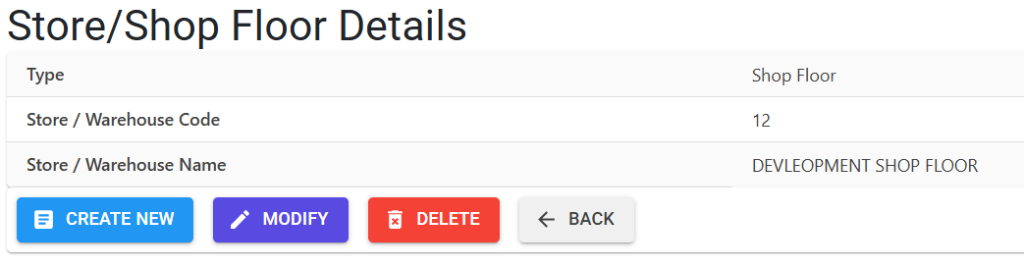
Clicking on a store code opens the Details Screen. This view allows you to:
- Manage Locations: View the specific type and name of the warehouse or shop floor area.
- Actions: Use the action buttons to Modify existing names, Delete unused locations, or Create New entries.
- Note: Type and Code are locked after initial creation to preserve data integrity.
3. Key Features ✨
🏷️ Auto-Coding System
The system automatically assigns a unique Store Code to every new location. This code is the internal “DNA” used to link inventory across all modules.
📊 Capacity Planning
To maintain high performance in dropdowns and reports, the system supports a maximum of 98 user-defined stores.
- Note: Store Code ‘99’ is reserved for system-level operations and is not used for standard manual entries.
4. Usage Across Modules & Transactions 🔄
The Store Master is integrated into every movement of material:
📥 Receiving (GRN)
When goods arrive from a vendor, they are “pushed” into a specific Store (e.g., “Inspection Store” or “Raw Material Warehouse”).
🛒 Sales & Issues (Invoice / Rejection)
When selling goods or returning items, the system “pulls” inventory from the selected Store to ensure the stock balance is updated in the correct location.
🏭 Manufacturing (Job Work / IIRS)
Materials are moved into “Shop Floor” stores during production. The IIRS (Internal Inspection Release Sheet) uses these stores to track items passing through quality control.
5. Related Reports 📊
📉 Inventory Balance Report
The primary report for viewing “What is where.” You can filter this report by Store to see exactly which items are currently sitting in a specific warehouse.
💰 Inventory Valuation
Calculates the total financial value of all goods held within a particular Store, which is essential for month-end audits.
📑 Inventory Ledger
A detailed history showing every single movement (In and Out) that has ever occurred in a selected Store.
6. Guidelines and Logic ⚠️
Entry Standards
- Store Name: Should be descriptive and clear (e.g., “WHS-01 MAIN” instead of just “STORE”). The system automatically converts names to UPPERCASE for uniformity.
- Logical vs. Physical: You can create “Logical” stores for items undergoing inspection or items that have been rejected and are awaiting return to the vendor.
7. Deletion & Modification Preventions 🛡️
To prevent inventory discrepancies, the system enforces the following rules:
🚫 Deletion Preventions
You cannot delete a Store if:
- It has been used in a Goods Receipt (GRN).
- It is mentioned in any Invoice or Sales Rejection.
- It has been used for Job Work or Quality Inspections. The system performs a cross-module scan and will provide a count of all records that are preventing the deletion.
✏️ Modification Rules
- Locked Attributes: The Store Type (Store vs. Shop Floor) and the Store Code are locked after creation.
- Name Updates: You can change the Store Name at any time, and the change will instantly reflect across all past and future transactions.
8. Best Practices / Tips 💡
- Consistency is Key: Avoid creating redundant stores for the same physical area. This keeps your stock reports clean and easy to read.
- Use for Quarantine: Create a specialized store called “QUARANTINE” for items that have failed inspection. This separates them from “Ready to Use” stock.
- Audit Periodically: Use the Inventory Balance report to cross-verify the system’s store-wise stock against your physical warehouse counts.