Goods Receipt Note (GRN)
Goods Receipt Note (GRN) Module - User Guide
⚡ Quick Start: 3-Minute Fast Track
For storekeepers who need to receive material quickly:
- Header: Click Create New, pick a Supplier, and link the Gate Entry (In/Out No).
- Items: Use Create From Indent for bulk fetch or add lines manually (Select Item, Qty, and Store).
- Packaging: Define Qty Per Box to generate the correct number of QR labels.
- Finalize: Save. The inventory is updated. Use Print QR Labels to tag the material.
🗺️ Process Flow: Gate to Store
graph LR
    Gate[Security Gate Entry] --> GRN[Goods Receipt Note]
    GRN --> QC[Quality Inspection]
    QC --> QR[Label Generation]
    QR --> Store[Inventory Put-away]

    style GRN fill:#f9f,stroke:#333,stroke-width:2px
✅ Prerequisites Checklist
Before creating a GRN, ensure:
- Gate Entry: The vehicle/driver must be registered at the security gate.
- Authorized Indent: A Purchase Indent must be created and authorized.
- Store Locations: Target stores (e.g., RM Store, QC Hold) must be defined.
- Packaging Standards: Standard “Qty Per Box” should be known for QR labels.
1. Introduction 📝
The Goods Receipt Note (GRN) module is the primary gateway for inventory entering the system. It confirms the physical receipt of materials against a Purchase Indent or Job Work Annexure, triggering stock updates and financial liability.
In the overall business flow:
- It validates the Received Quantity against the Ordered Quantity.
- It generates System Stock in the selected store/warehouse.
- It initiates the QR Label Printing workflow for material tracking.
- It serves as the base for the Purchase Bill.
Typically, this module is used by Security Officers, Store In-charges, and Quality Inspectors.
2. Getting Started with GRN 🚀
Accessing the Module
Navigate to the GRN Index via the Procurement or Inventory menu.
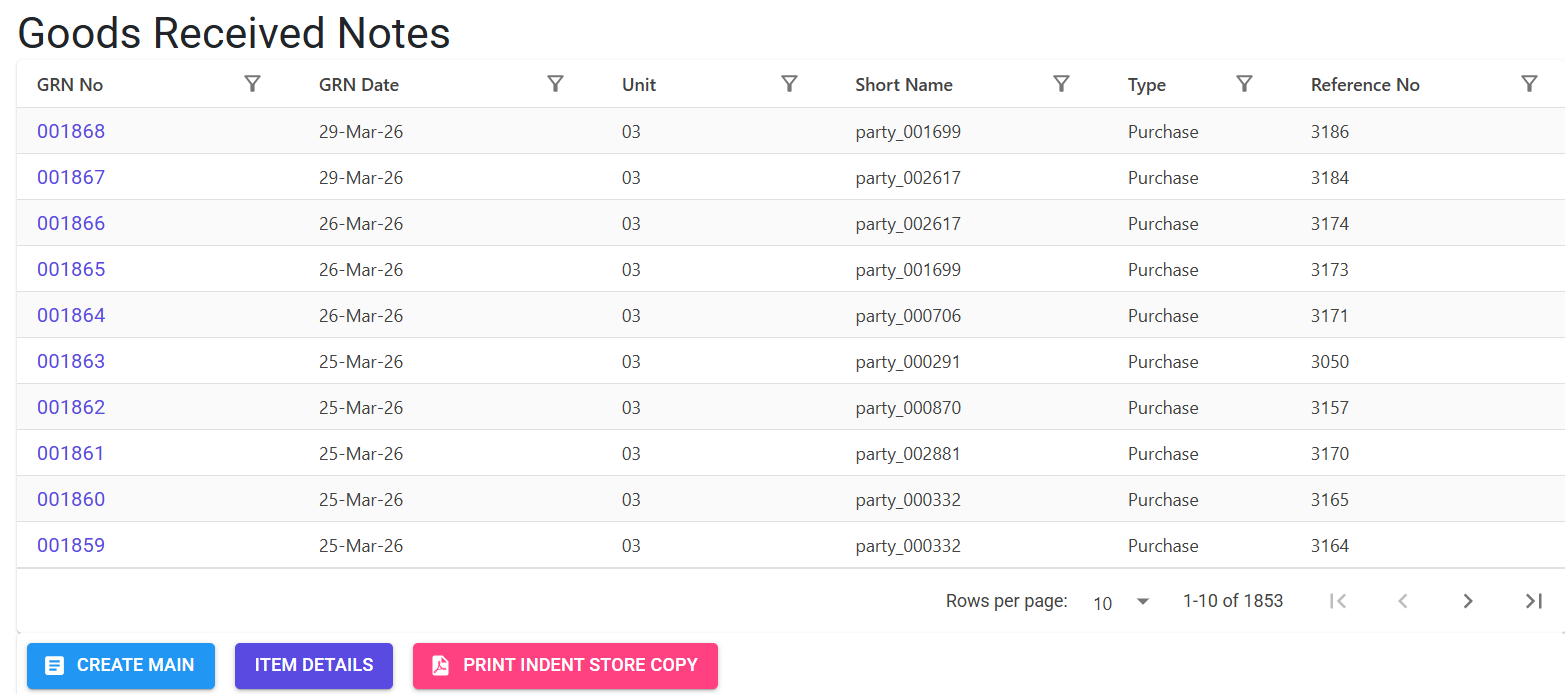
GRN Categories
- Standard GRN: Receipt of raw materials or components.
- Service GRN: Receipt of services (e.g., maintenance, consulting) where no physical stock is moved.
- Job Work GRN: Receipt of processed items back from a contractor.
3. Features ✨
🏗️ Intake Management
- In/Out Registration Link: Secure linkage to the Security Gate Entry (
InOutNo) to ensure only authorized vehicles/materials are processed. - Multi-Store Support: Materials can be received into specific logical stores (e.g., RM Store, Casting Yard, QC Hold).
🏷️ QR & Traceability
- Standard Packaging: Enforces a strict packaging logic where the total quantity must be an exact multiple of the “Qty Per Box”.
- Automated QR Generation: Assigns a unique Sub-TRN Id to each packet for real-time tracking across the shop floor.
📋 Fulfillment Control
- Create From Indent (Turbo Mode): Accessible via the [Create from Indent]. This feature allows users to fetch all authorized lines from a specific Purchase Indent by entering its Financial Year and Indent Number.
- Quality Inspection (QC): Allows for partial acceptance by splitting the Received Quantity into Accepted vs. Rejected pools.
4. Complete Flow 🔄
Initialize Receipt
- Select the Supplier (Party) and the receiving Unit.
- Link the Gate Entry (In/Out No). The system fetches the vehicle and driver details.
- Enter the Challan No and Challan Date from the supplier’s document.
Item Selection (Bulk or Manual)
- Bulk Mode: Navigate to the Create from Indent page. Select the Indent’s Financial Year and enter the Indent Number to pull all authorized items instantly.
- Manual Mode: Add items individually and link them to specific Indent line IDs.
Define Quantities & Packaging
- Enter the Challan Qty (Received) and GRN Qty (Accepted).
- For QR-enabled items, define the Qty Per Box. The system calculates the total number of packets (Max 300).
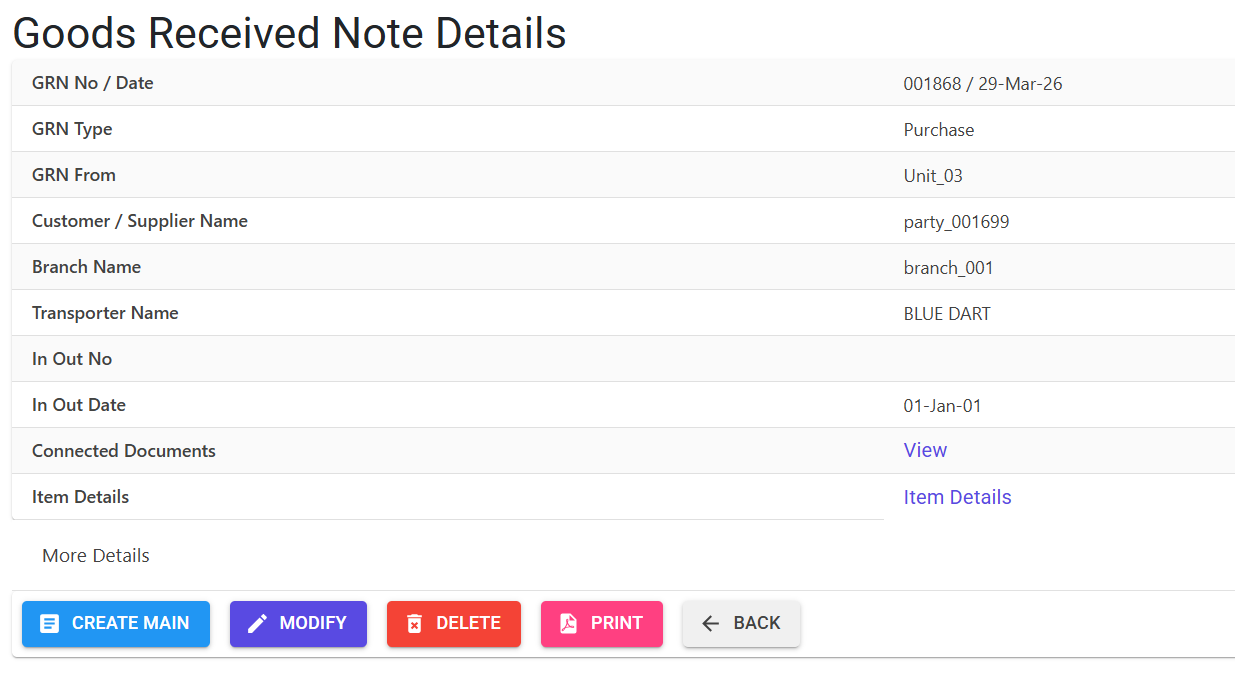
Finalize & Print Labels
- Save the GRN. The system updates inventory levels instantly.
- Use the “Print QR Labels” menu to generate unique stickers for each packet.
5. Validations and Logic ⚠️
The GRN module acts as a “Gatekeeper,” applying strict rules to prevent unauthorized inventory intake.
Main-Level (Header) Validations
- Gate Security: The
InOutNomust be a valid, unlinked gate entry of type ‘PB’ (Purchase Bill). The system blocks the link if the Party or Unit is mismatched. - Chronological Integrity:
GrnDatecannot be before theGate Entry DateorSupplier Challan Date.GrnDatemust be after the most recent GRN in the same financial period.
- Indent Matching: The GRN date cannot be prior to the Indent Date of any linked items.
Line-Level (Item) Validations
- Fulfillment Guardrails:
- Accepted Qty cannot exceed the Pending Indent Qty.
- Accepted Qty cannot exceed the Received (Challan) Qty.
- Overflow Rule: If the system parameter
AllowExcessGrnQtyis ‘Y’, the user can accept up to 110% of the indent quantity to account for weight variances. - Packaging Rules (QR Context):
- Qty Per Box must be between 0.01 and 999,999,999.
- The total quantity must be an exact multiple of the “Qty per box” to ensure uniform labeling.
- The total number of packets is capped at 300 per line.
- Short-Receipt Mandatory Remarks: If the accepted quantity is less than the received quantity, a 10-character minimum reason is required for audit.
6. Referential Integrity & Safeguards 🛡️
GRNs are critical financial documents. Modifying them is restricted to preserve the audit trail.
Modification & Deletion Blocking
Modification or Deletion is STRICTLY PREVENTED if any of the following documents are linked:
- Supplier Bills: If a Purchase Bill / Invoice has already been booked against this GRN.
- Sales Rejection: If the materials have already been returned to the supplier (Purchase Return).
- Job Work: If the materials have been issued for further processing.
- Import Document: If the GRN is linked to a Landed Cost calculation for imported items.
- Debit / Credit Notes: If financial adjustments (Price/Qty) have been made.
QR Rollback
If a GRN line is deleted, the system automatically rolls back the associated QR (Sub-TRN) records to prevent “Ghost Labels” from existing in the database.
7. Related Reports 📊
- 📋 GRN Analysis Report: A comprehensive tool to track pending bills and quantity discrepancies.
- 📦 GRN Register: A chronological list of all goods received with item-wise tax and store details.
- 🏷️ QR Traceability Report: Track the movement of specific GRN packets across the production floor.
8. Technical Observations 🔍
- MFGLog: All actions (Add, Bulk Add, Edit, Delete) are logged with usernames, timestamps, and deletion reasons.
- Store Management: Stock is incremented in the specific
StoreCodeselected at the header or line level. - Indent Authorization: The system strictly prevents creating a GRN for an indent that has not yet been authorized.
9. Best Practices / Tips 💡
- Link Gate Entry: Always link the
InOutNoto ensure synchronization between the Security Gate and the Stores department. - Inspect Before Saving: Once a GRN is linked to a Bill, it cannot be modified. Ensure the packaging and quantities are 100% accurate before clicking Save.
- Standard Packaging: If an item usually arrives in crates of 50, set this in the Inventory Master as the default “Std Pkg” to speed up GRN entry.