Opening/Closing Inventories
Inventory Balance Module - User Guide
1. Introduction 📝
The Inventory Balance module is used to establish and manage the starting or ending stock levels for items within the system. It supports both Opening Store Inventory (for new system implementations or new fiscal years) and Physical Inventory Closing (for audit-based stock adjustments).
Business Purpose:
- Records base inventory levels by Item, Stage, Brand, and Store.
- Facilitates the transition between fiscal years by setting opening balances.
- Allows for reconcilement of physical stock counts against system records.
2. Inventory Strategies 📈
The system handles two distinct inventory scenarios based on the Inventory Type:
🏢 Store Inventory
- Purpose: Records the Opening Balance for a unit.
- Context: Typically used during initial ERP setup or during fiscal year-end processes.
- Quantity Label: “Opening Qty”.
- Rate Label: “Opening Rate”.
📊 Physical Inventory
- Purpose: Records the final Closing Balance based on a physical stock count.
- Context: Used for periodic inventory audits.
- Quantity Label: “Closing Qty”.
- Rate Label: “Closing Rate”.
3. Dimensional Stock Tracking 🔍
Inventory is tracked with high granularity across four key dimensions:
- Item: The base product identifier.
- Stage: The manufacturing or processing stage of the item (e.g., Raw, Semi-Finished).
- Brand: The specific brand associated with the item stock.
- Store: The physical location or warehouse within the unit where the stock is held.
4. Bulk Import Workflow 📁
Managing thousands of inventory items is simplified through the Download-Update-Import cycle:
📥 1. Download Model
Generates a specialized 6-column Excel template:
Item Id|Stage|Brand|Store|Qty|Rate.- The template column headers (Qty/Rate) automatically adjust based on whether you are importing Physical or Store inventory.
📤 2. Import & Validation
Upon upload, the system performs a two-tier validation:
🟢 Z-Series (Technical Format)
- Z1: Item Id exceeds 6 digits.
- Z2: Stage or Store Code exceeds 2 characters.
- Z3: Brand Id exceeds 3 digits.
- Z4: Quantity/Rate are not in valid numeric format.
- Z5: Mandatory fields are empty.
🔴 Business Logic (A-G Series)
- A: Invalid or Inactive Item Id.
- B/C/D: Invalid Stage, Brand, or Store Code.
- E: Duplicate Entry – The combination of Item + Stage + Brand + Store must be unique.
- F/G: Values outside allowed ranges (Qty: up to 10^9, Rate: up to 10^8).
5. Segmented Validations ⚠️
Connectivity Guardrails
- Active Status: Only items marked as “Active” in the Item Master can have their inventory updated.
- Unit Mapping: Stock balances must be mapped to a valid Unit Code.
- Item States: Balances are recorded separately for Good (“G”) stock and Rejected (“R”) stock.
Reporting
- 📊 Stock Inventory Report: An exhaustive 14-column report providing a full breakdown of Group, Item, UOM, and total valuation (Amount = Qty * Rate).
6. Complete Workflow 🔄
Define Parameters
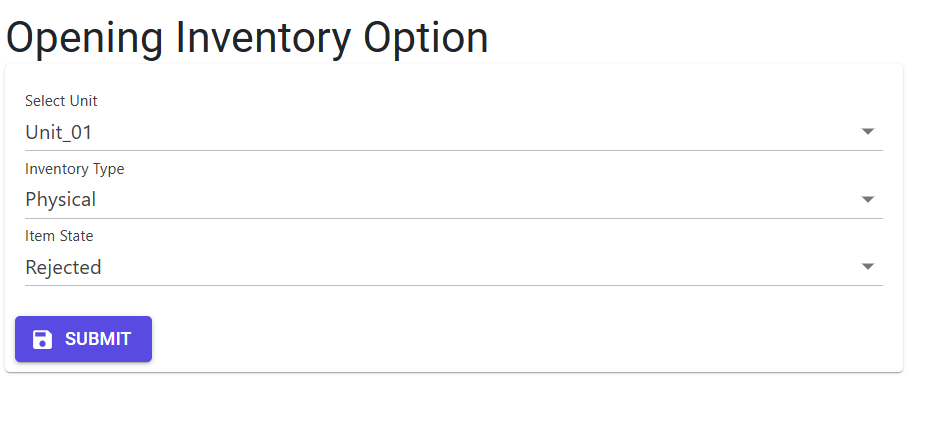
Navigate to Opening Inventory Option. Select the Unit, Inventory Type, and Item State.
Entry Mode
- Manual: Use the grid to add individual stock lines.
- Bulk: Download the Excel model and fill in the stock dimensions and values.
Validate & Save
Submit your entries. The system calculates the total stock count and valuation. All additions are logged in the Audit Trail.
7. Best Practices / Tips 💡
- Store Code Accuracy: Ensure the
StoreCodematches the warehouse physical layout to prevent misallocations during production. - Duplicate Protection: If you need to combine stock from two locations into one, do so in Excel before importing to avoid the “E” (Duplicate Entry) error.
- Decimal Precision: The system maintains 3 decimal places for quantities and 4 decimal places for rates for high-precision valuation.