Short Close Indent
Short Close Indent Module - User Guide
1. Introduction 📝
The Short Close Indent module is a specialized administrative utility used to bulk-manage pending Purchase Indents. In a high-volume procurement environment, indents may remain open due to partial fulfillment, project cancellations, or changes in material requirements. This module allows procurement officers and store managers to identify, review, and close multiple indents simultaneously using an Excel-based workflow, ensuring that the “Pending Indent” list remains accurate.
ℹ️
In the overall business flow:
- It is a maintenance utility used to clean up the “Pending Indents” list.
- It changes the status of selected indent lines to “EXPIRED”.
- It uses a unique Export-Edit-Import pattern for bulk processing.
2. Getting Started with Short Close Indent 🚀
Accessing the Module
Access the module via the Short Close Indent Options menu navigation: shortcloseindentoption.
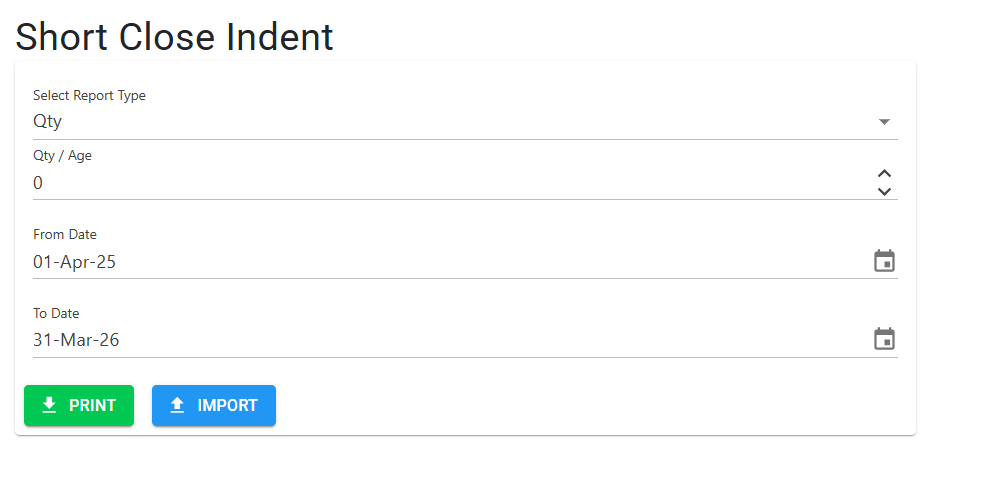
The Workflow Overview
Short Close Indent follows a disciplined 4-step process:
- Define Selection Criteria: Filter the indents you wish to review.
- Download (Print): Export the list to a pre-formatted Excel file.
- Review & Mark: Set the “Short Close” flag to ‘Y’ in the Excel file.
- Upload (Import): Submit the changes back to the system via
shortcloseindentimport.
3. Features ✨
- 📊 Smart Selection Criteria: Filter indents using two primary logic types:
- By Quantity: Identify items where the remaining pending quantity is minimal (e.g., < 0.5 units). Valid range: 0.001 to 10.
- By Age: Identify items that have been pending beyond a certain timeframe (e.g., > 120 days). Valid range: 60 to 730 days.
- 📁 Bulk Excel Processing: Handle hundreds of indent lines in a single session with the specialized 12-column layout.
- 🛡️ Status Validation: Automatically verifies that an “EXPIRED” status exists in the
Indentstatusmstbefore allowing any closures. - 🕵️ Import Error Reporting: The system generates a result file that uses specific “Z-series” error codes to pinpoint formatting or logic issues.
- 📜 Process Logging: Automatically tracks the user and the date range of every Short Close activity in the
ReportLogsystem.
4. Complete Flow 🔄
Set Selection Criteria
- Open the Short Close Indent Options page.
- Select Mode:
- Choose Qty to search for low balances.
- Choose Age to search for old requirements.
- Enter Threshold: Provide the maximum quantity or minimum age value.
- Adjust the Date Range (Max gap allowed: 2 years).
Generate & Download
- Click “Print”.
- The system generates an Excel file containing all matching pending indents.
Mark for Closure (In Excel)
- Open the downloaded Excel file.
- Locate the “Short Close” column (Column L / 12).
- For each line you want to close, change the ‘N’ to ‘Y’.
- Save the file. Important: The filename must be
ImportShortCloseIndent.xlsx.
Import & Execute
- Go to the Short Close Indent Import page.
- Upload your modified file.
- The system updates the database and provides a download with a “Result” sheet highlighting what succeeded and what failed.
5. Validations and Logic ⚠️
System-Wide Checks
- Fiscal Year Invariant: The selection dates must fall within the user’s active financial year.
- Safety Lock: If the status “EXPIRED” is missing from the Master configuration, the system will block the operation with: “In indent status master, there is no existing status as ‘EXPIRED’.”
6. Technical Specifications 🔍
- 🛠️ Column Structure: The Indent importer expects exactly 12 columns. Changing the column order or count will trigger a “File is not in correct format” error.
- 📁 File Storage: Temporary files are stored at
\MFGReports\Reports\{dbname}\{RandomName}.xlsx. - 📋 Audit Record: Every success is recorded in the
MFGLogtable with the operation type “Short Close Indent”.
7. Best Practices / Tips 💡
- File Naming: Ensure your upload file is named exactly
ImportShortCloseIndent.xlsx. Using other names will result in a “File Name” error. - Master Inactive: Configure the “EXPIRED” status in the Master as an “Inactive” status to hide these items from other operational screens.
- Review Comments: Check the Excel cell comments in the “Short Close” column for quick value reference.