E-Vault (Document Management)
E-Vault - User Guide
1. Introduction 📝
The E-Vault (Electronic Vault) is your ERP’s central Document Management System (DMS). It serves as a secure digital safe for storing company contracts, legal certificates, employee records, and standard operating procedures (SOPs). It tracks both the digital file and the physical location of the hard copy.
Key Objectives of E-Vault:
- Centralized Storage: One home for all departmental documents.
- Expiry Management: Automatically track and alert you before critical documents (like licenses) expire.
- Data Security: Enforce strict access levels—from Junior Management to the Board of Directors.
2. Interface Walkthrough 🏗️
Accessing the Module
To access the E-Vault, navigate to System Tools > Other Masters > E-Vault from the main menu.
The Index Page
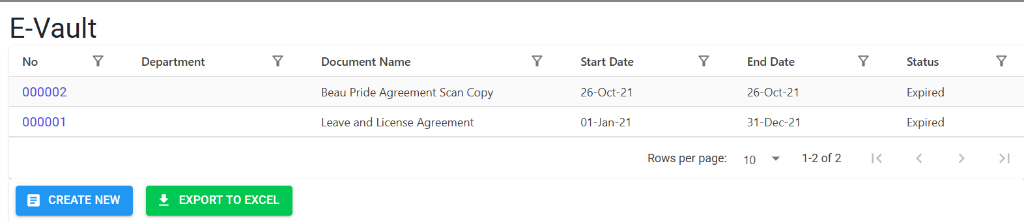
The E-Vault Index provides a summarized view of all stored documents. From this screen, you can:
- Monitor Expiries: Instantly see which documents are “Live” or “Expired”.
- Filter by Department: Quickly narrow down the list to find departmental records.
- Review Validity: Check the Start and End dates for every registered document.
- Export Data: Download the entire document register to Excel for auditing.
The Details Page
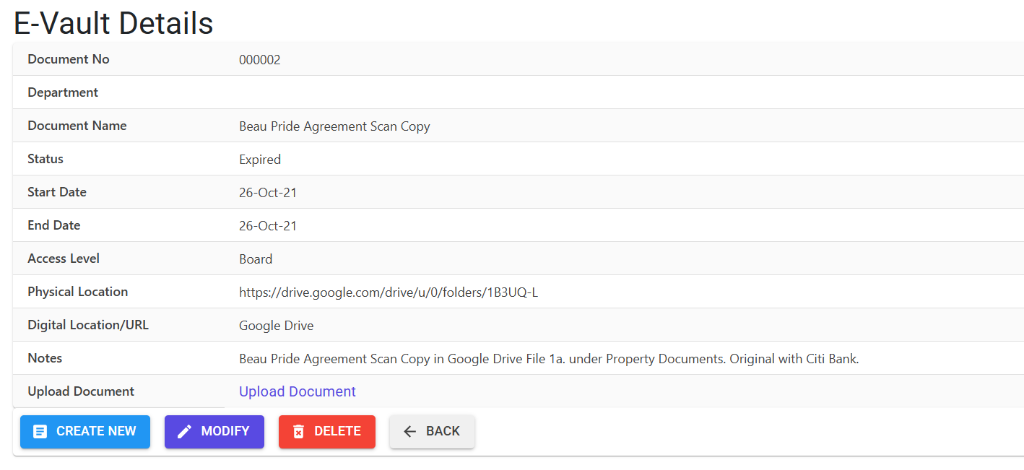
Clicking on a Document Number opens the Details View, which contains the full metadata for that record:
- Security & Access: Review the defined Access Level (e.g., Board, Senior) and Physical/Digital locations.
- Document Metadata: View internal notes and the specific document name.
- Document Access: Use the Upload Document link to view or replace the digital file.
- Management Actions: Use the Modify or Delete buttons to manage the record.
3. Document Attributes 🏗️
A. Identification
- Document No: A unique 6-digit numeric ID assigned by the system.
- Document Description: A clear name for the document (e.g., “Property Lease 2024”).
- Department: Linking the document to a specific department (Purchasing, HR, Finance) for easier filtering.
B. Validity & Lifecycle
- Start & Expiry Date: Defines the validity period.
- Auto-Expiry Logic: The system automatically updates the status from Live to Expired the moment the current date passes the Expiry Date.
C. Location Management
- Physical Location: Notes where the actual paper copy is kept (e.g., “Main Office, Red Binder #2”).
- Digital Location (Cyber Location): The secure URL or network path to the digital file.
4. Access Control Levels (ACL) 🔐
To ensure sensitive documents are only seen by authorized personnel, the E-Vault uses a 4-tier security hierarchy:
| Level | Description |
|---|---|
| Junior | General documents accessible to most staff. |
| Middle | Departmental reports and standard contracts. |
| Senior | Confidential business plans and senior HR records. |
| Board | Highly sensitive legal and financial records for Directors only. |
5. Usage Guidelines 📋
Uploading a New Document
- Navigate to System Tools > Other Masters > E-Vault.
- Select Create New.
- Fill in the Description, Department, and Access Level.
- Enter the Expiry Date if the document has a validity period.
- Specify the Physical Location if a hard copy exists.
- Use the Upload tool to attach the digital file.
Searching & Filtering
Use the E-Vault Index to see all live documents. The list is sorted by Document Number (highest first), making it easy to find recent uploads.
6. Security & Deletion Rules 🛡️
🚫 Safe Deletion Process
- Reason Required: Unlike other masters, deleting a document from the E-Vault requires a Delete Reason.
- Audit Trail: Every deletion is captured in the MFG Log, recording who deleted it, when, and why.
- Modification Lock: Once a document is saved, the Document Number and Department cannot be changed to prevent accidental misfiling.
7. Reports & Auditing 📈
📑 E-Vault Master Report (XL)
- Navigation: System Tools > E-Vault > Export.
- Report Name:
Report_E-Vault_[RandomID].xlsx - Content: A 10-column spreadsheet detailing every document’s status, expiry date, access level, and location.
📑 Expiry Alerts
You can use the E-Vault Index to quickly filter for “Expired” documents to identify which licenses or contracts need urgent renewal.
8. Best Practices 💡
- Consistent Naming: Use a standard naming convention (e.g.,
[Year] - [Type] - [Party Name]) for easy searching. - Review Expiries Monthly: Export the E-Vault report on the 1st of every month to track upcoming renewals.
- Physical Backup: Always keep the “Physical Location” field updated so team members can find the original paper copies in case of audits.