GST Rate Master
GST Rate Master - User Guide
1. Introduction 📝
The GST Rate Master ensures that every transaction in your ERP—whether Sales or Purchase—is tax-compliant. This master defines the tax slabs that exist and how they should be applied.
ℹ️
Key Objectives:
- Tax Standardisation: Define official GST slabs (5%, 12%, 18%, etc.).
- Automated Calculation: Link tax rates to items for error-free invoicing.
2. Interface Walkthrough 🏗️
Accessing the Module
To access the GST Rate Master, navigate to System Tools > Other Masters > GST Rate Master from the main menu.
The Index Page
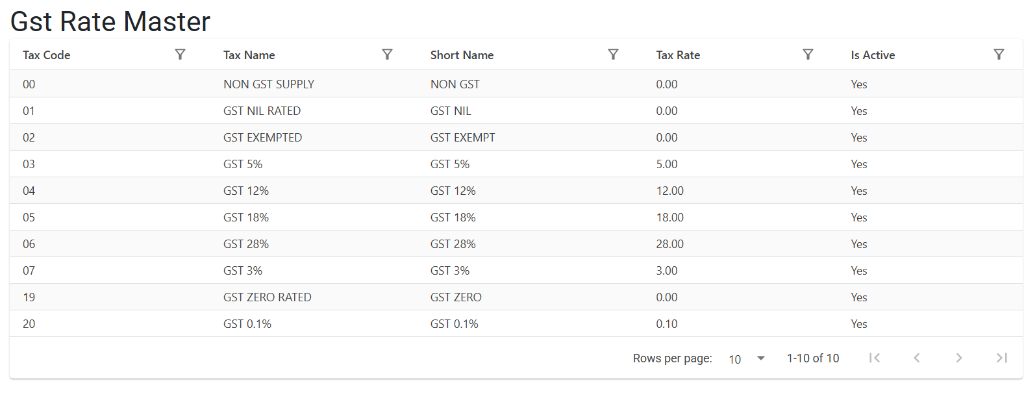
The GST Rate Master Index provides a bird’s-eye view of all configured tax slabs. From this page, you can:
- Search/Filter: Quickly find a slab using the Tax Code, Tax Name, or Short Name filters.
- Review Rates: Verify the total tax rate and its active status at a glance.
- Create New: Start the process of adding a new tax slab to the system.
3. Core Attributes 🏗️
The GST Rate Master defines the “How Much.”
Core Attributes
- GST Name: Descriptive name (e.g., “GST 18%”).
- Total GST Rate: The combined percentage (e.g.,
18.00).- System Logic: The ERP automatically splits the total tax rate into appropriate tax components based on the transaction type.
- Tax Code: A unique internal identifier for the slab.
- Short Name: Used for compact display on invoice summaries (e.g., “18%”).
Transactional Role
Every item in your Item Master is linked to a GST Rate. When that item is added to an invoice, the system fetches the rate defined here to calculate the tax amount.
4. Usage & Best Practices 📋
Configuring a New Tax Slab
- Navigate to System Tools > Other Masters > GST Rate Master.
- Click Create New.
- Enter the name and the total percentage (e.g.,
12). - Ensure Is Active is set to “Yes.”
5. Deletion & Modification Rules 🛡️
🚫 Safety Preventions
- Historical Impact: Tax rates used in previous invoices cannot be deleted. If a slab (e.g., a temporary 28% luxury tax) is discontinued, mark it as Inactive to prevent its use in new invoices while preserving old records.
6. Related Reports 📈
📑 GST Tax Summary
- Purpose: Summarises total sales and purchases grouped by tax slab (e.g., Total 18% Sales, Total 12% Purchases).
- Navigation: Finance > Statutory Reports > GST Reports.
7. Best Practices 💡
- Inactive Old Slabs: Keep your tax drop-downs clean by deactivating rates that your business no longer uses.