Transporter Master
Transporter Master - User Guide
1. Introduction 📝
The Transporter Master is a vital link in your supply chain and logistics operations. It maintains a database of all transport agencies and courier partners used to deliver goods to your customers. Accurately managing this master is essential for generating Sales Invoices and ensuring smooth compliance with the e-Way Bill system.
Key Objectives of Transporter Master:
- Logistics Management: Keep a directory of all trusted shipping partners.
- e-Way Bill Compliance: Store mandatory Transporter IDs (GSTINs) for digital tax filings.
- Dispatch Coordination: Quickly access contact details for vehicle scheduling.
2. Interface Walkthrough 🏗️
Accessing the Module
To access the Transporter Master, navigate to System Tools > Other Masters > Transporter Master from the main menu.
The Index Page
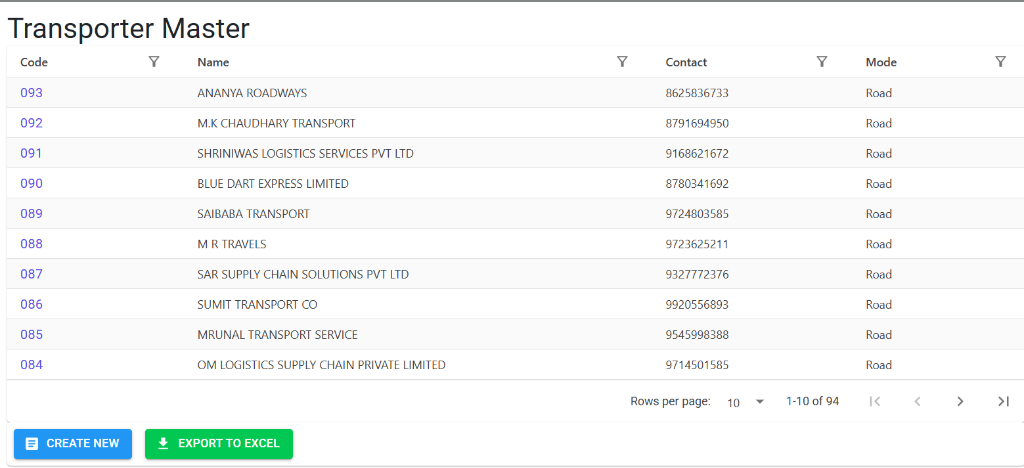
The Transporter Master Index provides a summarized view of all your logistics partners. From this dashboard, you can:
- Create New: Open the registration screen for a new transporter.
- Filter and Search: Use the column headers to quickly locate a specific agency by Name or Code.
- Export to Excel: Download the entire list of transporters for audit and sharing.
The Details Page
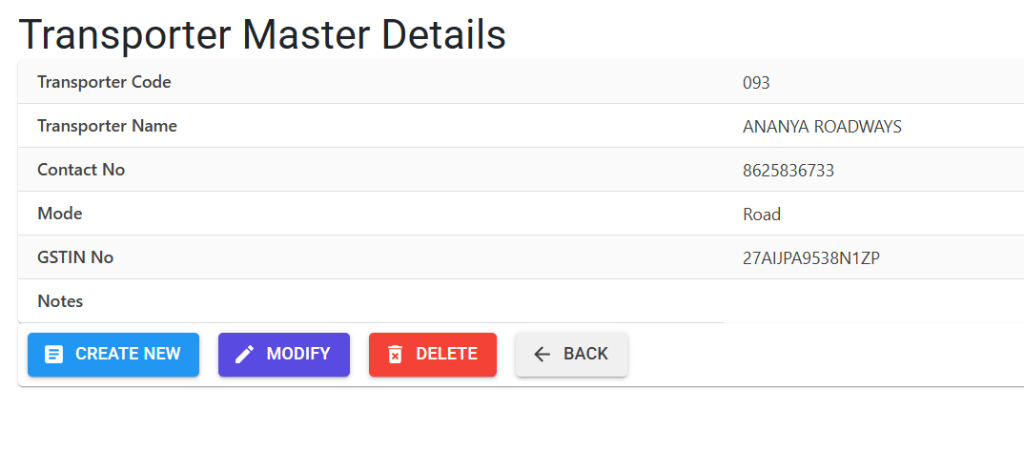
Clicking on a Transporter’s code or name opens the Details View, where you can manage specific data:
- Transporter Identity: Review the auto-assigned 3-digit code and official name.
- Statutory Compliance: Verify the GSTIN number used for e-Way Bill generation.
- Management Actions: Use the Modify button to update contact info or the Delete button (if the record is not linked to any transaction).
3. Core Attributes 🏗️
A. Transporter Identity
- Transporter Name: The official registered name of the transport agency.
- Transporter Code: A unique 3-digit numeric code (e.g.,
001,002) automatically assigned by the system.
B. Statutory Details (The “E-Way Bill Key”)
- GSTIN No: The transporter’s 15-digit GST identification number.
- ⚠️
**Why this matters:** In the e-Way Bill system, providing the Transporter's GSTIN allows the transport agency to login to the GST portal and update the Vehicle Number themselves, saving your team significant manual work.
C. Contact & Mode
- Contact No: Primary phone number for the transport booking desk.
- Transport Mode: Categorize how the goods are moved (Road, Rail, Air, or Ship) to ensure the correct tax rules are applied.
4. Business Validations & Rules 🛡️
To prevent data errors, the system enforces several “Smart Rules”:
| Rule | Description |
|---|---|
| GSTIN Format | The system rejects any GSTIN that does not follow the official 15-digit alphanumeric pattern. |
| Duplicate Check | You cannot create two transporters with the same Name or the same GSTIN. |
| 999 Record Limit | To maintain system performance, the master is capped at 999 unique transporters. |
| Standard Naming | Names are automatically converted to UPPERCASE for uniform appearance on invoices and LRs. |
5. Usage Guidelines 📋
Adding a New Transporter
- Navigate to System Tools > Other Masters > Transporter Master.
- Click Create New.
- Enter the Transporter Name and Contact No.
- Enter the GSTIN No (highly recommended for all GST-registered transporters).
- Select the Transport Mode (usually “Road”).
- The system will generate the Transporter Code upon saving.
6. Deletion & Modification Rules 🛡️
🚫 Deletion Safeguard
The system protects your historical shipping data:
- Active Shipments: You cannot delete a transporter if their code is linked to any historical Sales Invoice, Delivery Challan, or Dispatch record.
- The Workflow: If a transporter is no longer used, you can leave the record as is, but it will remain in your archives for historical reporting.
✏️ Editing Details
You can update contact numbers or notes at any time. However, be cautious when changing a Transporter Name to a completely different agency, as this might confuse historical dispatch audits.
7. Integration & Reports 📈
📑 Sales Invoice Integration
When generating a Sales Invoice, you select a transporter from this master. This automatically populates the “Dispatch Details” section of the invoice.
📑 Transporter Master List (Excel)
- Navigation: System Tools > Transporter Master > Click the Export Icon.
- Content: A compact audit sheet containing Codes, Names, Modes, and GSTINs of all registered partners.
8. Best Practices 💡
- Standardize Names: Use the name exactly as it appears on their GST certificate to avoid mismatches during e-Way Bill generation.
- Update Contacts: Keep the “Contact No” field updated so your warehouse team can quickly reach the transporter if a vehicle is delayed.
- Notes for Routes: Use the “Notes” field to mention specific routes or strengths (e.g., “Best for North India shipments” or “Handles fragile items well”).