AI Bank Reconciliation Walkthrough
Reconcile your bank statement in 3 simple steps with zero manual effort!
Step 1: Upload Excel, Select Bank, Date & Relax! ☕
- Go to Finance > Transactions > AI Bank Reconciliation (Free Preview).
- Upload your bank statement Excel (
.xlsx) on the left. - Select your Bank Name and statement Date Range on the right.
- Click Process AI Reconciliation and relax!
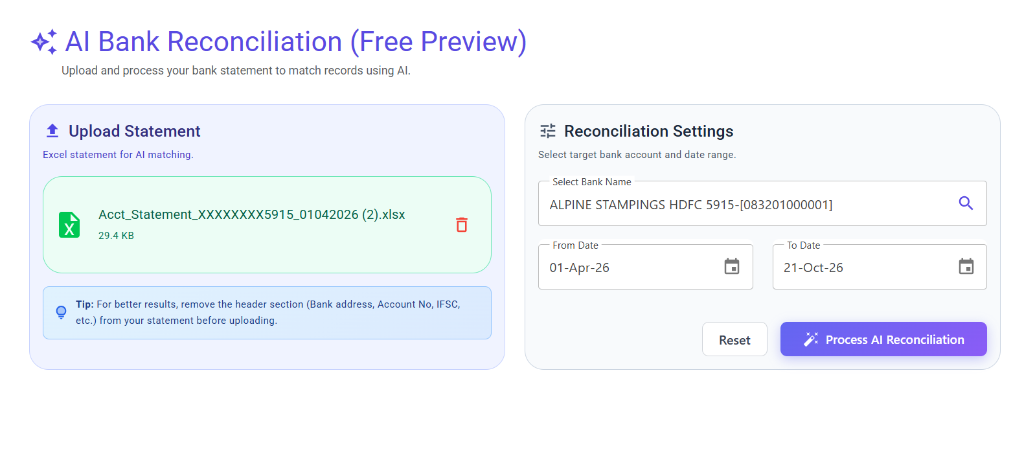
The AI automatically matches your entries and downloads the result file: AI_Bank_Reco_Result.xlsx.
Step 2: Review the Excel & Match Confidence 🔍
Open the downloaded file to see your matched vouchers and clearance dates:

- 🟢 High (Green): Exact Match (Cheque No. or Party Narration + Amount). Ready to clear!
- 🟠 Medium (Orange): Probable Match (AI Semantic or Amount + Date match). A quick glance is recommended.
- 🔴 Low (Red): No Match (Entry not found in statement, like unpresented cheques). Value Date remains
01-Jan-01so it is never cleared by mistake.
Step 3: Upload the Result in Bank Reco 🚀
- Go to Finance > Transactions > Bank Reconciliation.
- Rename
AI_Bank_Reco_Result.xlsxas UpdateValueDates and click Upload. - Done! All Value Dates are updated instantly. Click Print Reco to view your BRS.
💡 Tips for Best Results
- Remove Top Headers: Delete introductory lines (bank logo, account number, address) so Row 1 has the actual column headers (
Date,Description,Debit,Credit,Balance). - Check Columns: Ensure your statement has Date, Narration/Description, Debit, Credit, and Balance.
- Keep Column 1 Intact: Never modify or delete Column 1 (
Voucher Id) in the result file. - File Format: Use modern
.xlsxformat (under 1 MB).