Auto E-Invoice / E-Way Bill
⚡ One-Click e-Invoice & e-Way Bill – No More GSTIN Hassles!
Generate both e-Invoice and e-Way Bill with a single click in ERP Crystal Symphony. The system automatically:
- Connects to the GSTIN portal
- Fetches your IRN (Invoice Reference Number)
- Retrieves your EBN (E-Way Bill Number)
- Embeds QR codes into the invoice
- Makes it ready to print and dispatch
- ✅ No more logging in to the GSTIN portal manually.
- ✅ No JSON file uploads.
- ✅ No duplicate data entry.
Everything is done instantly and compliantly — saving you time, effort, and errors.
Before You Start - Quick Checklist
| Category | Requirement |
|---|---|
| System | Ensure the E-Invoice feature is enabled in ERP Crystal Symphony. If not already enabled, please contact your system administrator. |
| GST Details | GSTIN details and transporter information must be set for: • Your company (seller) • The customer (buyer). If not already done, update these details before proceeding. |
| Ship To Details | If a Ship To details is selected, ensure address, location, pincode, and state are filled. These details will be auto-fetched from the first item line of the order. |
| UOM | Make sure the Unit of Measure (UOM) is selected for the first line item. |
| Freight | If sales order needs freight, add freight item to invoice |
| Attempts | Avoid multiple failed attempts |
| Cancelled | Cancelled invoices can’t be processed |
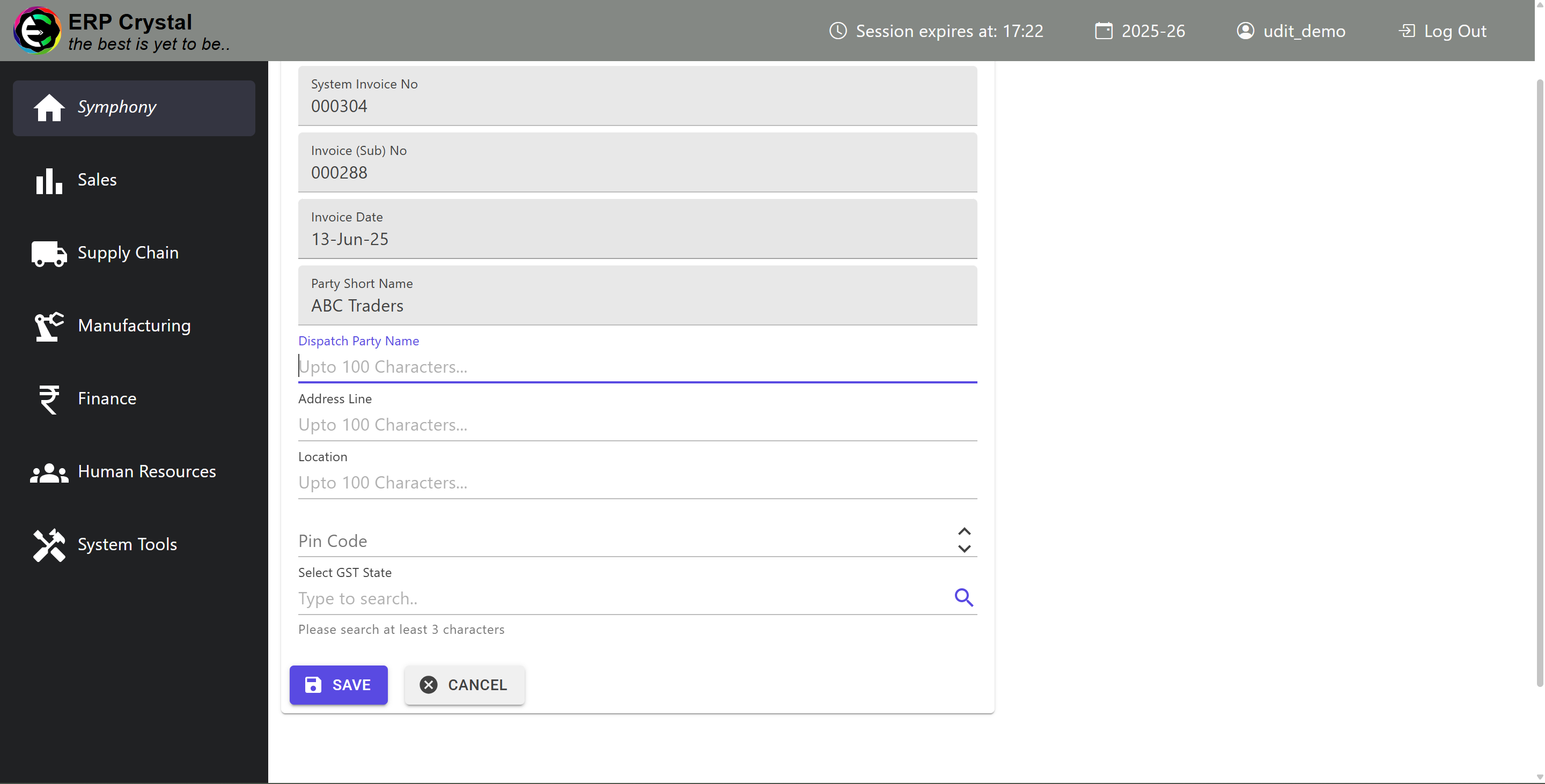
Update Dispatch Information (Optional)
Dispatch Details If you need to update Dispatch details:
- Go to Menu → Sales → Sales Invoice Details → Other Operations
- Click “Update Dispatch Info”
- Fill in all required dispatch details
>
How to Generate E-Invoice & E-Way Bill
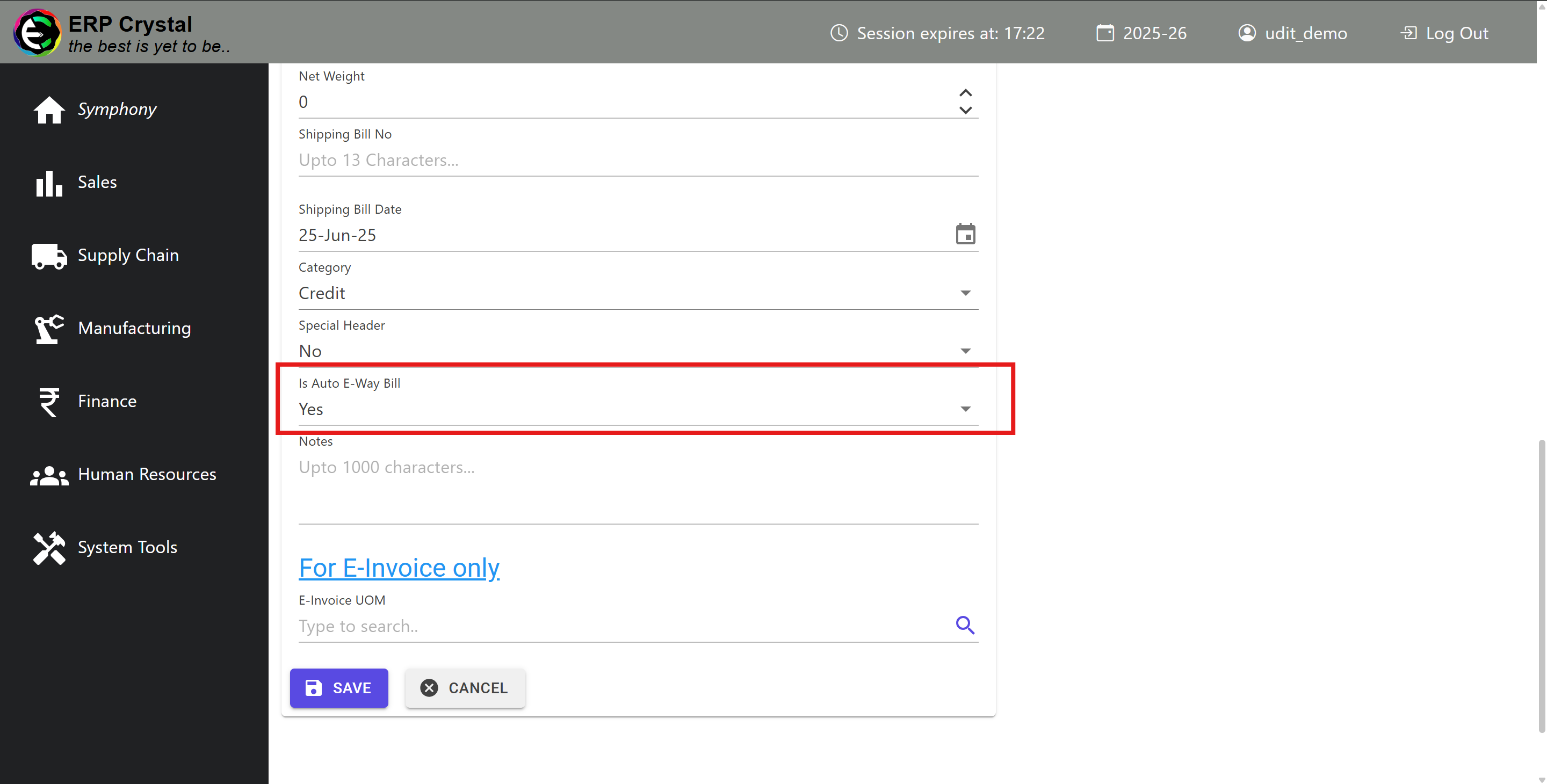
Step 1: Enable Auto E-Way Bill (Optional)
💡 Pro Tip
If you want both e-Invoice AND e-Way Bill generated together:When creating your invoice, set “Is Auto E-Way Bill” to Yes
Step 2: Generate E-Invoice
Simple Process
- Go to Menu → Sales → Sales Invoice Details
- Click on E-Invoice tab
- Click “Generate E-Invoice” button
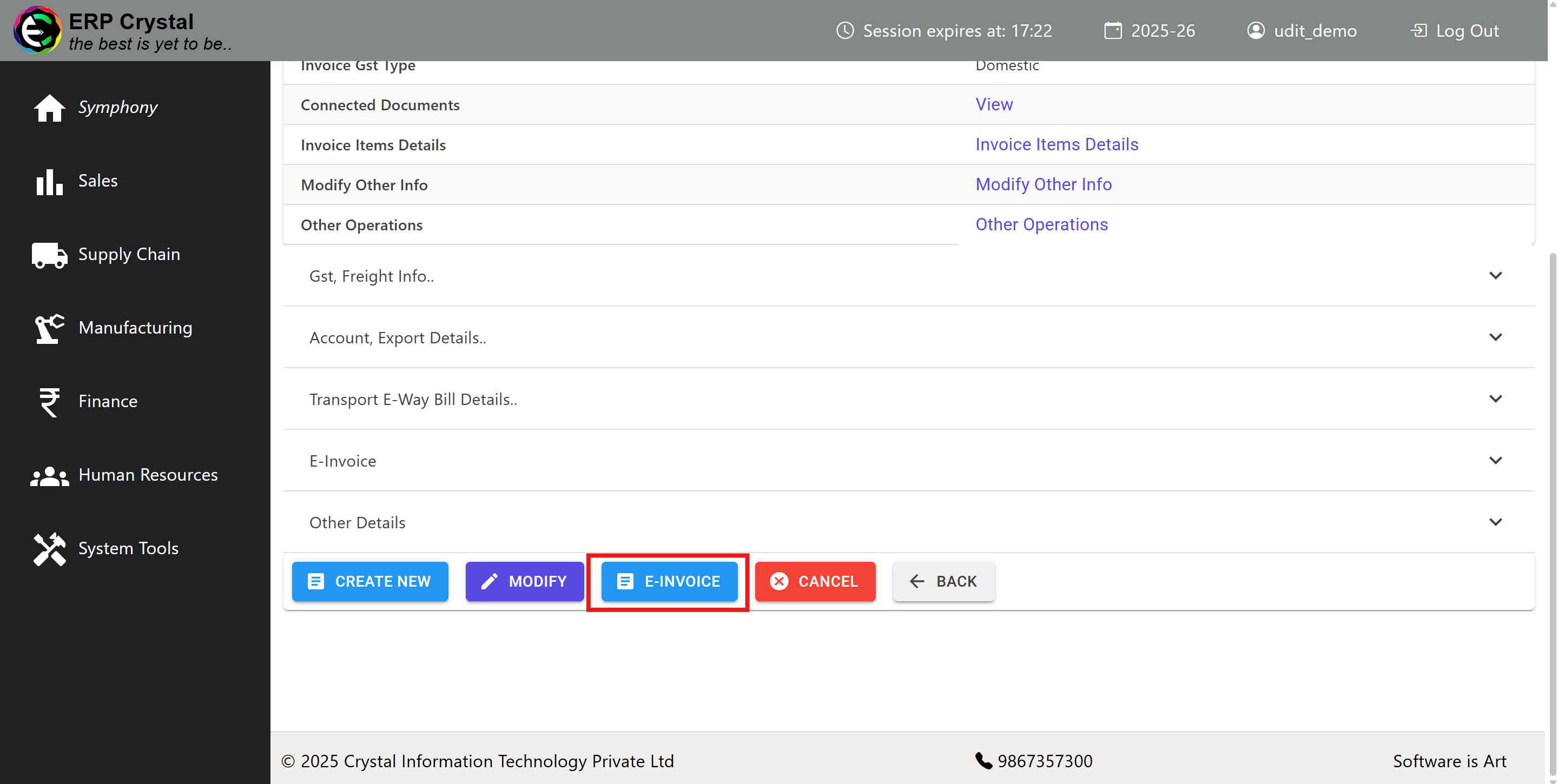
🎉 That’s it! Your e-Invoice (and e-Way Bill if enabled) are now generated and ready.

How to Print Your Documents
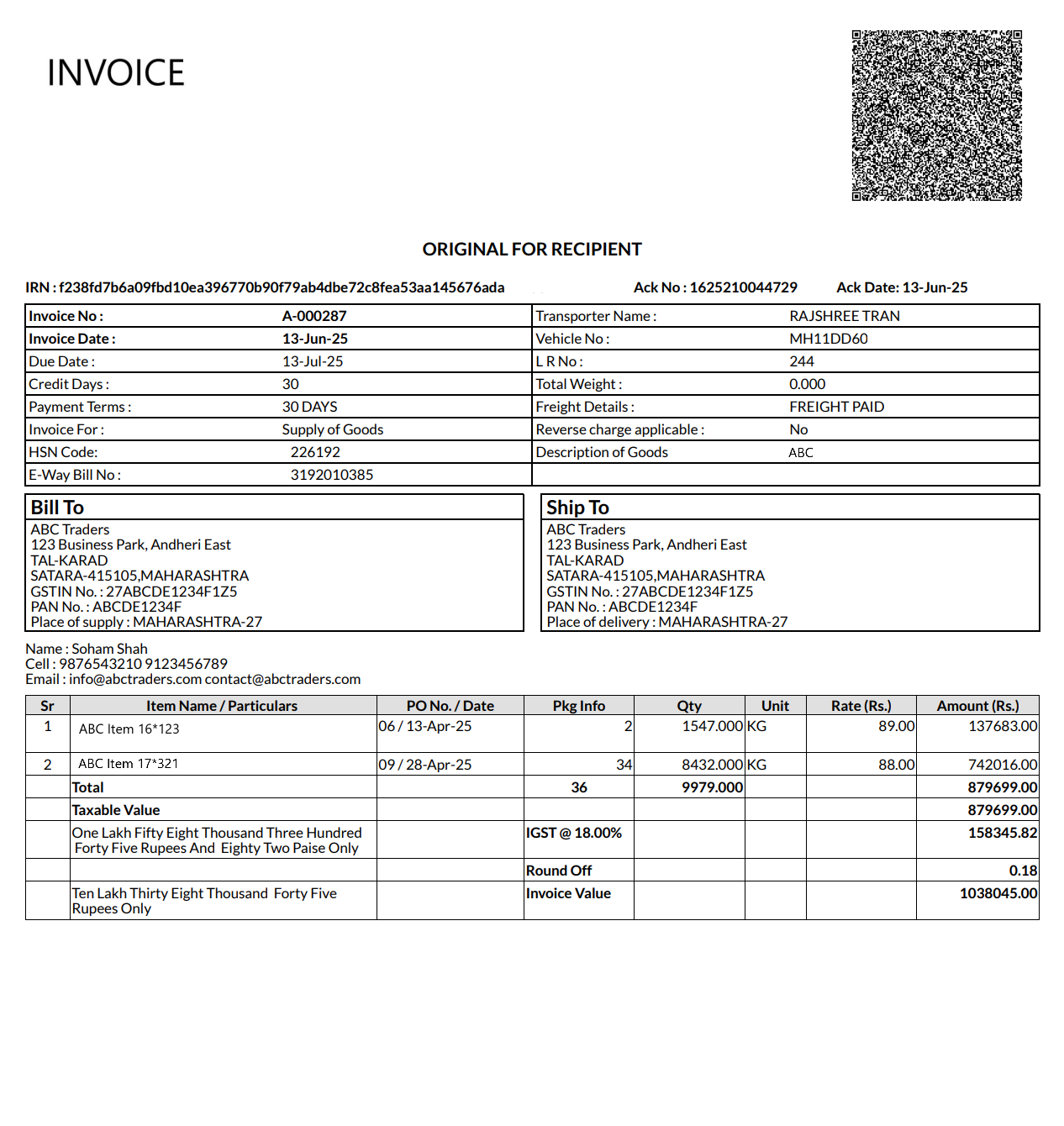
Print Invoice with QR Code
GST-Compliant Invoice
- Go to Menu → Sales → Sales Invoice Details → Other Operations
- Select “Print Invoice”
This gives you a GST-compliant invoice with IRN, QR code, and tax details.

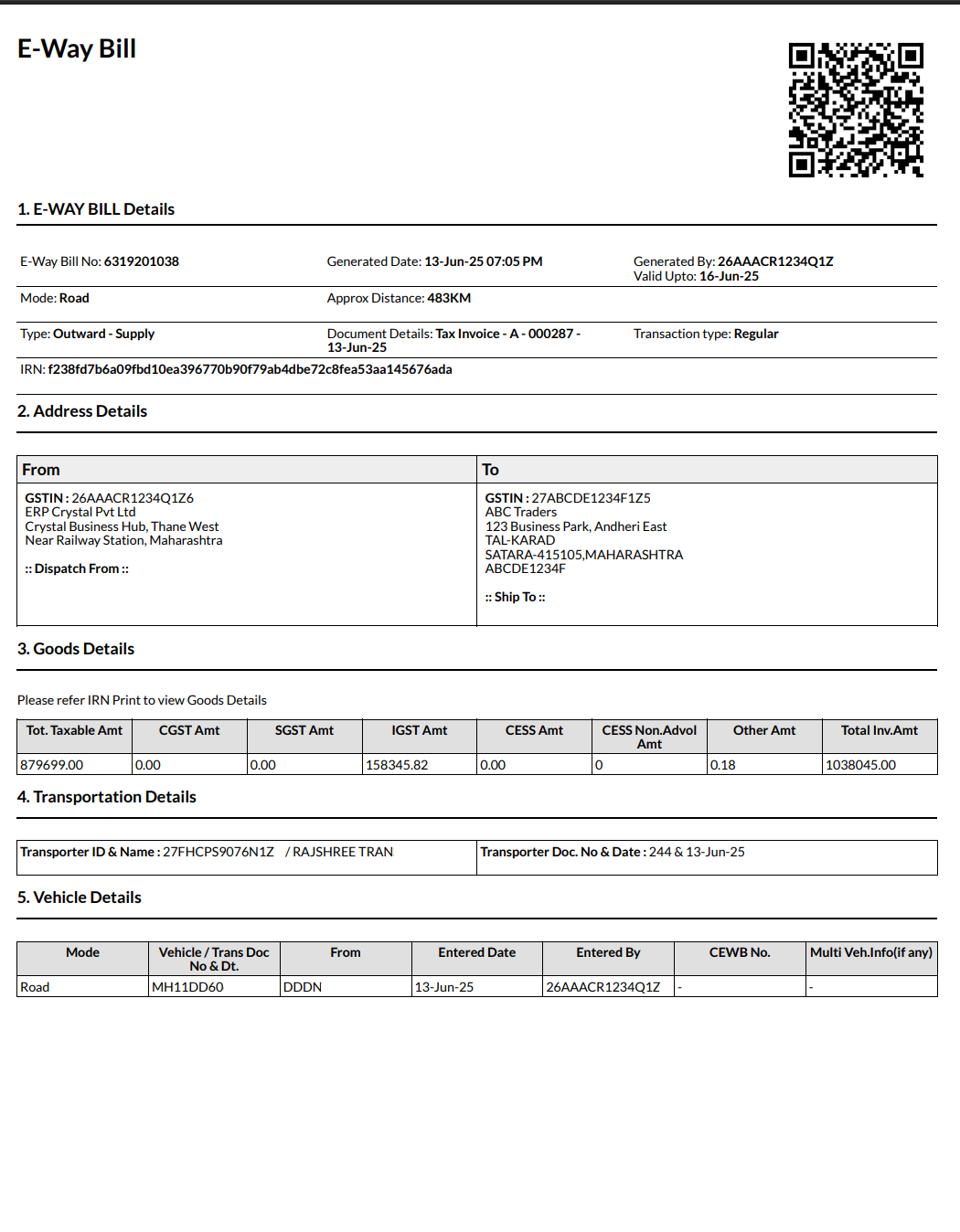
Print E-Way Bill
Transport Document
- From the same Other Operations menu
- Select “Print E-Way Bill”
✅Note: The “Print E-Way Bill” option appears only if “Is Auto E-Way Bill” is set to Yes, as described in Step 1.
Benefits Summary
🎯 One-Click Generation - Both documents created instantly
✅ Auto-Compliance - Validated against GSTIN
🖨️ Ready to Print - No manual uploads needed
🛡️ Error Prevention - Built-in validation checks
⏰ Time Saving - No more manual e-invoice portal work