Visual Match-Off Import Walkthrough
This walkthrough explains how to perform a Visual Match-Off Import to reconcile documents that still appear in the Voucher Download Model or Receivables/Payables Report, even though corresponding payment or receipt entries already exist.
📌 When to Use
Use this process if you see any of these documents still pending in your reports:
- SI – Sales Invoice
- PB – Purchase Bill
- AD – Advance Payment
- OA – On-Account Receipt
This usually happens when payments or receipts are entered but not matched with the right documents. Visual Match-Off lets you link them manually in bulk.
🛠️ How to Do a Visual Match-Off Import
Step 1: Download the Import Model
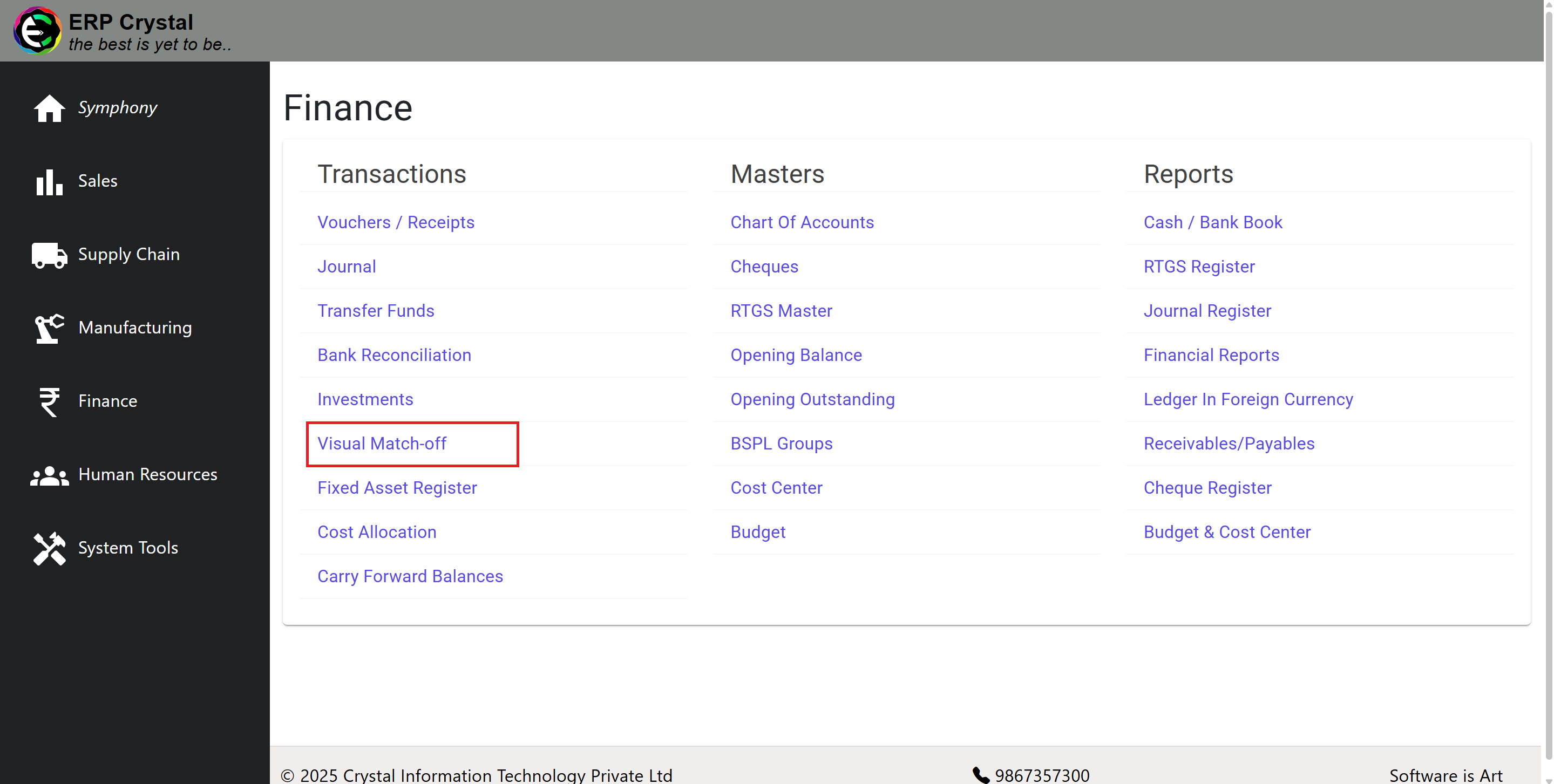
- Go to Finance > Visual Match-Off.
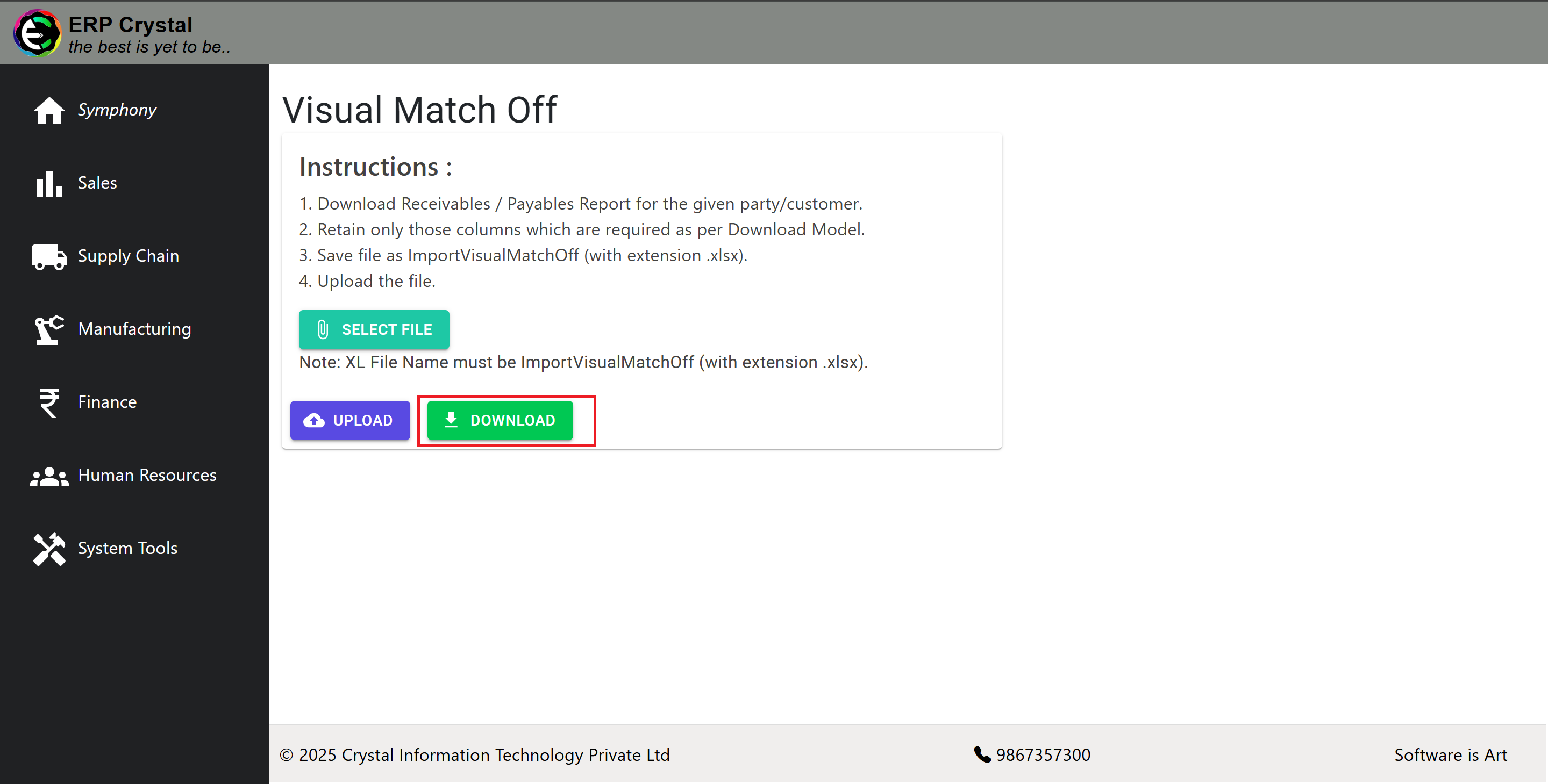
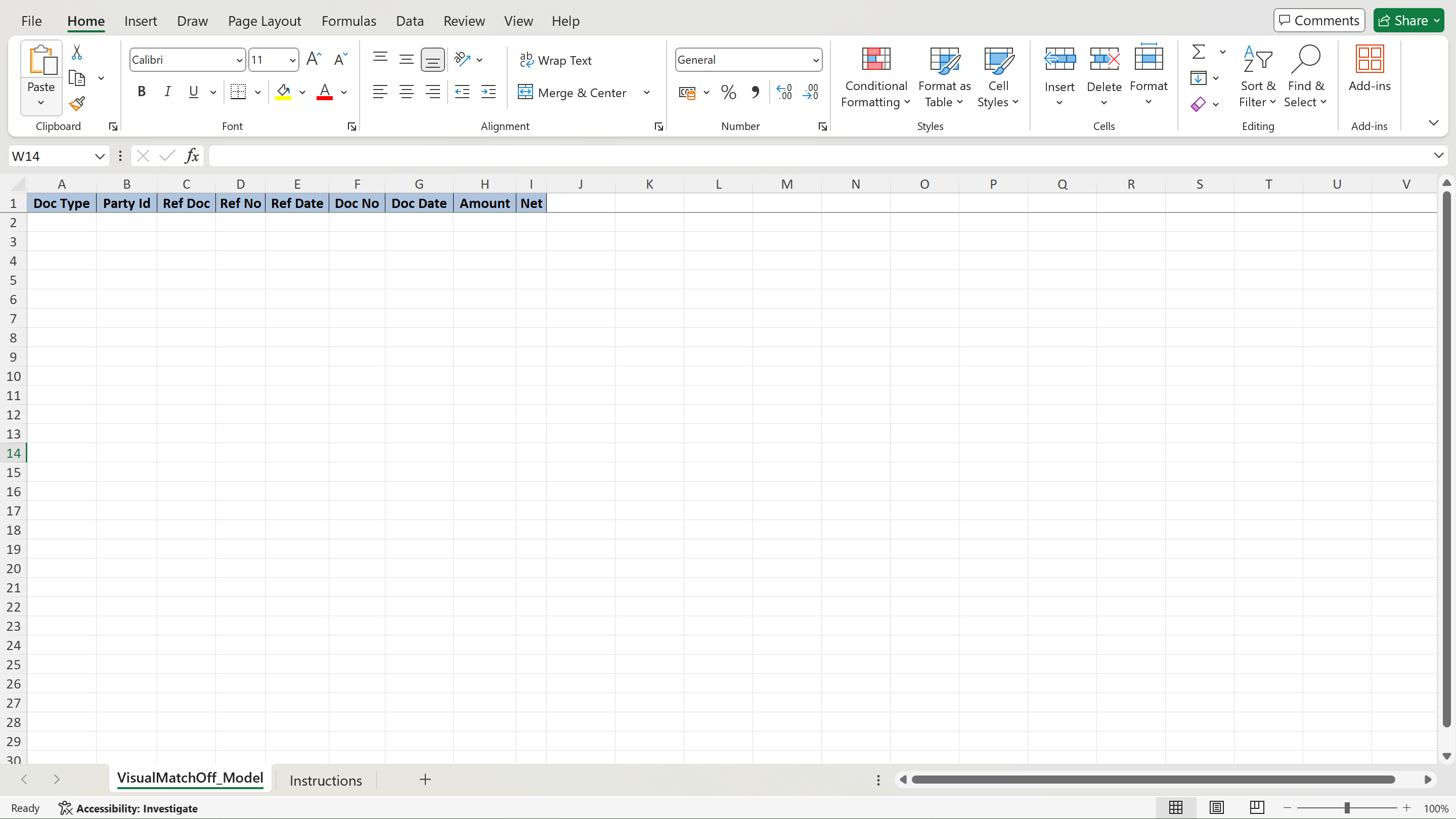
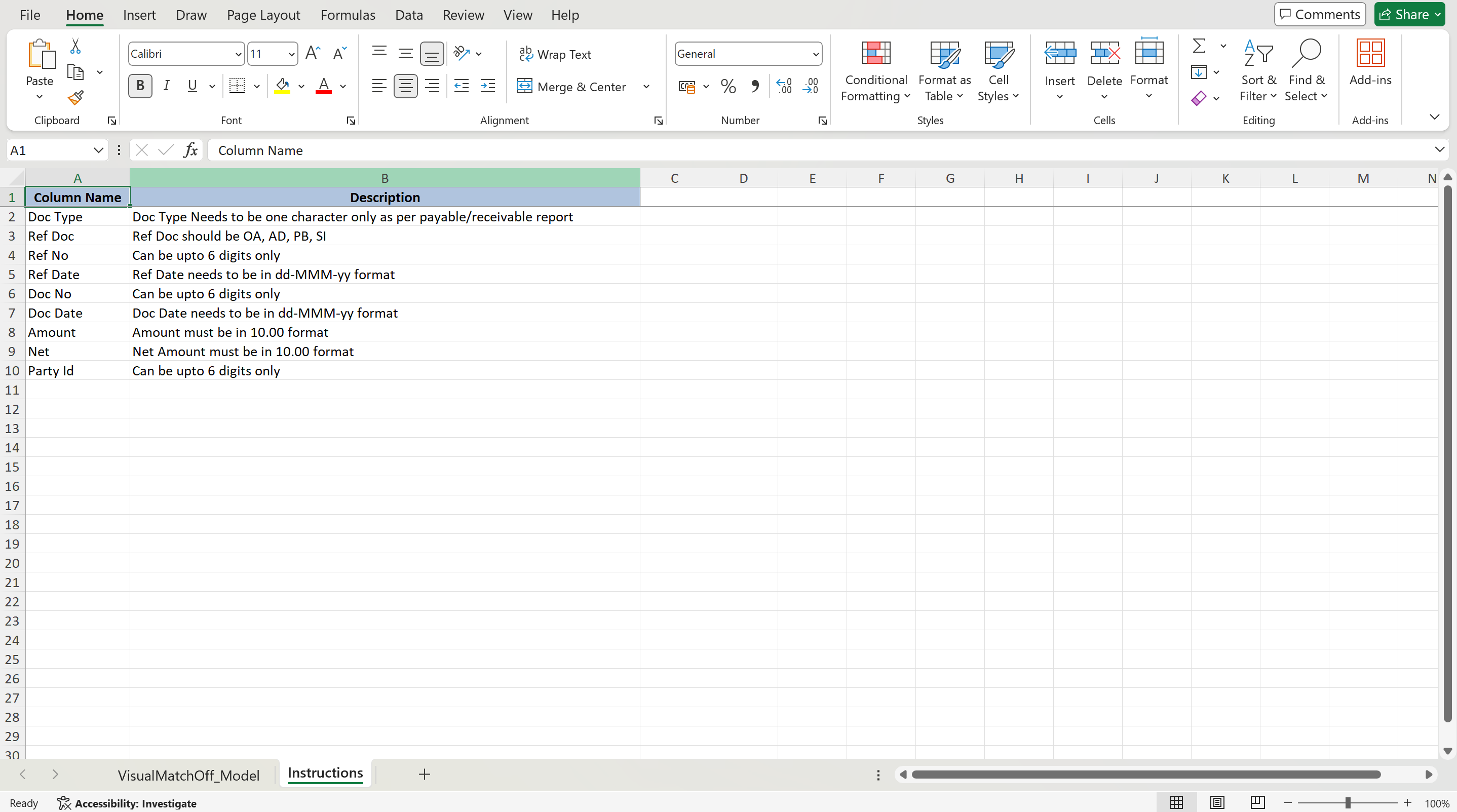
- Click Download to get the Excel template.
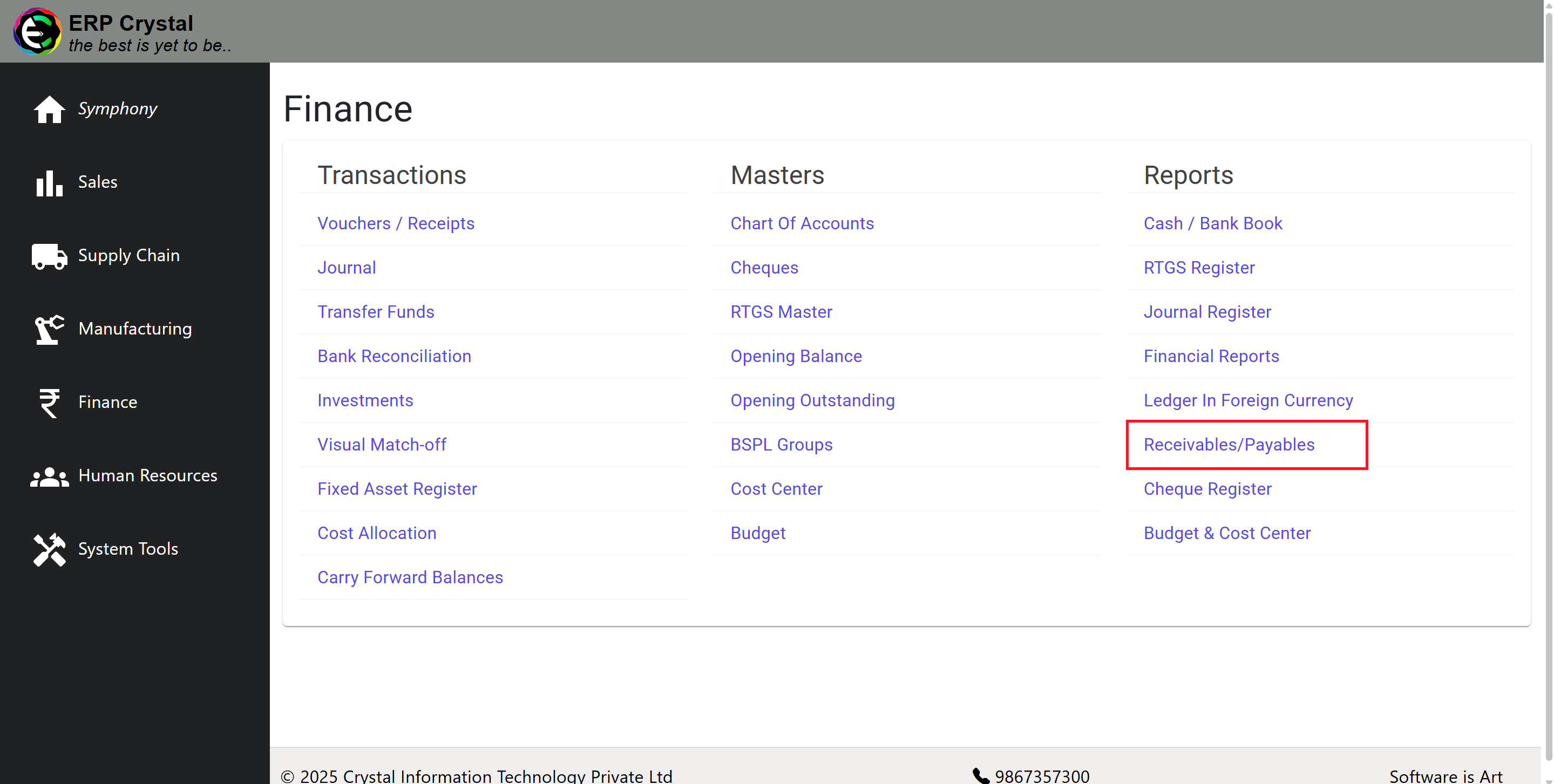
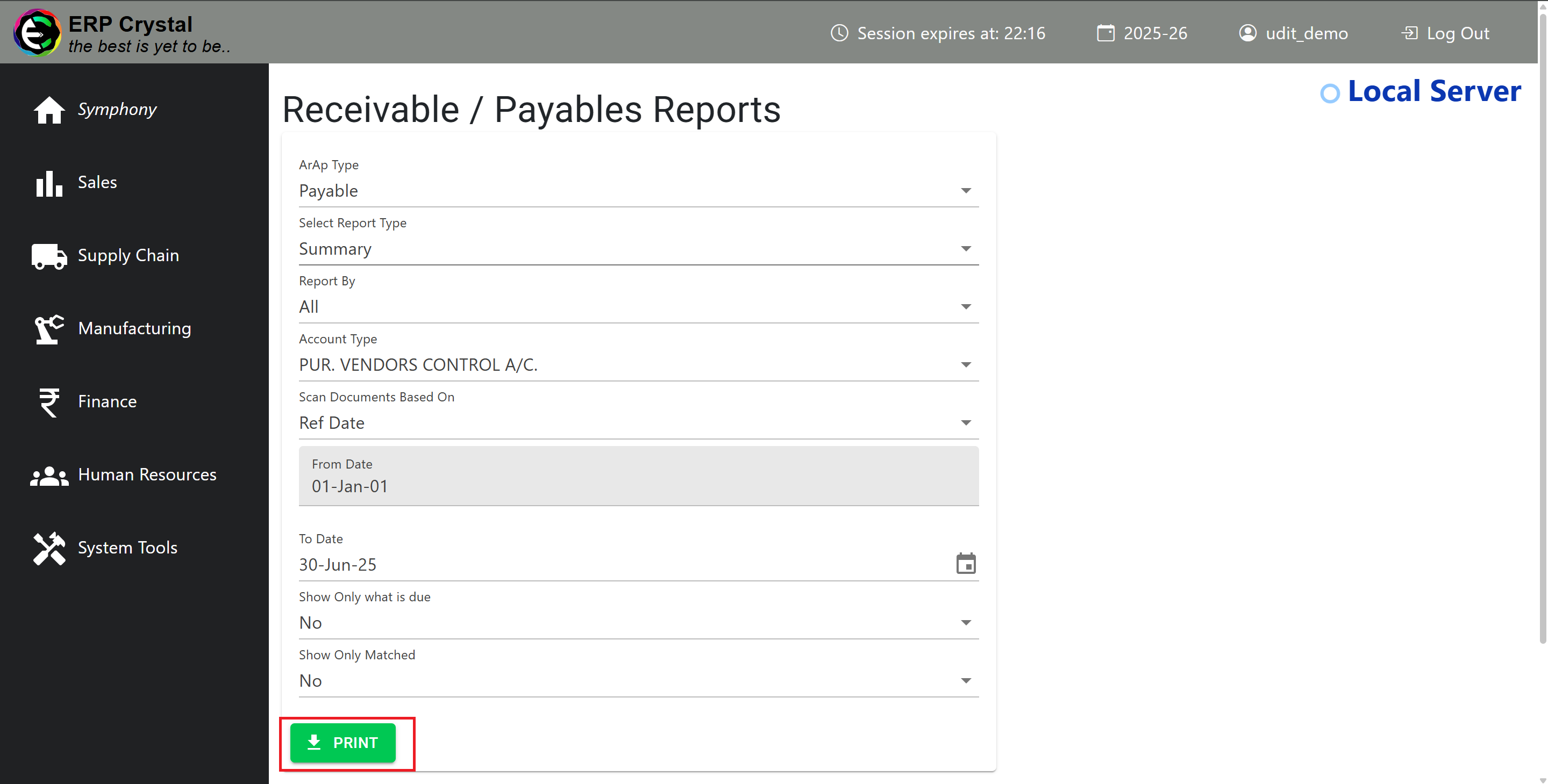
Step 2: Get the Receivables/Payables Report
- Open the Receivables or Payables Report.
- Select the Customer/Supplier you want to reconcile and print the report.
Step 3: Prepare the Import File
- Open the downloaded Excel template and your Receivables or Payables Report side by side.
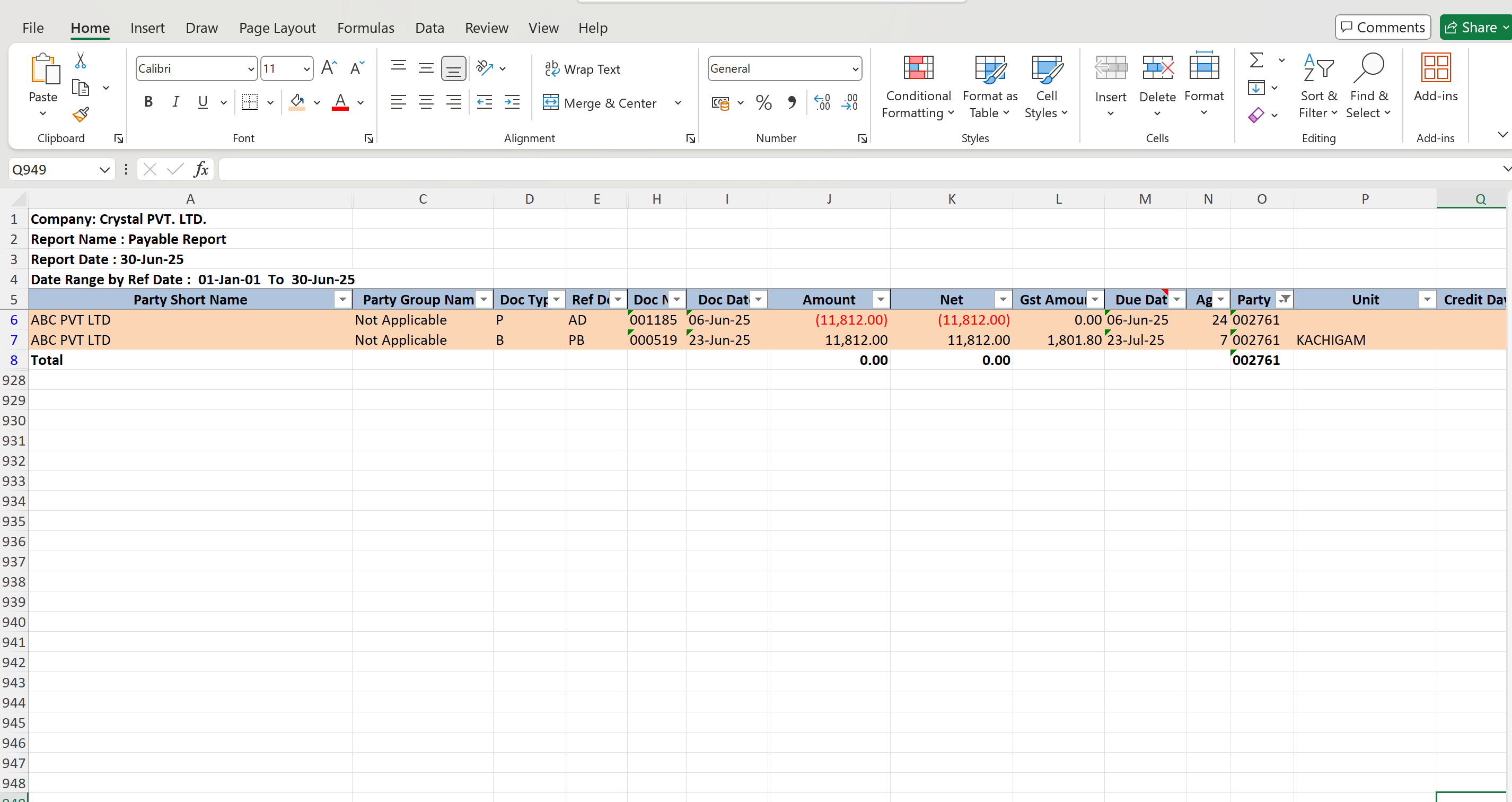
- Find the documents in the report that you want to clear (such as invoices already paid or receipts already matched).
- Ensure all necessary columns (like Ref No, Ref Date) are visible in your report. Unhide columns if needed.
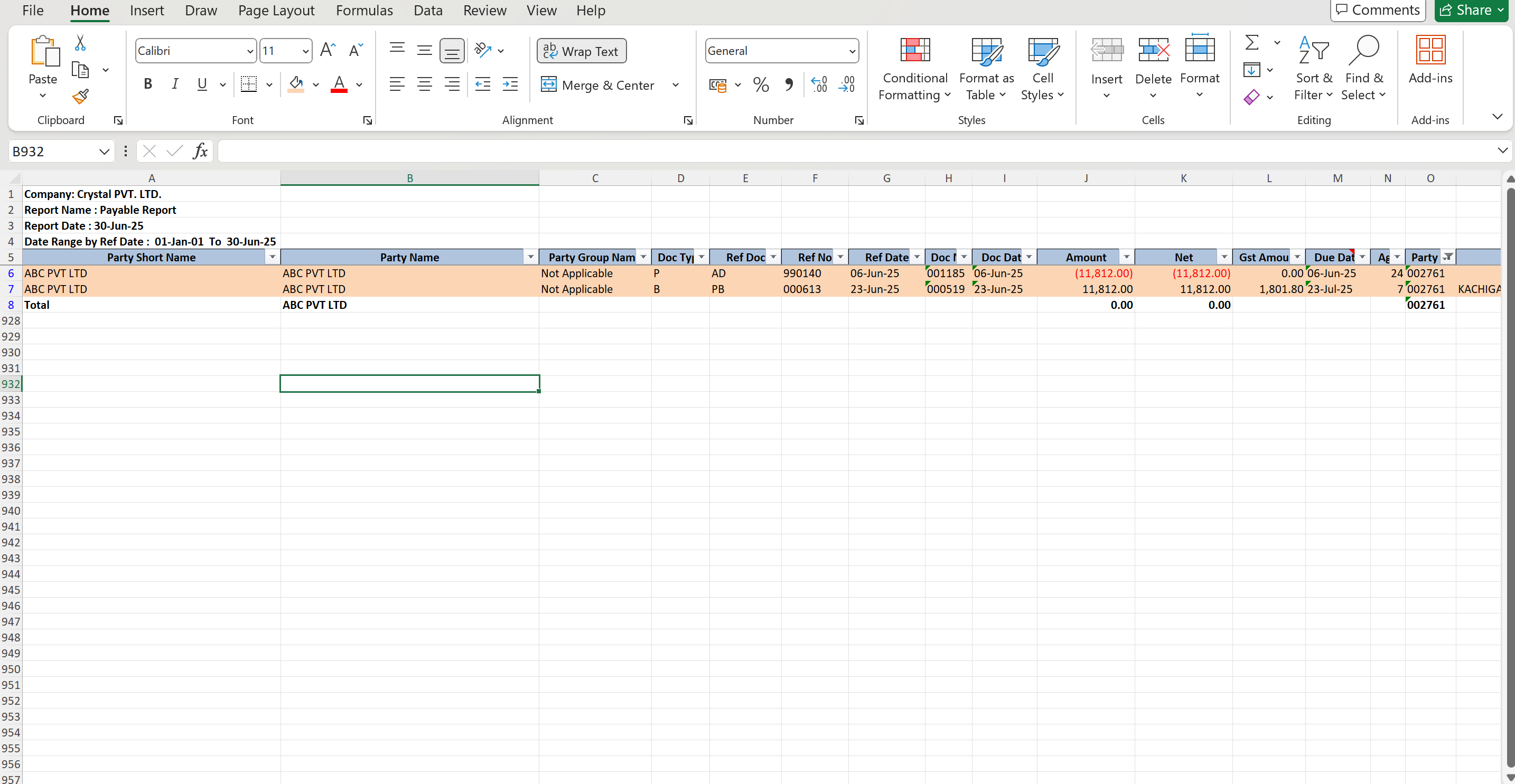
- Copy the relevant details from the report and paste them into the Excel template.
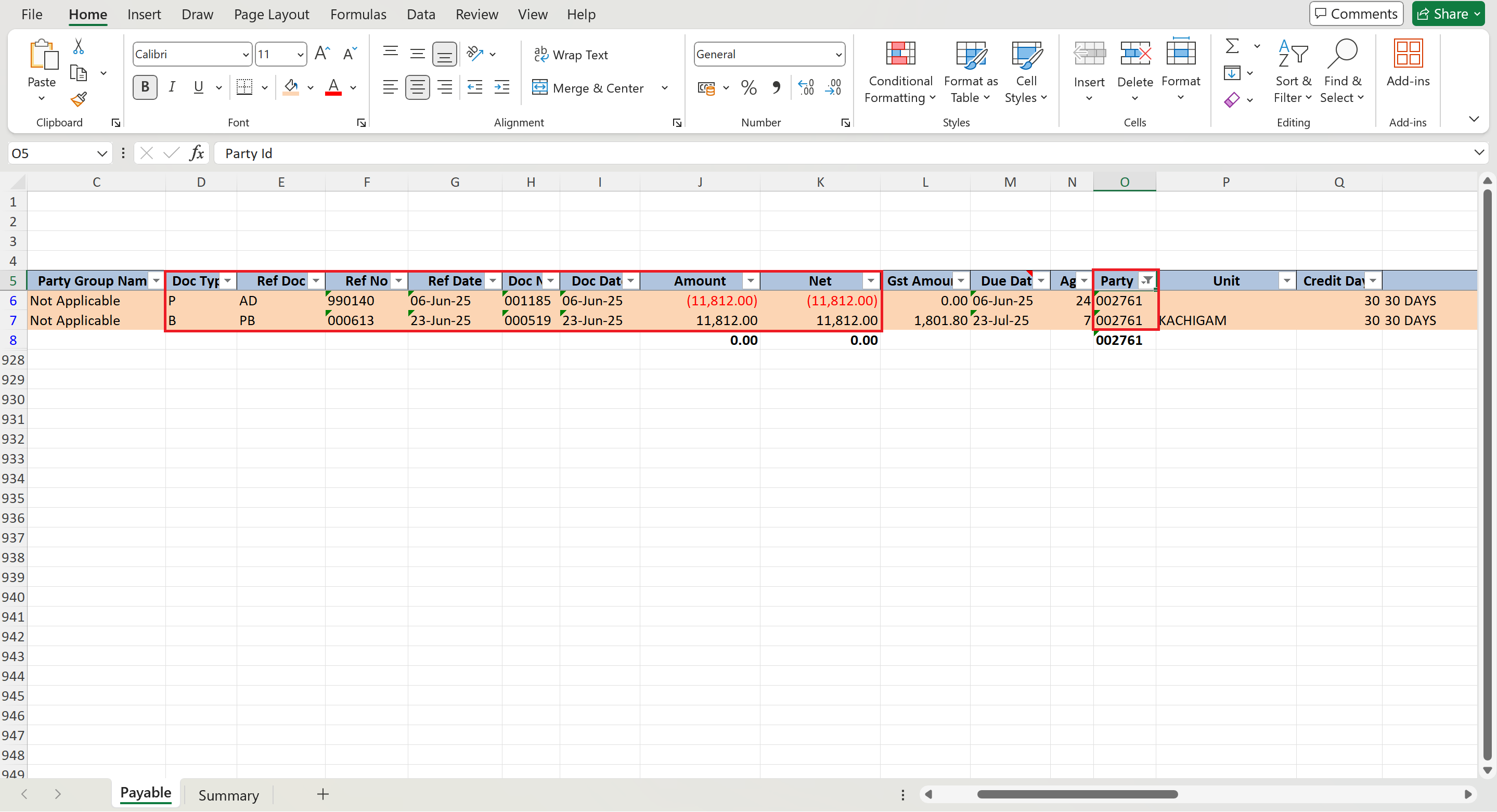
- Your template should now list the entries you want to match off, similar to the example below.
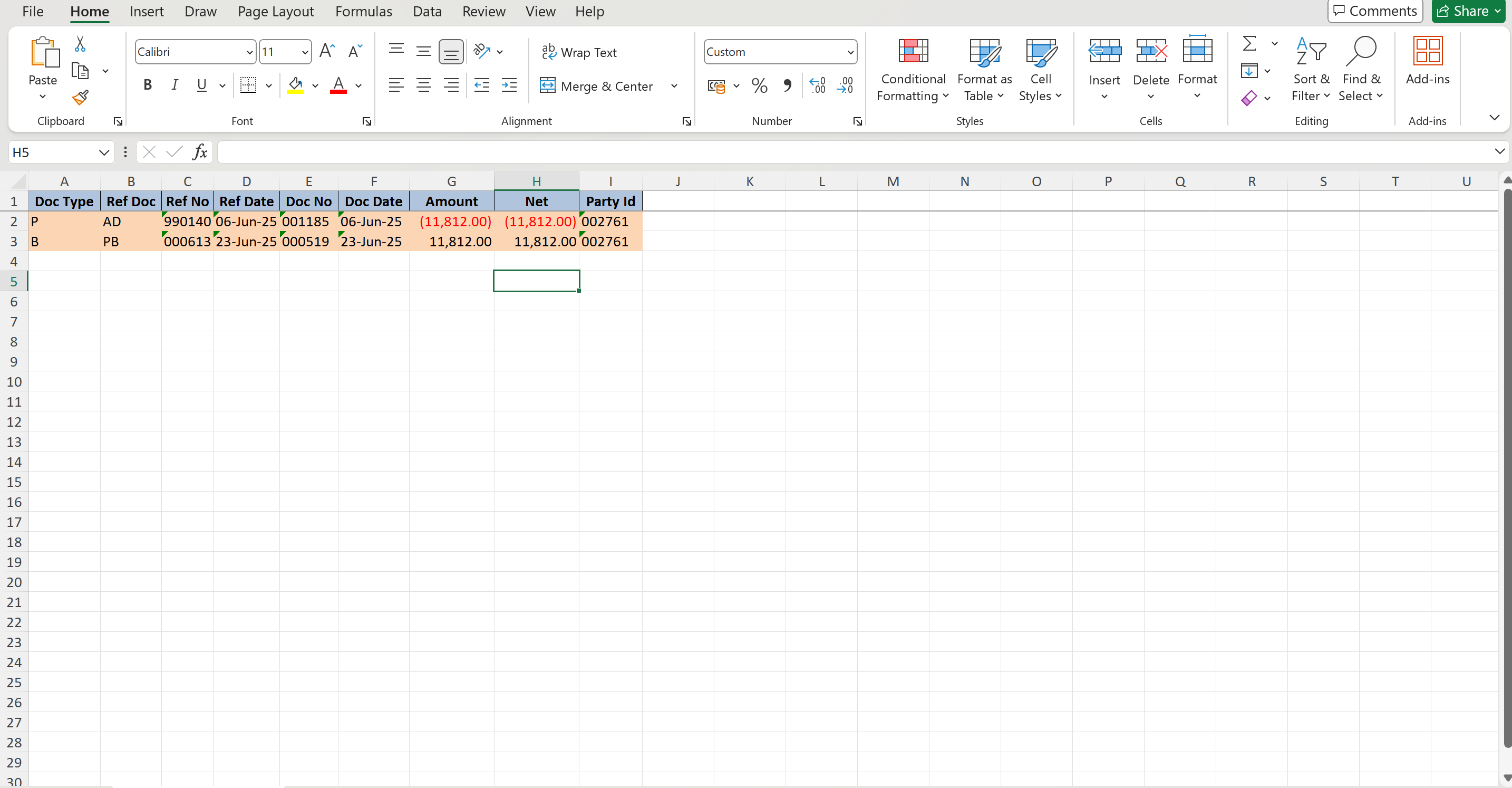
- Save the file as
ImportVisualMatchOff.xlsx. It’s now ready for upload. - After uploading, you will receive a success sheet showing the JV No. and Date for matched entries.
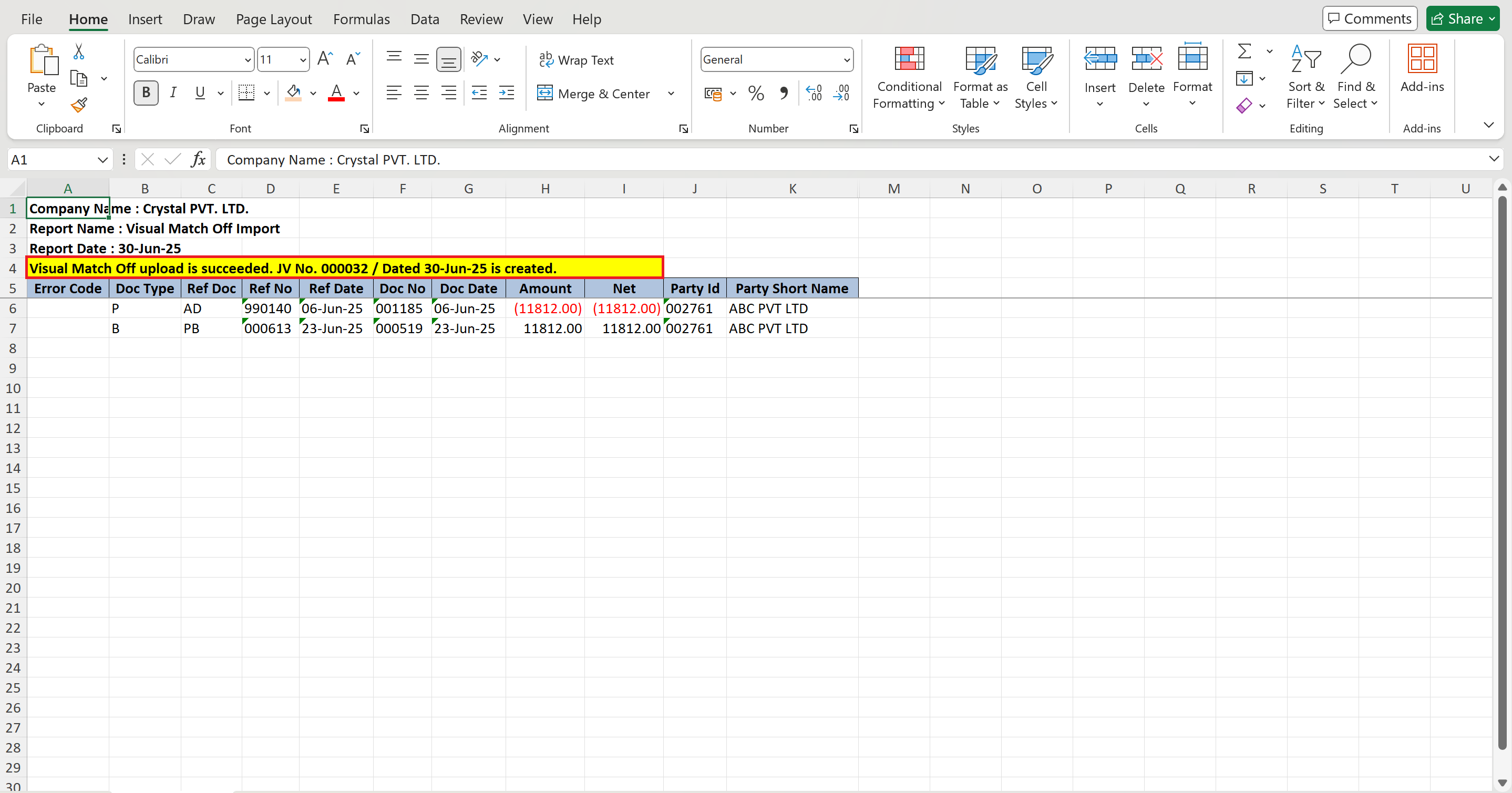
Important:
- The file name must be exactly
ImportVisualMatchOff.xlsx. - The total Net Amount in the file must be 0 (all matched entries should balance).
⚠️When copying details from the Receivables or Payables Report into the template, do not change any values. Copy the information exactly as shown in the report to avoid errors during import.
Step 4: Upload the File
- Go to Visual Match-Off Import.
- Click Choose File and select your
ImportVisualMatchOff.xlsx. - Click Upload.
The system will check your file:
- If there are errors (like wrong document numbers or amounts), an error file will download with details.
- If there are no errors, the system will match the entries and remove them from pending lists.
✅ Result
Matched entries (SI / PB / AD / OA) will be cleared from:
- Receivables/Payables Report
- Voucher Import Model (Download Module)